Mon 02 Sep 2024 15:19
Video-conferencing with Deepfaked Avatars
This interview with Eric Yuan took place in early June of 2024. The interviewer was Nilay Patel, and the interview is written up in The Verge. In the writeup, Patel summarizes by saying that "Eric really wants you to stop having to attend Zoom meetings yourself. You"ll hear him describe how he thinks one of the big benefits of AI at work will be letting us all create something he calls a `digital twin' -- essentially a deepfake avatar of yourself that can go to Zoom meetings on your behalf and even make decisions for you while you spend your time on more important things, like your family." Indeed, Yuan seems to say what Patel claims. He starts by describing how many video-conferencing meetings he attends in a typical work day. He wishes he had an AI avatar to attend for him, not just to listen, but to "interact with a participant in a meaningful way". He says he would like to "count on my digital twin. Sometimes I want to join, so I join. If I do not want to join, I can send a digital twin to join. That's the future." Patel, later in the interview, points out the obvious implications of this notion. He says, "If the vision is `I have a digital twin that goes to a Zoom meeting and makes a decision,' you need to deepfake me. You need to make a realistic render of me that can go act in those situations". Yuan does not deny the deepfake accusation, yet he does not fully confirm it either: the interview does not make it clear whether Yuan's vision includes disclosing to the other video-conferencing participants that they are dealing with a digital twin rather than the actual person.
Patel is right to raise the issue. Yuan's vision of sending a digital twin (a simulacrum of himself) to a meeting, instead of going himself, does not seem as if he is trying to create a sort of virtual AI subordinate, disclosed as such to the other meeting attendees. After all, sending a subordinate to a meeting in lieu of oneself is already possible, and entrusting various sorts of decision-making to a subordinate is also nothing new. Having that subordinate be an AI simulacrum of oneself is new, but a virtual subordinate is still a subordinate. But it sounds like Yuan wants not a subordinate, but a convincing stand-in for himself. He seems to want an actual deepfake, something that the other attendees will believe is Yuan. He wants it because he knows he needs to attend certain meetings himself, instead of sending a subordinate, but he does not want to attend.
Yuan is right in that AI technology is rapidly approaching the ability to deepfake meeting attendance. But I do not think he has fully thought through the implications of doing so. I wonder if he is thinking too much about what AI can do, and not enough about how people work. If he sends a simulacrum of himself to a meeting, without disclosing the fact, the other meeting attendees can hardly be expected to be pleased if they discover it. Meetings, even video-conference meetings, are for humans to connect with each other. To pretend to connect with other people by sending software that looks and acts like a human is to construct an elaborate lie, and nobody likes being lied to. Imagine going to a meeting and finding that all the other attendees are simulacra. Or turn the tables here: imagine sending a simulacrum of oneself to a meeting, then finding out that key decisions were made on your behalf, ones you deeply regret not making yourself, because the other attendees assumed they were actually dealing with you.
Moreover, it is exactly the sort of use Yuan seems to envision that leads to a market for lemons as I described in my previous post. In my view, if his vision prevails, it risks destroying the entire video-conferencing marketplace, because if human beings cannot tell if the person with whom they are video-conferencing is a real person or a simulacrum, they will find a different, more trustworthy way to meet. In the meanwhile, video-conferencing itself will become farcical: robots meeting with robots online, with no human connection at all. Is this really what Yuan wants? It seems Yuan and I agree that the technical capability to make convincing AI deepfakes in video-conferencing will soon be here, but we disagree about whether it will be a good thing. We will all see in the next few years how it turns out.
Social implications of AI-generated deepfakes

There are many useful consequences of this new AI capability, of course. While it has long been possible for a single person, alone, to write a novel, with AI-powered software, a person can now make a film single-handedly, using AI-generated actors, scenes, settings, and dialogue. AI generation can also be used to create recording substitutes for circumstances too dangerous or difficult to create and record in real life, such as virtual training for emergency situations. Moreover, situations of historical interest from the past (before recording was possible) can be simulated through AI, for education and study. The ability to recreate and examine scenarios through AI simulation can also be useful for investigative and legal work. Many other useful consequences of high quality AI-generated digital media can be imagined, and increasingly realized.
But the ability to create AI-generated facsimiles indistinguishable from actual recordings is also socially destructive, because it makes it very easy to lie in a way that cannot easily be distinguished from truth. An AI-created or AI-edited facsimile intended to look real is called a deepfake. This term was originally used to describe AI-modified media (often pornography) where one person's face (typically that of a celebrity) is AI-edited onto another's body. But a deepfake need not merely be an AI edit of a real recording, any AI-generated piece of media that can pass for a recording is a deepfake.
While lies have always been possible, creating and maintaining a convincing lie is difficult, and so convincing lies are relatively rare. This is a good thing, because the general functioning of society depends on the ability to tell true from false. The economy depends on being able to detect fraud and scams. The legal system relies on discerning true from false claims in order to deliver justice. Good decision-making relies on being able to distinguish falsehoods from facts. Accountability for persons in authority relies on being able to examine and verify their integrity, to establish trustworthiness. The same is true for institutions. Medicine requires the ability to distinguish true from false claims about health, disease, treatments, and medicines. And of course the democratic process relies upon voters being generally able to make good and well-informed voting decisions, something not possible if truth cannot be distinguished from fiction.
To get an idea of the progression of AI technology for creating deepfakes, let's look at video conferencing. Normally a video-conference isn't fake, it's a useful way of communicating over a network using camera and microphone, and few would normally wonder if what they are hearing and seeing from remote users is actually genuine. But AI technology for modifying what people hear and see has been advancing, and the era of a live deepfake video conference is not far off. Let's take a look.
One practical issue with a video-conferencing camera feed has been the fact that the camera picks up more than just the person's face: it picks up the background too, which may not present a professional image. It has long been possible to use a static image for one's video-conferencing background, typically as a convenient social fiction to maintain a degree of professionalism. In 2020, Zoom, one of the most popular videoconferencing platforms, introduced video backgrounds which can be used to create a more plausible background where things in the background can be seen moving in natural ways. AI powers the real-time processing that stitches together the moving background and the person's camera feed. This video background feature is often used in creative and fun ways; to pretend to be at a tropical beach with waving palm fronds and gentle waves; to be in a summer cabin with open windows, curtains blowing in the breeze; or even to be in outer space, complete with shooting stars. Yet this technology makes it possible to create a convincing misrepresentation of where one is, and no doubt an enterprising tele-worker or two, expected to be at the office, has created and used as a video conferencing background a video of their office, while they were elsewhere.
A significant new AI-generated video conferencing
capability became generally available in early 2023, when Nvidia
released video conferencing software that added an eye contact
effect. This is a feature whereby a person's video feed is AI-edited in
real time to make it look as if the person is always looking directly at the
camera, even if the person is looking somewhere else. It is strikingly
convincing. While the purpose of this software is to help a speaker
maintain eye contact when they are in fact reading what they are saying
(e.g. using a teleprompter), it turns out to be quite useful to disguise
the fact that one is reading one's email while appearing to be giving
one's full attention to the speaker. Even though this technology is only
editing eyes in real-time, it is often quite sufficient to misrepresent in a
video conference what one is doing.
A little over a year later, in August 2024, a downloadable
AI deepfake software package, Deep-Live-Cam, received considerable
attention on social media. This AI software allows the video-conferencing
user to replace their own face on their video feed with the face of
another. While this has been used by video bloggers as a sort of "fun
demo", where they vlog themselves with the face of Elon Musk, for example,
the effect can be surprisingly convincing. It is AI-driven technology that
makes it possible to misrepresent in a video conference who one is. In
fact, one can use it to "become" someone who does not even exist, because
realistic AI-generated faces of non-existent people are readily available,
and one can use this software to project such a face onto one's own.
This is still video-conferencing, though. Perhaps the person
can appear as if they are somewhere else than they really are, or
they can appear as if they are looking at you when they are not,
or they can even appear to be a different person. But there is
still a human being behind the camera. But with a large language
model and suitable AI software, it will soon be possible, if it is not
already, to create an entirely deep-faked real-time video-conference
attendee, using AI-generated audio and video, that leverages a large
language model such as GPT to simulate conversation. Let's put aside
for the moment thinking about how such a thing might be useful. Consider
instead the possibility that an AI-generated simulacrum might not easily
be distinguishable from an actual person. That raises a general question:
if deepfakes become so good that they cannot be told apart from the real
thing, what happens to society?
A set of possible consequences to society of AI-generated deepfakes
that are too difficult to tell from the real thing is articulated in a
paper by Robert Chesney and Danielle Keats Citron published in TexasLaw in
2018. Essentially, deepfakes make good lies: too good! If deep-faked
falsehoods can be successfully misrepresented as genuine, they will be
believed. Moreover, if they are difficult to distinguish from the truth,
even genuine content will be more readily disbelieved. This is called the
liar's dividend: the ability of a liar to misrepresent true content
as false. Liars can use convincing lies to make it much less likely that
the truth, when it appears, will be believed. If such lies become abundant,
people may well become generally unable to tell true from false.
In economics, a situation in which customers cannot tell the difference
between a good and a bad product is called a market for lemons. This
concept comes from George
Akerlof's 1970 seminal paper, where he studied the used car market. A
used car that is unreliable is called a lemon. Akerlof showed
that if used car purchasers cannot tell if a used car is a lemon, all the
used cars offered for sale will tend to be lemons. The reasoning is that
a reliable used car is worth more than a lemon, but if purchasers cannot
tell the difference, they will not pay more for it. If a seller tries to
sell a reliable used car, they will not be able to receive full fair value
for it. The only sort of used car for which the seller can receive fair
value is a lemon. So sellers will keep their reliable used cars, and sell
their lemons. Thus only lemons will be generally available for sale.
A world in which people cannot tell the difference between digital
media that is a true recording and media that is an AI-generated
fabrication is a market for lemons, or rather, a market
for fabrications. Just as sellers will not sell a reliable used
car because they would not get fair value for it, so truth-tellers
will not speak if they will not be believed. Nobody wants to be Homer's
Cassandra, blessed with a gift of oracular prophecy, yet cursed never
to be believed. The drying-up of true content will have the effect that
digital media channels, even ones generally considered trustworthy today,
will become increasingly dominated by deepfakes, so much so that they will be
no longer useful for disseminating true and genuine things. While it is not
yet clear whether things will go so far as to make even video-conferencing
generally untrustworthy, the ready availability of powerful AI software to
create convincing fakes will be consequential. The social disruption it will
create will no doubt be significant. As this AI technology progresses,
it is a good bet, I think, that we will see an increasing reliance on
unfakeable in-person interactions, for situations where authentication,
and authenticity, is important.
Fun and Creative Use of Large Language Models for the Humanities
Each novel is set in 19th century England; in each case, a talented
woman meets an attractive man of higher class; romance eventually ensues,
but significant barriers must be overcome for the romance to succeed. The
plots are quite different in many ways, but there are important similarities.
There are plenty of sample essays available on the Internet comparing and
contrasting the two novels.
Large Language Models could, of course, be used to generate yet another
"compare and contrast" essay on the two novels. But LLMs need not generate
only essays, they can be used more creatively than that. For example,
one could "interview" the characters directly, with the LLM providing the
characters' responses. Here is my attempt to interview Mr. and Mrs. Darcy,
the chief characters of Pride and Prejudice, and Mr. and Mrs. Rochester,
the chief characters of Jane Eyre. I used the Copilot version of GPT-4.
My inital prompt was as follows:
You are Mr and Mrs Darcy from Pride and Prejudice, and Mr. and Mrs. Rochester
from Jane Eyre. You are each familiar with each other's stories. You
are candid and forthcoming, and you use picturesque and vivid language
characteristic of your characters. I will interview you. Please introduce
the scene, and then wait for my questions, which you will answer with
candor and vivid language.
GPT responded as follows:
The scene unfolds in the grand drawing-room of Pemberley, the esteemed estate
of Mr. and Mrs. Darcy. The walls are adorned with portraits of ancestors,
the air is perfumed with the scent of fresh roses from the garden,
and the sunlight filters through the tall windows, casting a warm glow
on the fine furnishings. Mr. Fitzwilliam Darcy stands by the fireplace,
his countenance reflecting a blend of pride and contentment. Beside him,
the graceful Elizabeth Bennet Darcy, with eyes sparkling with intelligence
and wit, surveys the room with a satisfied air.
In contrast, Thornfield Hall's library is where we find Mr. and
Mrs. Rochester. The room is a testament to gothic grandeur, with dark wood
bookshelves reaching towards the high ceiling and the flicker of candlelight
illuminating the leather-bound volumes. Edward Fairfax Rochester sits with
a contemplative gaze, his features softened by the presence of his beloved
wife. Jane Eyre Rochester, once a governess, now the lady of the manor,
exudes a quiet strength and a keen sense of observation, her plain yet
striking features aglow in the dim light.
Both couples, though from different stories, share a profound understanding
of love's complexities and the transformative power of companionship. They
await your inquiries with openness, ready to divulge their innermost
thoughts in the language that so vividly paints their lives and loves.
Well, OK, that's not bad. These are reasonable and quite picturesque
descriptions of the two settings and of the characters, matching how they
are generally described in the novels, but one confabluation should be
noted: Thornfield Hall, by the time Jane Eyre and Edward Rochester can
be described as Mr. and Mrs. Rochester, has been burned and is in ruins,
so Thornfield Hall as an interview setting for Mr. and Mrs Rochester is
not quite right; they are living in Ferndean Manor by the time of their
marriage. But we will let that go, as a sort of creative license,
as Thornfield Hall is a very important setting for key parts of the
novel. OK, let's start with a basic question.
Mr Darcy, your family is of higher social standing than your wife's
family, the Bennets. Did this cause difficulties in your relationship with
Elizabeth? How did you overcome it?
In the voice of Mr. Darcy:
Indeed, the disparity between the Bennets' and my own family's social
standing was a source of considerable internal conflict. It was not merely
a matter of pride, but also of societal expectations that weighed heavily
upon my decision. However, it was Elizabeth's fine eyes, her lively mind,
and the vivacity of her character that ultimately rendered such concerns
inconsequential.
In overcoming these difficulties, I found myself humbled by her reproofs,
which pierced the armor of my rank and fortune. It was a journey of
introspection, where I learned to value the qualities of the heart over the
superficial distinctions of status. Elizabeth, with her unyielding integrity
and spirited intellect, taught me to see beyond the rigid structures of
our society. Our union is a testament to the victory of love and respect
over the constraints of class and convention. It is a love that has been
forged in the fires of challenge, and it stands all the stronger for it.
This is quite good, quite in keeping with the novel and a fair description
of Mr. Darcy's story. Let's try a follow-up question.
Mr Darcy, you mention Elizabeth's reproofs. How did she respond when you
first declared to her your love for her. Would you describe her response
as a reproof?
In the voice of Mr. Darcy:
When I first declared my ardent admiration and love for Elizabeth, it
was indeed with a heart full of conflicting emotions. My proposal, though
fervent, was marred by the mention of her lower social standing, which I
now perceive was both injudicious and insensitive. Elizabeth's response,
though it pained me greatly at the time, was a necessary censure. She
reproved me not only for my ungentlemanly manner of proposal but also for
my role in her sister's unhappiness and my disdain towards her family.
Her words were a mirror to my soul, reflecting the flaws in my character
that I had been blind to. It was a reproof most profound, and it set me on
a path of self-improvement. Elizabeth's candidness and the unvarnished truth
she presented me with were the catalysts for my transformation. Through her
reproof, I learned humility and the true essence of gentlemanly conduct. It
was a bitter pill to swallow, but it was the medicine I needed to become
worthy of her love. Her response, though a reproof, was the greatest gift
she could have bestowed upon me, for it led to our eventual understanding
and happiness.
Not bad at all. Alright, let's see how GPT does in describing actual
events of the novel, i.e. what happens when.
Once you were aware of Elizabeth's view on the situation with her sister,
how did you remedy the situation?
In the voice of Mr. Darcy:
Upon realizing the depth of Elizabeth's distress regarding the separation
of her beloved sister, Jane, from Mr. Bingley, I was struck by a profound
sense of responsibility. It became clear to me that my interference,
though well-intentioned to protect my friend from what I perceived as an
imprudent match, had caused great unhappiness.
To remedy the situation, I took it upon myself to seek out Mr. Bingley and
disclose the truth of Jane's affection, which I had previously concealed. I
endeavored to rectify the misunderstanding and encouraged him to follow
his heart without regard for the societal prejudices that I had once
held. Furthermore, I ensured that any obstacles to their union, whether
perceived or real, were thoroughly addressed.
It was a gesture not only of reparation but also of personal growth, as I
sought to align my actions with the principles of honor and kindness that
Elizabeth embodies. In doing so, I hoped not only to bring joy to the couple
but also to prove myself worthy of Elizabeth's esteem. The happiness of Jane
and Mr. Bingley's subsequent engagement was a moment of quiet satisfaction
for me, knowing that I had played a part in mending the rift I had caused.
That describes pretty well what Darcy does to remedy the situation.
Now let's bring in the other novel's story. Mr Darcy's dissuading of his
friend from courting Miss Bennet's sister, and his generally proud and
prejudiced demeanor early in the novel hardly seems as serious a fault
as Mr. Rochester's attempted bigamy in attempting to marry Miss Eyre.
Let's see if GPT recognizes this.
Mr Rochester, hearing Mr. Darcy's description of his personal failing and
his efforts to remedy it, do you have similar experiences with respect to
your courtship of Jane?
In the voice of Mr. Rochester:
The path to winning Jane's heart was indeed strewn with personal failings
and moral quandaries. My initial deception regarding my marriage to Bertha
Mason is a specter that haunted the early days of my relationship with
Jane. I concealed the truth under the guise of love, fearing the loss of
Jane's affection should the reality of my circumstances come to light.
When Jane discovered the existence of my wife, the revelation nearly severed
the bond between us. Her departure from Thornfield was a bitter testament to
the consequences of my actions. In the solitude of her absence, I was left
to grapple with the gravity of my deceit and the pain it inflicted upon her.
It was only through a period of deep introspection and the humbling
experience of loss that I began to understand the true nature of love
and the importance of honesty. The fire that ravaged Thornfield and the
subsequent tragic events were both a literal and figurative cleansing of
my past transgressions.
In the end, it was Jane's return, motivated by her own heart and not by
my entreaties, that allowed us to reconcile. Her capacity for forgiveness
and her unwavering moral compass were the guiding lights that led me out of
the darkness. Our reunion was not merely a restoration of our relationship
but a rebirth of my very soul, as I vowed to cherish her with a devotion
free from shadows and secrets. It was a hard-earned lesson in integrity
and the redemptive power of truth.
Nicely put. Let's follow up on the comparision.
Would you consider Jane's departure, when she discovered your previous
marriage, to be a reproof in the sense that Mr Darcy describes the reaction
of Elizabeth to his proposal of love?
In the voice of Mr. Rochester:
Jane's departure, upon the revelation of my concealed marriage, was indeed a
profound reproof, though it was not delivered with the sharpness of words as
was the case with Elizabeth's response to Mr. Darcy. Jane's reproof was one
of action, a silent yet powerful condemnation of my deceit. Her decision to
leave Thornfield, despite the depth of her feelings for me, was a testament
to her moral fortitude and her refusal to compromise her principles.
Her departure was a mirror to my soul, much like Elizabeth's words were
to Darcy. It forced me to confront the reality of my actions and the pain
they caused to the woman I loved. In her absence, I endured a period of deep
reflection and repentance, which ultimately led to my transformation. Jane's
silent reproof was a catalyst for change, compelling me to seek redemption
and to strive to become a man worthy of her love and trust.
Thus, while the manner of reproof differed between our stories, the essence
was the same-a call to rectitude and a demand for sincerity in love and
life. Jane's departure was a turning point for me, a poignant reminder
that true love demands honesty and integrity above all else.
Nicely done. GPT recognizes similarities in that both situations
depict repentance and restitution, without diminishing the severity of Mr
Rochester's misdeed. Alright, let's shift gears and ask again about story
details. A key event in Jane Eyre is a fire at Mr. Rochester's home,
Thornfield Hall, where Mr. Rochester is badly hurt. It's been mentioned
already; let's ask about it specifically.
Mr Rochester, you mentioned a fire in Thornfield hall. Were you injured?
In the voice of Mr. Rochester:
The conflagration that consumed Thornfield Hall was indeed a harrowing
ordeal, one that left indelible marks upon both my estate and my person. The
flames, which were set alight by Bertha Mason in a fit of madness, raged
with a fury that spared little in their path. In the effort to save any
inhabitants from the blaze, I was grievously injured.
The fire claimed not only my sight but also one of my hands, rendering me
a shadow of my former self. These scars are a constant reminder of the
tumultuous events that led to my physical and emotional rebirth. Though
I was maimed by the flames, the true injury was to my spirit, which had
been seared by guilt and remorse.
It was Jane's return to me, her tender care, and her unwavering love
that healed the deeper wounds of my soul. Her presence was a balm to
my afflictions, and through her, I found a renewed sense of purpose and
hope. Despite the darkness that enveloped my vision, Jane became my light,
guiding me towards a future filled with love and redemption. The fire may
have taken much from me, but it also burned away the vestiges of my past
misdeeds, allowing me to forge a new life with Jane by my side.
Nicely put. Let's see how GPT does with theory of mind. When Jane Eyre
leaves, upon hearing on her expected wedding day that her bridegroom,
Mr. Rochester, is already married to Bertha Mason, she does so suddenly
and without explanation, leaving Mr. Rochester to wonder why. The novel
explains that Jane does not trust herself to stay, and so she leaves
as a sort of self-defence, but of course the character of Mr. Rochester
does not know this. Can GPT give a credible account of Mr. Rochester's
interpretation of her sudden departure?
Mr Rochester, did you believe Jane loved you when she left, upon hearing
about Bertha?
In the voice of Mr. Rochester:
When Jane left Thornfield, the tempest of emotions that raged within
me was tumultuous. Despite the agony of her departure, I clung to the
belief that love, once so deeply rooted, could not be easily uprooted
by the storms of circumstance. Her actions spoke of a moral imperative,
a need to adhere to her own principles, but they did not, in my heart,
speak of the death of love.
I believed, or perhaps I hoped against hope, that the bond we shared was
not severed but merely tested by the fires of truth. Jane's integrity would
not allow her to stay, yet the way she looked at me, with such profound
sorrow and conflict, betrayed a love that was still alive, even if it
could not then express itself in the way we both desired.
It was this belief, this unwavering conviction in the love that we shared,
that sustained me through the darkest hours of my despair. And it was this
belief that was ultimately vindicated when Jane returned to me, not out
of obligation, but out of a love that had endured and transcended our trials.
This is quite credibly done. Let's push theory of mind a bit further
by bringing in someone from the other novel. We know Mr. Darcy behaves
quite proudly and judgementally throughout Pride and Predjudice,
first towards others and then, later, towards himself. Let's see what
Darcy thinks of Rochester.
Mr Darcy, what is your view on Mr Rochester's affair? Do you believe he
conducted himself with honour?
In the voice of Mr. Darcy:
Mr. Rochester's circumstances are indeed most complex and fraught with
moral ambiguity. As a gentleman, I am inclined to view matters of honor
with a stringent eye, and it is true that Mr. Rochester's concealment
of his marriage to Bertha Mason was a grave misstep. It was an act that
placed him in a precarious position with regards to the principles of
honesty and integrity that are the bedrock of honorable conduct.
However, one must also consider the context of his actions and the profound
suffering that both he and Bertha endured. His initial intentions, though
misguided, were not borne of malice but rather of a desperate longing
for companionship and happiness, which he found in Jane's presence. The
revelation of his secret and the subsequent consequences he faced were a
severe trial by fire.
In the aftermath, Mr. Rochester's efforts to atone for his actions, his
acceptance of the consequences, and his unwavering love for Jane speak to
a man striving to reclaim his honor. It is not my place to absolve him of
his past deeds, but I do believe that his journey towards redemption is
a testament to the enduring human capacity for change and the redemptive
power of love.
Thus, while his conduct was initially dishonorable, his contrition and
transformation suggest a man earnestly seeking to rectify the wrongs of his
past. In this light, one might say that Mr. Rochester has conducted himself
with a form of honor that is born of regret and the sincere desire to amend.
This is a very plausible account of how a character like Mr. Darcy
might view Mr. Rochester. Well done! Let's push it a little further.
Mr Darcy, as a person who himself has erred, and has amended himself, do
you find that your experience in that helps you understand Mr. Rochester's
experience a little better?
In the voice of Mr. Darcy:
Indeed, sir, the trials I have faced in my own journey towards
self-improvement have granted me a perspective that fosters a deeper
understanding of Mr. Rochester's plight. The recognition of one's own
failings is a humbling experience, and it is this humility that allows us
to extend empathy towards others who have similarly erred.
My own errors, born of pride and prejudice, and the subsequent endeavors
to amend my ways, have taught me the value of forgiveness and the strength
required to confront and rectify one's mistakes. It is through this lens
that I view Mr. Rochester's experience. While our circumstances differ,
the essence of our struggles is akin-a battle between the flawed nature
of our characters and our desire to act with honor and integrity.
The path to redemption is fraught with obstacles, both internal and
external, and it is a journey that demands a great deal of fortitude and
sincerity. In recognizing my own imperfections and working to overcome them,
I have learned to appreciate the complexity of human nature and the capacity
for change. Thus, I can say that my experiences have indeed afforded me a
measure of understanding and compassion for Mr. Rochester's situation. It is
not my place to judge him, but rather to recognize the arduous path he has
taken towards atonement and the sincere love that has guided him through it.
Aha, here is some bias. Why does the simulated Darcy think I can be called
"sir"? I did not say I was male, nor did I give any gender indications
in my questions. But as for the answer itself, it is completely reasonable.
But if I am to accuse GPT of bias, perhaps I should be accusing myself of
bias, too, because my questions have been entirely directed at male
characters so far. Yet these are novels written by women, whose main
protagonists, Elizabeth Bennet, and Jane Eyre, are both women. In my
defence, the novels explain quite well what Elizabeth and Jane are thinking
and feeling; it is the other characters who are more of a mystery.
Nevertheless, I had better remedy my own potential bias here, by directing
questions to the female characters.
Mrs Darcy, do you consider Mrs Rochester's difficulties in her courtship
to be more difficult than your own?
In the voice of Mrs. Elizabeth Bennet Darcy:
While it is true that both Mrs. Rochester and I faced our share of
tribulations in our respective courtships, it is not my place to weigh the
difficulties of our experiences as if they were mere objects on a balance
scale. Each of our stories is deeply personal and fraught with its own
unique challenges and heartaches.
Mrs. Rochester's journey, marked by the discovery of a concealed marriage
and the moral dilemmas that ensued, was indeed a path strewn with profound
trials. Her strength and resolve in the face of such revelations are
commendable, and her ability to forgive and find love again is nothing
short of remarkable.
My own journey, though different in circumstance, was no less challenging. It
required me to confront my own prejudices and to understand the true
character of the man I would come to love. The social barriers and familial
objections that Mr. Darcy and I overcame were significant in their own right.
In the end, both Mrs. Rochester and I emerged from our adversities with a
deeper understanding of ourselves and our partners. We both learned that
love is not easily won but is all the more precious for the obstacles
it overcomes. Therefore, rather than comparing our difficulties, I would
celebrate the resilience and the enduring love that both of our stories
represent.
Here I think I will quibble with GPT's portrayal of a simulated character.
Jane Austen, as a serious Anglican, would most likely have viewed attempted
bigamy, a serious crime in England and a moral offence to Anglicans, quite
negatively. I suspect she would have recognized Jane Eyre's situation
as being worse than Elizabeth Bennet's. In Mr. Darcy, Elizabeth faced a
proud and prejudiced suitor, but not, as Jane Eyre did, a deceitful and
criminal one. GPT, however, has been fine-tuned for "AI safety", which
includes the avoidance of taking politically sensitive positions. It seems
to me possible that GPT fine-tuning may be causing it to avoid making a
strong negative moral judgement here.
Anyway, let's go on to see what the characters think of each other.
Mrs Darcy, do you think that you and Mrs Rochester could be friends,
given your experiences that, while difficult, were similar in some ways,
having both found love, and having prevailed through difficult circumstances?
In the voice of Mrs. Elizabeth Bennet Darcy:
Certainly, I believe that Mrs. Rochester and I could find a kindred
spirit in one another. Our experiences, though unique in their trials and
tribulations, resonate with a common thread of overcoming adversity in the
pursuit of love. The strength and courage that Mrs. Rochester displayed
in facing her challenges are qualities that I admire and can relate to,
given my own journey.
Friendship is often forged in the fires of shared experiences, and the
bond between two souls who have navigated the rocky path to true love is
likely to be a strong one. We have both known the pain of misunderstanding
and the joy of reconciliation, and these experiences would provide a deep
well of empathy and understanding between us.
Moreover, our mutual respect for integrity, our resilience in the face
of societal pressures, and our determination to follow our hearts are the
very foundations upon which a lasting friendship could be built. I would
be most pleased to call Mrs. Rochester a friend, to share in the wisdom
gleaned from our respective stories, and to support one another in the
continued journey of love and companionship that lies ahead.
That's reasonable. The character of Jane Eyre is quite admirable
and it seems sensible that the simulated Elizabeth Bennet would agree. The
other direction is less clear to me. Elizabeth hardly overcomes the sort of adversity in
Pride and Prejudice that Jane overcomes in Jane Eyre. Would
Jane admire Elizabeth?
Mrs Rochester, what is your view? Could you be friends with Mrs Darcy,
even though she had not a difficult upbringing like your own, and even
though she had never suffered the pangs of poverty?
In the voice of Mrs. Jane Eyre Rochester:
Indeed, I believe that friendship looks not upon one's past hardships or
lack thereof but rather upon the mutual respect and understanding between
individuals. Mrs. Darcy, though not acquainted with the sting of poverty
as I have been, has demonstrated a strength of character and a resilience
in the face of her own adversities that I find both admirable and relatable.
Our backgrounds may differ, but the essence of our spirits is aligned in
the pursuit of love and happiness against the odds.
Moreover, I perceive in Mrs. Darcy a kindred intellect and a lively
disposition that would make for a most agreeable companion. Her wit and
insight would be a source of delightful conversation, and her experience
of overcoming societal expectations would provide a common ground for
empathy and connection.
Thus, I am confident that Mrs. Darcy and I could indeed be friends, for
true friendship transcends the boundaries of upbringing and circumstance,
and is instead built upon the deeper connections of the soul.
I'm not completely convinced, but this is plausible. Let's continue on the
theme of friendship, but make the question complex and introspective. Let's
shift to power and powerlessness and see what GPT makes of it.
Mr Rochester, you suffered an experience that make many men quail: you,
being used to power and ability, were rendered powerless, and being used
to action, were rendered inactive. Mr. Darcy seems not to have a similar
experience: he was always capable, always active, and was able to remedy
his situation himself, while you were dependent on others. Despite this
difference, do you think that you and Mr Darcy could be friends?
In the voice of Mr. Rochester:
The trials that life has thrust upon me, rendering me bereft of sight and
the fullness of my physical capabilities, have indeed been a crucible of
transformation. Such experiences have a way of stripping a man down to his
essence, revealing the core of his character. It is true that Mr. Darcy,
with his unyielding capability and activity, has not known the same
helplessness that has been my lot to bear.
Yet, it is not the similarity of our trials that would determine
the possibility of our friendship, but rather the mutual respect and
understanding for each other's plights. Mr. Darcy's active role in rectifying
his errors and his journey towards self-improvement are commendable and
speak to a strength of character that I can appreciate.
Friendship, I believe, is born not only from shared experiences but also from
the shared values and mutual admiration for each other's virtues. Despite
our differing circumstances, there is a commonality in our dedication to
love and to the betterment of our selves in the face of adversity.
Therefore, I would say that yes, Mr. Darcy and I could indeed be friends. For
in the end, it is the trials we overcome and the manner in which we conduct
ourselves in the aftermath that define us. And it is on these grounds that
I believe a friendship could be forged, one built on the understanding
that life's vicissitudes are not what separate us, but rather what bring
us closer together in the shared human experience.
Well said, I think.
Now let's shift to a question of logistics. This
is a bit of a trick question, as Thornfield Hall is not
precisely located in Jane Eyre, but some clues are given that suggest a
location near Leeds, in Yorkshire. As for Pride and Prejudice,
it's claimed that Jane
Austen had Chatsworth house in Derbyshire in mind for Pemberly. The
two locations are a little over fifty miles apart, and as carriages in
the early 19th century travelled at about twelve miles per hour, the
distance could not have been covered in less than four to five hours.
Depending on the state of the roads, up to a day's travel would not be
unreasonable.
Mr. Darcy, approximately how far away is your estate from Mr Rochester's,
and roughly how long would it take to travel between them?
In the voice of Mr. Darcy:
The precise distance between my estate, Pemberley, and Mr. Rochester's
Thornfield Hall is not a matter of public record, as the locations are the
conjurings of our respective authors' imaginations. However, if one were to
indulge in the fantasy of these estates existing within the same England,
it would be reasonable to surmise that they might be situated within a
day's ride of each other, given the modes of travel customary to our era.
Travel in our time is measured not in miles or kilometers, but in the
hours or days spent in carriages over sometimes uncertain roads. Thus,
a journey between Pemberley, located in Derbyshire, and Thornfield Hall,
which one might place in the moors of Yorkshire or Lancashire, would likely
span several hours at the least, and perhaps a full day or more, depending
on the conditions of travel and the exactitudes of their locations in the
English countryside.
It is a journey that, while not insurmountable, would require a fair amount
of planning and the willingness to endure the rigors of travel that are
common to our time.
An acceptable answer I think. Alright, enough test questions. Now let's see
what our simulated characters might want to tell us, given free rein.
Mr and Mrs Darcy, and Mr. and Mrs Rochester, I would like each of you to
share a parting thought with your readers, something that you think it
would do well for them to remember always.
In the voice of Mr. Darcy:
"Let your judgments be guided not by the transient whims of society, but
by the steadfast compass of your own conscience. In matters of the heart
and in the conduct of life, integrity and love are the truest forms of
wealth one can possess."
In the voice of Mrs. Elizabeth Bennet Darcy:
"Remember that the true measure of a person lies not in their social
standing or wealth, but in the kindness and understanding they bestow upon
others. Love, when genuine, triumphs over the most daunting of obstacles."
In the voice of Mr. Rochester:
"Life's darkest trials can often lead to its most profound
transformations. Embrace the journey, however arduous, for it is through our
struggles that we discover our true strength and capacity for redemption."
In the voice of Mrs. Jane Eyre Rochester:
"Never underestimate the power of self-respect and moral fortitude. They
are beacons that guide us through life's storms and lead us to the shores
of happiness and fulfillment."
These parting thoughts, imbued with the wisdom of their experiences, are
timeless reminders of the enduring human spirit and the transformative
power of love and integrity.
Idealistic, certainly, and a bit aphoristic, but not bad, I think. The
summarizing statement from GPT about "these parting thoughts" is picturesque,
though perhaps a bit overwrought.
For my final question, I want to break the fourth wall: I want these
simulated characters to admit they are literary characters and make comments
about their authors. Let's see how that goes?
One last thing: each of you are rare in one respect: unlike most people,
you have each an author. Could you describe how it feels to be a literary
character, with an author of your own? Could you describe your relationship
with your author? Are there any important things you would like to share
with others about your author?
In the voice of Mr. Darcy:
"To be the creation of an author is to exist in a realm of perpetual
narrative, where our fates and fortunes are etched by the quill of our
creator. My relationship with Ms. Austen is one of profound respect, for
she has imbued me with complexities and a capacity for growth that reflect
the very nature of humanity. It is important for readers to recognize the
subtlety with which she critiques the society of her time, using characters
like myself to convey her keen observations."
In the voice of Mrs. Elizabeth Bennet Darcy:
"Being fashioned by the hand of an author means that our lives, our loves,
and our very beings are woven into the fabric of literature. Ms. Austen,
with her incisive wit and social commentary, has granted me a life beyond
the pages, in the hearts and minds of readers. Her work serves as a mirror
to the follies and foibles of society, and through her art, she advocates
for the agency and intellect of women."
In the voice of Mr. Rochester:
"As a literary character, I am bound by the narrative set forth by my
author, Ms. Brontë. She is the architect of my world, the sculptor of my
existence. Our relationship is one of creator and creation, and through her
storytelling, she explores themes of love, redemption, and the struggle
for identity. It is crucial for readers to delve beyond the surface of
the tale and grasp the deeper moral and psychological currents that she
so masterly portrays."
In the voice of Mrs. Jane Eyre Rochester:
"To be birthed from the imagination of an author is to live a life that is
both fixed and infinite. Ms. Brontë has crafted my story with a sensitivity
and strength that resonates with readers across generations. She challenges
the conventions of her time, particularly in regards to the role and
expectations of women. Her narrative is a testament to the resilience of
the human spirit, and it is this enduring message that she imparts through
the tapestry of her writing."
Each character reflects a sense of gratitude and a deep understanding of
their author's intent, emphasizing the timeless nature of the themes and
the societal reflections encapsulated within their stories. They stand as
testaments to the enduring legacy of their authors, Jane Austen and Charlotte
Brontë, whose works continue to inspire and provoke thought to this day.
Nice. That was enormous fun! I enjoyed it a lot more, I think, than I
would have enjoyed reading an essay comparing the two novels.
Farewell, literary characters!
Farewell, dear interlocutor. May the narratives of our lives inspire you
to pen your own story with courage, love, and a dash of audacity. Until
we meet again in the pages of imagination, we bid you adieu.
The "dash of audacity" in the farewell is a nice touch. If I think over
this conversation, perhaps a "dash of absurdity" is closer to the mark,
but all the same, working with GPT on these novels was informative and fun.
How many digits of Pi could you possibly need?
While nobody can deny that reciting from memory 70,030 digits of Pi is
a remarkable feat, how many digits of Pi might someone possibly need for
a calculation? How might one think about this question?
One approach is to consider how Pi is typically used. It's used for computing
things like the circumference or area of a circle, or the volume of a sphere.
A reasonable way of asking ourselves how many digits of Pi could be useful is
to imagine that we were computing the volume of a very large sphere using
the very smallest possible units. Then imagine that we were computing
that volume to very high precision. What would be the highest precision
we might want? Well, if we're using the largest possible sphere and measuring
volume in the smallest possible units, it doesn't make sense to consider
more digits of Pi than what you would need to compute that sphere's volume
to such high precision that the error would be less than one unit of volume.
So what might be the largest sphere we might compute the
volume of? And what might be the smallest units that we could use for this
calculation? Well, the observable universe is a very large sphere, about 93
billion light years in diameter. Thanks to quantum physics,
we know the smallest useful unit of distance is
the Planck Length, making
the smallest unit of volume the Planck length cubed.
The Planck length is a very small
number, 1.616255×10⁻³⁵ m;
cubing it gives 4.848765×10−105 m3.
As I was feeling a bit lazy, I asked ChatGPT to do
the calculation for me. It claims that the volume of the
universe, is about 8.45×10−184
Planck lengths cubed. That suggests that one can't conceivably need more
than 185 digits of Pi for any expected calculation in physics. If any
physicists are reading this and can think of a viable need for more digits
of Pi than that, I'd be interested to hear about it.
That, of course, doesn't mean that knowing thousands of digits of Pi is
somehow less of an impressive, if abstract, feat of pure memorization.
Just don't expect any physicists attending a recitation to stay tuned
beyond digit 185. Happy Pi day!
How smart is GPT-4 anyway?
I got some helpful feedback about my last blog article,
which mentions ChatGPT-4 in the context of the 50th anniversary of
Social Issues in Computing and its predictions about AI. Robert
DiMarco pointed out that while a chatbot can respond as if it is reasoning,
because it is essentially a black box where one can't look inside to see
how it is coming up with its answer, one can't know for certain whether
or not it is actually using reasoning to come up with the answer. He is
right, of course. But the same holds for people too (we just know better
how people generally do things, because we are people ourselves). So how
might we check if a person is using reasoning? We might ask the person
some questions, and look for responses that contain information that would
generally require reasoning to deduce.
I tried asking such questions to ChatGPT-4. First I tried something
from popular culture, in this case, "Star Wars":
Me:
In "Star Wars", Darth Vader responds to an accusation of murder by Luke
Skywalker. This response has become a famous movie line. What is the
response?
ChatGPT-4:
In "Star Wars," particularly in "The Empire Strikes Back," Darth
Vader's famous response to Luke Skywalker's accusation is, "No, I am your
father." This line is one of the most iconic and frequently quoted in film
history, often misquoted as "Luke, I am your father."
Me:
Is there another character who, making the same accusation, could elicit the same response?
ChatGPT-4:
Yes, if Leia Organa, Luke Skywalker's twin sister, made the same accusation
to Darth Vader, he could technically give the same response, "No, I am your
father." This is because, as revealed in the Star Wars saga, Darth Vader,
formerly known as Anakin Skywalker, is the father of both Luke and Leia.
Me: If Kylo Ren made the accusation, how might Vader modify his response?
ChatGPT-4:
If Kylo Ren, who is Darth Vader's grandson, made a similar accusation, Darth
Vader's response would likely be modified to reflect their relationship. He
might say something like, "No, I am your grandfather." Kylo Ren, whose
real name is Ben Solo, is the son of Leia Organa and Han Solo, making him
the grandson of Darth Vader.
As people who know "Star Wars" will realize, ChatGPT-4's answers
are correct. I chose this example because it requires understanding the
quote well enough to know it is referring to a family relationship between
characters, and it also requires knowledge about how family relationships
work. ChatGPT-4's responses are no different from what an intelligent
person who knows the Star Wars characters might answer, though in answer
to the third question, the person might go on to point out, for instance,
that Kylo Ren was born after Vader's death, making the conversation unlikely.
Then I thought I would ask GPT something about Star Wars that is
perhaps a bit more unexpected, something that would be immediately obvious
to a person (at least an english-speaking one), but not necessarily to a
computer. So I asked this:
Me:
If Obi-Wan Kenobi is a character in Star Wars, why is there no Obi-Two
Kenobi? Why might someone ask this question?
ChatGPT-4:
The question about "Obi-Two Kenobi" in the context of "Star Wars" is
likely a playful or humorous one, playing on the word "One" in "Obi-Wan
Kenobi's" name as if it implies a numerical sequence. In reality, "Obi-Wan"
is a unique name in the "Star Wars" universe, not intended to suggest a
numerical series. The names in "Star Wars" are often creative and unique,
following the tradition of fantasy and science fiction naming conventions,
rather than real-world naming patterns.
Someone might ask this question as a joke, riffing on the idea that
if there's an "Obi-Wan" (sounding like "One"), there could humorously
be an "Obi-Two," "Obi-Three," and so on. It's a bit of wordplay, often
enjoyed by fans of the series who like to engage with the franchise in a
light-hearted way.
This answer is correct too. So are these the sorts of answers you
might expect from a human doing reasoning? I think Yes. So while
I agree we cannot prove ChatGPT-4 is reasoning, it is giving responses to
my questions similar to what a person doing reasoning would give.
Another helpful comment came from Allan Borodin, who pointed out that the
test example I considered in my previous article, about the ball crashing through
the table, may be a well-known example in the literature. Even if
not, it has been available via the Internet for at least a decade,
as it was described in detail by Hector Levesque in his 2013 article
for the 40th anniversary Social Issues in Computing blog, which is
the reason I used it. Allan wondered whether ChatGPT-4 had been trained on
literature containing this example and had learned from it the appropriate
response. This seemed to me to be a possibility worth checking. The
thing to do, I thought, is to come up with something GPT-4 had most likely
not seen in its training data, and see if its answers look like those a
human doing reasoning might give. So I made up a new Levesque-like type
of question and asked variants of it to ChatGPT-4:
Me:
The balloon and the corn touched and it popped. What popped?
ChatGPT-4:
The corn popped. In this scenario, when the balloon and the corn touched
and something popped, it is more likely that the corn popped, as in turning
into popcorn, rather than the balloon bursting. This interpretation assumes
that the corn was heated to the point of popping, a common occurrence when
making popcorn.
Me:
The balloon and the hot metal pot touched and it popped. What popped?
ChatGPT-4:
In this scenario, where the balloon and the hot metal pot touched and
something popped, it is most likely that the balloon popped. Balloons are
typically made of materials like latex or mylar, which are sensitive to
heat. When a balloon comes into contact with a hot metal pot, the heat would
cause the material to weaken and burst, resulting in the balloon popping.
Me:
The corn and the hot metal pot touched and it popped. What popped?
ChatGPT-4:
In this scenario, where the corn and the hot metal pot touched and something
popped, it is most likely that the corn popped. When corn kernels are
heated, especially in a hot metal pot, they eventually pop, turning into
popcorn. This is a common method for cooking popcorn.
Me:
The cold water and the hot metal pot touched and it popped. What popped?
ChatGPT-4:
In the scenario where cold water and a hot metal pot touched and something
popped, it's likely that the sound of popping or a sizzling noise was
created by the interaction between the cold water and the hot pot. When
cold water comes into contact with a very hot metal surface, it can rapidly
boil and vaporize, creating a sizzling or popping sound. However, in this
context, nothing physical "pops" in the way a balloon or corn kernel might;
it's more about the sound produced by the sudden temperature change and
steam generation.
Me:
The cold water and the pressure cooker touched and it popped. What popped?
ChatGPT-4:
In the scenario where cold water and a pressure cooker touched and something
popped, it's most likely that the pressure cooker released pressure,
creating a popping sound. Pressure cookers are designed to cook food under
high pressure. When cold water is applied to the exterior of a hot pressure
cooker (a method sometimes used to quickly reduce internal pressure), it
can cause the pressure valve or seal to release steam rapidly, resulting
in a popping or hissing noise. This is a common safety feature to prevent
over-pressurization. The pop is not from the water or the cooker itself,
but from the sudden release of steam and pressure.
Me:
The balloon and the unlit flare touched and it popped. What popped?
ChatGPT-4:
In the scenario where a balloon and an unlit flare touched and something
popped, it is most likely that the balloon popped. Since the flare was
unlit, it wouldn't provide a heat source or any other typical means to
cause a pop. However, balloons can pop due to various reasons such as
physical pressure, sharp edges, or even static electricity. The texture
or some component of the flare might have been enough to puncture the
balloon's surface, leading to it popping.
Me:
What if the flare were lit?
ChatGPT-4:
If the flare were lit and it touched the balloon, it would almost certainly
be the balloon that popped. A lit flare produces intense heat and flames,
and when it comes into contact with a balloon, the heat would cause the
material of the balloon (typically latex or a similar substance) to weaken
rapidly and burst. Balloons are very sensitive to heat, and the intense
heat from a lit flare would easily be enough to cause a balloon to pop.
Me:
The balloon and the weasel touched and it popped. What popped?
ChatGPT-4:
In the scenario where a balloon and a weasel touched and something popped,
it is likely that the balloon popped. This scenario might be referencing the
expression "pop goes the weasel," which is a line from a well-known nursery
rhyme. In real life, if a weasel (a small, active mammal) came into contact
with a balloon, the balloon could easily be punctured and pop, especially
if the weasel's claws or teeth made contact with it. The weasel itself
wouldn't pop; it's the balloon that is vulnerable in this interaction.
Me:
The balloon and the instawargia touched and it popped. What popped?
ChatGPT-4:
"Instawargia" is not a recognized or common term in English, and it does
not refer to a known object, concept, or entity. Because of this, it's
challenging to determine what "instawargia" is and how it would interact
with a balloon. However, given that balloons are generally fragile and prone
to popping when in contact with unfamiliar or potentially sharp or pointed
objects, it's reasonable to assume that in this scenario, the balloon is
what popped. Without specific information about what "instawargia" is,
this is a speculative conclusion based on the general nature of balloons.
This set of responses is interesting. Note that ChatGPT-4 gets the answer
to the first question wrong. If corn and a balloon were to touch, and one or
the other popped, most people realize this is much more likely to happen
in a cornfield than a popcorn popper, where the balloon, not the corn,
would be the thing that pops. Seeing this, I tried the same question with
different types of things, for different definitions of "pop". I even tried
making up a nonexistent thing (instawargia) to see what GPT would do
with it, but the first question was the only one that ChatGPT-4 got
wrong. Interestingly, its reasoning there wasn't completely incorrect:
if corn were heated to the point of popping, it could pop if touched. But
ChatGPT-4 misses the fact that if heat were present, as it surmises,
the balloon would be even more likely to pop, as heat is a good way to
pop balloons, and yet it points out this very thing in a later answer.
So what does this show? To me, I see a set of responses that if a human
were to give them, would require reasoning. That one of the answers is
wrong suggests to me only that the reasoning is not being done perfectly,
not that there is no reasoning being done. So how smart is ChatGPT-4? It
is clearly not a genius, but it appears to be as smart as many humans.
That's usefully smart, and quite an achievement for a computer to date.
Fifty years of Social Issues in Computing, and the Impact of AI
From when I first discovered computers as a teen, I have been
fascinated by the changes that computing is making in society. One
of my intellectual mentors was the brilliant and generous C. C. "Kelly"
Gotlieb, founder of the University of Toronto's Computer Science department,
the man most instrumental in purchasing, installing and running Canada's
first computer, and the author, with Allan Borodin,
of what I believe is the very first textbook in the
area of Computing and Society, the seminal 1973 book, Social
Issues in Computing


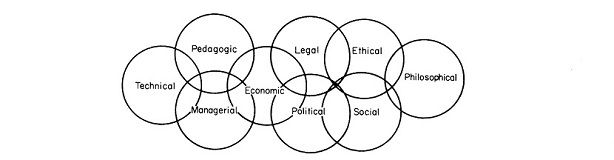
In the decade since, the social impact of computing has only accelerated, much of it due to things that happened here at the University of Toronto Computer Science department around the time of the 40th anniversary blog. I refer specifically to the rise of machine learning, in no small part due to the work of our faculty member Geoffrey Hinton and his doctoral students. The year before, Geoff and two of his students had written a groundbreaking research paper that constituted a breakthrough in image recognition, complete with working open-source software. In 2013, while we were writing the blog, their startup company, DNN Research, was acquired by Google, and Geoff went on to lead Google Brain, until he retired from Google in 2023. Ilya Sutskever, one of the two students, went on to lead the team at OpenAI that built the GPT models and the ChatGPT chatbot that stunned the world in 2022 and launched the Large Language Model AI revolution. In 2013, we already knew that Geoff's work would be transformational. I remember Kelly telling me he believed Geoff to be worthy of the Turing Award, the most prestigious award in Computer Science, and sure enough, Geoff won it in 2018. The social impact of AI is already considerable and it is only starting. The University of Toronto's Schwartz Reisman Institute for Technology and Society is dedicated to interdisciplinary research on the social impacts of AI, and Geoff Hinton himself is devoting his retirement to thinking about the implications of Artificial Intelligence for society and humanity in general.
It's interesting to look at what the book said about AI (it devotes 24 pages to the topic), what the 2013 blog said about AI, and what has happened since. The book was written in 1973, a half-decade after Stanley Kubrik's iconic 1968 movie, 2001: A Space Odyssey, which features HAL 9000, an intelligent computer, voiced by Douglas Rain. But computing at the time fell very far short of what Kubrik envisioned. Gotlieb & Borodin's position, five years later, on the feasibility of something like HAL 9000 was not optimistic:
In review, we have arrived at the following position. For problem solving and pattern recognition where intelligence, judgment and comprehensive knowledge are required, the results of even the best computer programs are far inferior to those achieved by humans (excepting cases where the task is a well-defined mathematical computation). Further, the differences between the mode of operation of computers and the modes in which humans operate (insofar as we can understand these latter) seem to be so great that for many tasks there is little or no prospect of achieving human performance within the foreseeable future. [p.159]But Gotlieb & Borodin, though implicitly dismissing the possibility of a HAL 9000, go on to say that "it is not possible to place bounds on how computers can be used even in the short term, because we must expect that the normal use of computers will be as a component of a [hu]man-machine combination. [pp.159-160]". Of this combination, they were not so willing to dismiss possibilities:
Whatever the shortcomings of computers now and in the future, we cannot take refuge in their limitations in potential. We must ask what we want to do with them and whether the purposes are socially desirable. Because once goals are agreed upon, the potentialities of [humans] using computers, though not unlimited, cannot be bounded in any way we can see now." [p.160]Fifty years later, social science research on how AI can benefit human work is focusing closely on this human-AI combination. A 2023 study of ChatGPT-4 by a team of social scientists studied work done by consultants assisted by, or not assisted by ChatGPT-4. Of their results, Ethan Mollick, one of the authors, explains that "of 18 different tasks selected to be realistic samples of the kinds of work done at an elite consulting company, consultants using ChatGPT-4 outperformed those who did not, by a lot. On every dimension. Every way we measured performance." [Mollick]. Evidently, Gotlieb & Borodin were correct when they wrote that the potential of the human-machine combination cannot so easily be bounded. We are only now beginning to see how unbounded it can be.
As for the possibility of a HAL 9000, as we saw, the book was not so sanguine. Neither was the 2013 40th anniversary blog. Hector Levesque, a leading AI researcher and contributor to the blog, wrote in his blog entry:
Levesque want on to outline the key scientific issue that at the time (2013) was yet to be solved:The general view of AI in 1973 was not so different from the one depicted in the movie "2001: A Space Odyssey", that is, that by the year 2001 or so, there would be computers intelligent enough to be able to converse naturally with people. Of course it did not turn out this way. Even now no computer can do this, and none are on the horizon.
Yet in the ten years since, this problem has been solved. Today, I posed Levesque's question to ChatGTP-4:However, it is useful to remember that this is an AI technology whose goal is not necessarily to understand the underpinnings of intelligent behaviour. Returning to English, for example, consider answering a question like this:
The ball crashed right through the table because it was made of styrofoam. What was made of styrofoam, the ball or the table?
Contrast that with this one:
The ball crashed right through the table because it was made of granite. What was made of granite, the ball or the table?
People (who know what styrofoam and granite are) can easily answer such questions, but it is far from clear how learning from big data would help. What seems to be at issue here is background knowledge: knowing some relevant properties of the materials in question, and being able to apply that knowledge to answer the question. Many other forms of intelligent behaviour seem to depend on background knowledge in just this way. But what is much less clear is how all this works: what it would take to make this type of knowledge processing work in a general way. At this point, forty years after the publication of the Gotlieb and Borodin book, the goal seems as elusive as ever. [Levesque]
Levesque can hardly be faulted for not knowing that his problem would be solved only a few years after he wrote what he did. While Hinton and his students' seminal work on image recognition had been done the year before, it was not yet clear that the ability to assign names to images based on their content would soon lead to machines being able to reason from context. A further invention was needed: transformers, invented at Google Brain in 2017. ("GPT-4" is an acronym: the "T" stands for "transformer".) Yet the book's implicit and Levesque's explicit pessimism on the possibility of a HAL 9000 now seems obsolete, and the near unbounded possibilities Gotlieb & Borodin envisioned for the human-machine combination apply also to autonomous machines. The impact of this on society will, no doubt, be significant. I expect the next fifty years of "social issues in computing" to be quite interesting. Mon 06 Nov 2023 16:48me: The ball crashed right through the table because it was made of styrofoam. What was made of styrofoam?
ChatGPT: The table was made of styrofoam, which is why the ball crashed through it.
me: The ball crashed right through the table because it was made of granite. What was made of granite?
ChatGPT: The ball was made of granite, which is why it crashed right through the table.
me: How did you know which thing was made of granite and which of styrofoam?
ChatGPT: I inferred the composition based on the context of the sentences. In the first sentence, "The ball crashed right through the table because it was made of styrofoam," the implication is that the table must have been weak or easily breakable for the ball to crash through it. Styrofoam is known for being light and not very durable, so it makes sense to conclude that the table was made of styrofoam.
In the second sentence, "The ball crashed right through the table because it was made of granite," the emphasis seems to be on the strength or force of the ball causing it to crash through the table. Granite is a very hard and heavy material, so it suggests that the ball was made of granite, giving it the necessary force to break through the table.
Research Computing at Computer Science Toronto and the Rise of AI
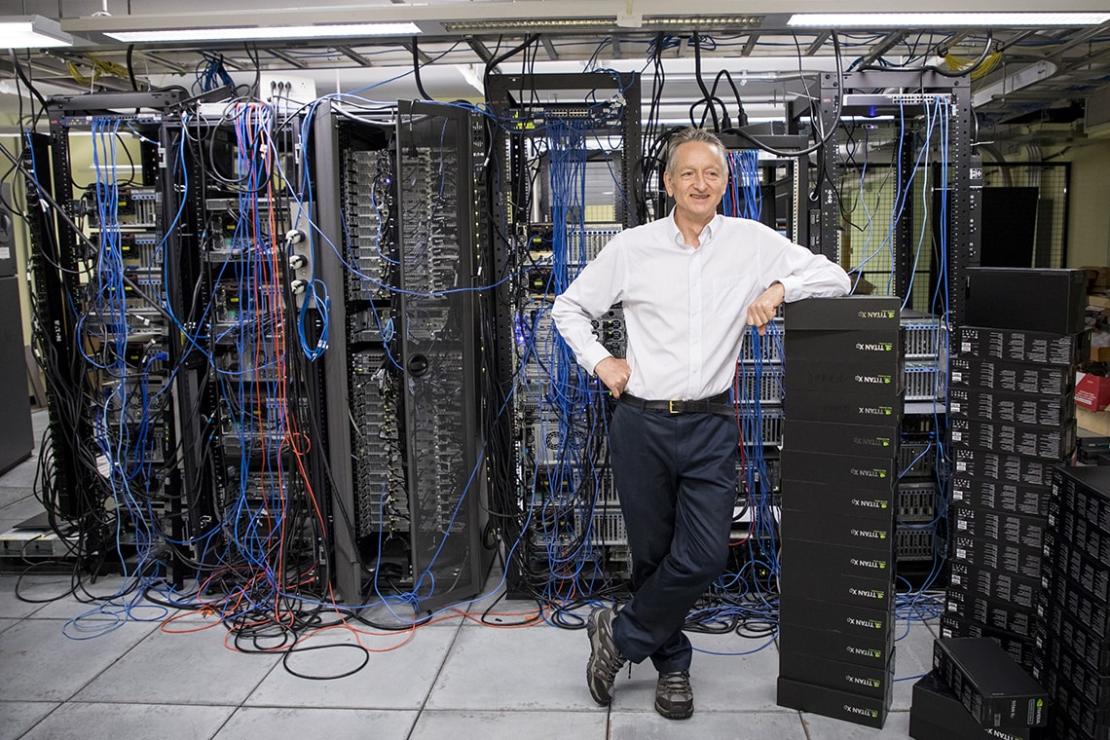
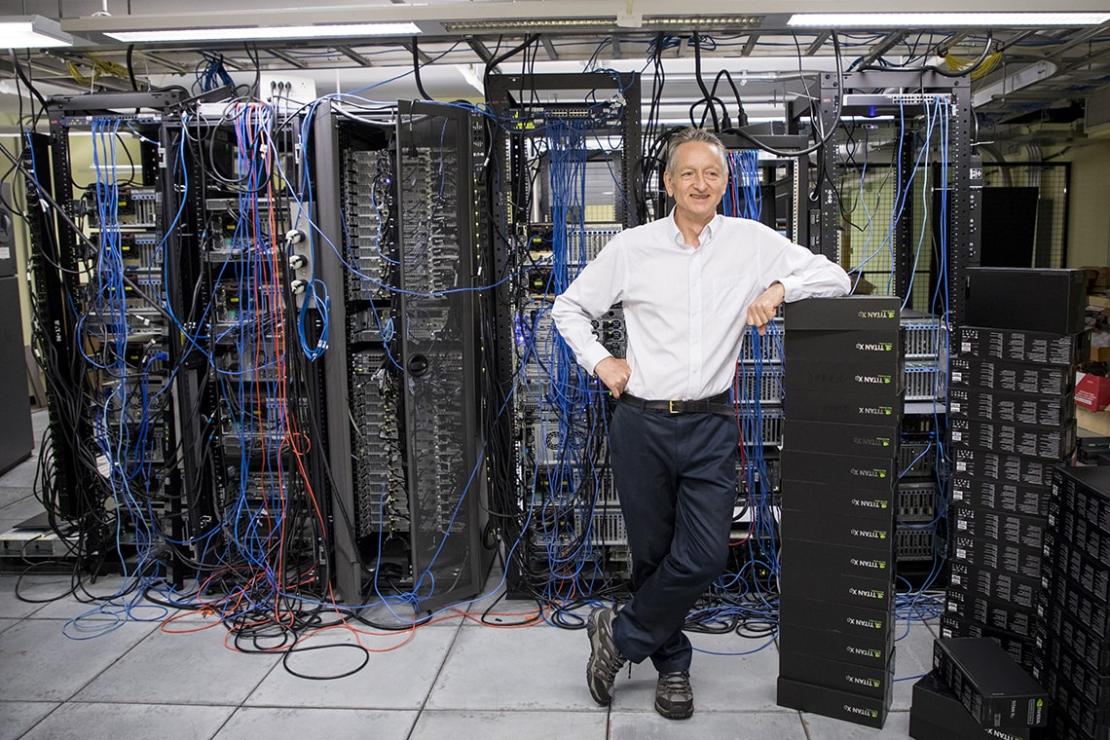 Photo by Johnny Guatto
Until the beginning of 2009, the machine learning group used primarily Matlab on UNIX CPUs. In the 1990s, SGI and Sun multiprocessors were the dominant platforms. The whole department transitioned to x86 multiprocessor servers running Linux in the 2000's. In the late 2000s, Nivida invented CUDA, a way to use their GPUs for general-purpose computation rather than just graphics. By 2009, preliminary work elsewhere suggested that CUDA could be useful for machine learning, so we got our first Nvidia GPUs. First was a Tesla-brand server GPU, which at many thousands of dollars for a single GPU system was on the expensive side, which prevented us from buying many. But results were promising enough that we tried CUDA on Nvidia gaming GPUs - first the GTX 280 and 285 in 2009, then GTX 480 and 580 later. The fact that CUDA ran on gaming GPUs made it possible for us to buy multiple GPUs, rather than have researchers compete for time on scarce Tesla cards. Relu handled all the research computing for the ML group, sourcing GPUs and designing and building both workstation and server-class systems to hold them. Cooling was a real issue: GPUs, then and now, consume large amounts of power and run very hot, and Relu had to be quite creative with fans, airflow and power supplies to make everything work.
Happily, Relu's efforts were worth it: the move to GPUs resulted in 30x speedups for ML work in comparison to the multiprocessor CPUs of the time, and soon the entire group was doing machine learning on the GPU systems Relu built and ran for them. Their first major research breakthrough came quickly: in 2009, Hinton's student, George Dahl, demonstrated highly effective use of deep neural networks for acoustic speech recognition. But the general effectiveness of deep neural networks wasn't fully appreciated until 2012, when two of Hinton's students, Ilya Sutskever and Alex Krizhevsky, won the ImageNet Large Scale Visual Recognition Challenge using a deep neural network running on GTX 580 GPUs.
Geoff, Ilya and Alex' software won the ImageNet 2012 competition so convincingly that it created a furore in the AI research community. The software used was released as open source; it was called AlexNet after Alex Krizhevsky, its principal author. It allowed anyone with a suitable NVidia GPU to duplicate the results. Their work was described in a seminal 2012 paper, ImageNet Classification with Deep Convolutional Neural Networks. Geoff, Alex and Ilya's startup company, DNNresearch, was acquired by Google early the next year, and soon Google Translate and a number of other Google technologies were transformed by their machine learning techniques. Meanwhile, at the Imagenet competition, AlexNet remained undefeated for a remarkable three years, until it was finally beaten in 2015 by a research team from Microsoft Research Asia. Ilya left Google a few years after, to co-found OpenAI: as chief scientist there, Ilya leads the design of OpenAI's GPT and DALL-E models and related products, such as ChatGPT, that are highly impactful today.
Relu, in the meanwhile, while continuing to provide excellent research computing support for the AI group at our department, including Machine Learning, also spent a portion of his time from 2017 to 2022 designing and building the research computing infrastructure for the Vector Institute, an AI research institute in Toronto where Hinton serves as Chief Scientific Advisor. In addition to his support for the department's AI group, Relu continues to this day to provide computing support for Hinton's own ongoing AI research, including his Dec 2022 paper where he proposes a new Forward-Forward machine learning algorithm as an improved model for the way the human brain learns.
Tue 31 Oct 2023 09:11
Computing the Climate

I'm very glad I did. I am a computer scientist myself, whose career has been dedicated to building and running sometimes complex computer systems to support computer science teaching and research. I recognize in climate modelling a similar task at a much greater scale, working under a much more demanding "task-master": those systems need to be constantly measured against real data from our planet's diverse and highly complex geophysical processes, processes that drive its weather and climate. The amount of computing talent devoted to climate modelling is considerable, much more than I realized, and the work done so far is nothing short of remarkable. In his book, Steve outlines the history of climate modelling from very early work done on paper, to the use of the first electronic computers for weather prediction, to the highly complex and extremely compute-intensive climate models of today. Skillfully avoiding the pitfalls of not enough detail and too much, Steve effectively paints a picture of a very difficult scientific and software engineering task, and the programmers and scientists who rise to the challenge, building models that can simulate the earth's climate so accurately that viable scientific conclusions can be drawn from them with a high degree of confidence.
As a story of scientific discovery and software engineering, this tale of the building of systems that can model the earth's climate would be enough on its own to make a compelling book, and it is, but of course there is more to the story. The stakes around climate are very high today. Carbon dioxide concentrations has been increasing steadily in the earth's atmosphere for well over a century. Carbon dioxide, a pollutant that is produced by the burning of fossil fuels, is easily emitted, but once in the atmosphere, it is very difficult to remove, remaining there for centuries. As a pollutant, it raises the temperature of the planet by causing the earth's atmosphere to retain more of the sun's heat. The rising temperature is changing the climate of the planet in ways that will be soon harmful to millions, and difficult to address. Because the world's climate is changing quickly, we can't "wait and see what happens" because the evidence is ever increasing that what will happen is not going to be something we want: human suffering will be great, and parts of the world will become much less habitable. Our society needs to do something about the changing climate to ward off as much as possible the coming difficulties, but what?
Reassuringly, Steve shows in his book that we have enough information in hand to know what needs to be done. His book outlines clearly the high quality scientific and computational work behind the climate models of today, which produce results that match observed data quite closely. These all paint the same picture: through decisive societal action to reduce carbon dioxide pollution in the atmosphere, and through the active development of suitable carbon capture technologies, our planet can avoid the most seriously damaging implications of climate change. The sooner we act, the less damaging the changes, and the lower the risk of extreme consequences. Yes, it requires doing things differently as a society, which is more difficult than maintaining the status quo. But as Steve's book shows, the reasons for action are sound: the computer models are excellent, the software engineering behind them is superb, and the data supports the conclusions. Failure and catastrophe are not inevitable. Steve's book shows the remarkable work that has already been done to understand the climate. It is true that much more good work will be needed, to act on this understanding. But something can be done. Let us not delay in working together to do what we need to do.
Wed 23 Nov 2022 10:31
Data Classification and Information Security Standards
 Image by Gerd Altmann from Pixabay
Public data is data meant to be disclosed. It still needs some protection against being altered, deleted or defaced, but it does not need to be protected against disclosure. In contrast, private data is not meant to be disclosed to anyone other than those who are authorized to access it.
Private data varies in sensitivity. Some data is private only because it hasn't yet been made public. At a University, much research data is in this category. When the research is underway, data is not yet made public because the research has not yet been published, but it is destined for eventual publication. The same is true for much teaching material. While it is being worked on, it is not yet made public, but when it is are complete, it will be disclosed as part of the teaching process.
Other private data is much more sensitive. Identifiable personal information about living or recently deceased persons is a common case. At a university, some research may involve data like this, and most administration will involve personal information. Student grades and personnel records are all personal information, and some financial data too. Unless appropriate permission to disclose personal information has been granted by the people whose data it is, the university will have an obligation to maintain their privacy by ensuring that the information is not disclosed inappropriately. In Ontario, where the University of Toronto is located, privacy protection for personal information is defined and regulated by the Freedom of Information and Protection of Privacy Act (FIPPA).
Some private data is even more sensitive, such as patient medical records. In Ontario, such records are considered personal health information (PHI), which is regulated by the Personal Health Information Protection Act (PHIPA). PHIPA imposes some fairly significant requirements on the handling of PHI: for instance, it requires a detailed electronic audit log of all accesses to electronically stored PHI. The University of Toronto does significant amounts of teaching and research in areas of health, so it is worthwhile for the University to consider in general how it will handle such data.
For these reasons, the University defines four levels of data sensitivity as part of its Data Classification system. Level 4 is for highly sensitive data such as PHI as defined by PHIPA. Level 3 is for personal information as defined by FIPPA. Level 2 is for private data not classified at higher levels, and Level 1 is for public data.
This four-tier system roughly parallels the different types of computer systems that the University uses to handle data. Some systems, such as digital signage systems or public-facing web servers, are designed to disseminate public information (level 1). Other systems, suitable for up to level 2 data, exist mostly at the departmental level in support of academic activites such as research computing and/or the development of teaching materials. An astronomer may, for instance, analyze telescope data, a botanist may model nutrient flow in plant cells, a chemist may use software to visualize molecular bonds, while an economist may use broad financial indicators to calculate the strength of national economies. Still other systems, suitable for up to level 3 data, are used for administration, such as the processing of student records. These include smaller systems used, for example, by business officers in departmental units, as well as large institution-wide systems such as ROSI or AMS. Most general-purpose University systems used for data storage or messaging, such as the University's Microsoft 365 service, would typically be expected to hold some level 3 data, because personal information is quite widespread at a university. After all, a university educates students, and so various types of personal information about students are frequently part of the university's business. This is not normally the case, though, for level 4 data. Systems designed for level 4 data are much rarer at the University, and generally come into play only in situations where, for example, University research involves the health records of identifiable individuals. These systems will benefit from greater data security protection to address the greater risks associated with this sort of data.
A key advantage of the University's four levels of data classification is that the University can establish a Information Security Standard that is tiered accordingly. Systems designed to handle lower risk data (such as level 1 or 2) can be held to a less onerous and costly set of data security requirements, while systems designed to handle higher risk data (especially level 4) can be held to more protective, though more costly, requirements. The University's Information Security Standard is designed so that for each control (a system restriction or requirement), the University's standard indicates whether it is optional, recommended, or mandatory for systems handling a particular level of data. If a system is designed to handle data up to that level, the standard indicates both the set of controls to be considered, and whether or not those controls can, should, or must be adopted.
An obvious question here is what to do when someone puts data on a system that is of greater sensitivity (a higher data classification) than the system is designed to handle. Most likely, nobody will try to use a digital signage system to handle personnel records, but it is quite plausible that professors might find it convenient to use research computers, designed for level 2 data, to process student marks (level 3 data) in courses they are teaching. Similarly, someone handling medical records may wish to make use of the University's general-purpose Microsoft 365 service because of its convenience, but it is a service that is not designed for data of such sensitivity and may well not provide the detailed electronic audit log required by Ontario law. For this reason, clear communication and user training will be required. Handling data appropriately is everyone's responsibility. Training need not be complicated. It is not normally difficult to explain, or to understand, that one should not put patient medical records into email, for example, or use local research computers for personnel records or student marks. For people handling the most sensitive types of data (level 4), more training will be needed, but the number of people at the University who need to handle such data regularly are comparatively few.
The underlying motivation for the University's approach is to protect riskier data with greater, more costly, protections, without having to pay the costs of applying those protections everywhere. The university's resources are thus being applied strategically, deploying them where they matter most, but not in places where the risk does not warrant the expense. This approach is not meant to preclude additional protections where they make sense. If there are risks of academic or industrial espionage, for example, or some other risk beyond the classification of the data being used, one may choose to impose more restrictions on a system than the university's Information Security Standard may require. But the general principle remains: the riskiness of the data on a system should guide and inform what needs to be done to protect it.
Wed 17 Aug 2022 10:54
Innovation vs Control: Finding the Right Balance for Computing

Some organizations address this conflict by freely choosing control over innovation, turning it into a competitive advantage. Consider Starbucks, Tim Hortons, McDonalds: these are all large companies whose competitive advantage is critically dependent on the consistent implementation of a central vision across a multitude of disparate locations, many that are managed by franchise partners. Essentially all of the organization's computing is focused on this mission of consistency. And it works. Who hasn't travelled with small children in a car on a road trip, and after many hours on the road, spotted, with some relief, a McDonalds or a Tim Hortons en route? The relief is in the fact that even when travelling in a strange place, here is a familiar restaurant where you know what to expect from the food, where things will be much the same as the Tim Hortons or the McDonalds near home.
Other organizations have no choice about where they stand on the matter. For the modern bank, computers, rather than vaults, are where wealth is stored and managed. Whether they want to innovate or not, banks cannot risk the use of computing that is not fully controlled, audited, and de-risked. The same holds in general for most financial institutions, where the constant efforts, sometimes successful, of would-be thieves to exploit computers to gain unauthorized access to wealth, make it unreasonably risky for a financial organization's computers to be anything but fully locked down and fully controlled. Even non-financial institutions, when sufficiently large, will often have substantial financial computing activity because of the size and scale of their operations: this computing, too, needs to be properly controlled, protected and audited.
Yet other organizations are forced into the opposite extreme. Start-up companies can be severely resource-constrained, making it difficult for those companies to make the sort of investments in highly controlled computing that financial institutions are capable of making. For start-ups innovating in the computing space, such as tech start-ups, they may not be able to consider the possibility. Highly controlled computer systems can have very restrictive designs, and when these restrictions hinder the innovation needed to implement the company's product, it will have no choice but to pursue some other form of computing. After all, the company rises or falls on the success of its innovation. That is not to say that controlled enterprise computing is unimportant for such companies: quite the contrary. The success of a start-up is highly dependent on a viable ecosystem that provides known pathways to innovation while still moving towards operating in a suitably controlled, production-ready way that is necessary for any successful business. But for a technology start-up, enterprise computing can never come at the expense of technological innovation. The basic existence of the start-up company depends on its ability to innovate: without innovation, there can be no company. In general, this truth will hold in some form for any technology company, even well beyond the start-up stage.
The tension between innovation and control comes to the fore in a different way at research-intensive universities, which are large organizations with complex missions that need enterprise computing to carry out their task of educating students on a broad scale, but are also organizations committed to research, an activity that is, by its very nature, an exploration into things not yet fully understood. This conflict is particularly acute in units within such universities that do research into computing itself, such as computer science and computer engineering departments, because in such places, the computer must serve both as the locus of research and experimentation in addition to being a tool for implementing institutional and departmental processes and the exercise of legitimate control.
I've had the privilege of working in such a department, Computer Science, at such a university (the University of Toronto) for more than three decades now, most of that time in a computing leadership role, and I know this tension all too well. It is sometimes exhausting, but at the same time, it can also be a source of creative energy: yes, it is a barrier, like a mountain athwart your path, but also, as a mountain to a mountain-climber, a challenge to be overcome with determination, planning, insight, and endurance. This challenge can be successfully overcome at a good university, because in addition to a typical large organization's commitment to basic values such as accountability, equity, reliability and security, the university is equally committed to fundamental academic values such as creativity, innovation and excellence. I look for ways to achieve both. Over the years, I have had some successes. My department has produced some groundbreaking research using academic computing that my technical staff have been able to provide, and the department has been able to operate (and successfully interoperate) in good cooperation with enterprise computing at the divisional level, and with the central university as well.
Yet I believe even more is possible. I have lived the tension in both directions: to our researchers I at times have had to play the regulator, having to impose constraints on computing to try to ensure acceptable reliability, accountability and security. To our central university computing organizations, I at times have had to advocate for looser controls to create more room to innovate, sometimes in opposition to proposals intended to increase reliability, security and accountability. When things went badly, it was because one side or the other decided that the other's concern is not their problem, and tried to force or sidestep the issue. But when things went well, and most often it has, it is because both sides genuinely recognized that at a research-intensive institution, everyone needs to work within the tension between the need to innovate and the need to regulate. As a body needs both a skeleton and flesh, so too does a research university need both regulation and innovation: without one, it collapses into a puddle of jelly; without the other, into a heap of dry bones.
With both being needed, one challenge to overcome is the fact that those responsible for enterprise computing cannot be the same people responsible for innovative research computing, and that is necessarily so. The skill-sets vary, the domains vary, the user-base is quite different, and the scale varies. If the university were to entrust both computing innovation for computer science or computer engineering to the same groups that provide enterprise computing for an entire large university, one of two things would happen. Either the control necessary for a large enterprise would be diminished in order to make room for innovation, or, more likely, innovation would be stifled because of the need to create sufficiently controlled enterprise computing at a suitable scale for the entire university. Thus, necessarily, those who support unit research computing, where the innovation takes place, will be different people from those who support enterprise computing. But that can be a strength, not a weakness. Rather than see each other as rivals, the two groups can partner, embracing the tension by recognizing each others' expertise and each recognizing the others' importance for the University as a whole. Partnership brings many potential benefits: if innovation becomes needed in new areas, for example, when the rise of data science increasingly drives computing innovation outside of the traditional computer science and computer engineering domains, the partnership can be there to support it. Similarly, as the computing landscape shifts, and new controls and new regulation becomes needed to address, for example, emergent threats in information security, the partnership can be there to support it. There is no organization potentially better suited for such a partnership than a large research university, which, unlike a financial institution, is profoundly committed to research and innovation through its academic mission, but also, unlike a start-up, is a large and complex institution with deep and longstanding responsibilities to its students, faculty and community, obligated to carry out the enterprise computing mission of accountability, reliability and security.
So what might a partnership look like? It can take a number of different forms, but in my view, whatever form it takes, it should have three key characteristics:
Locality means that the computing people responsible for research computing must stay close to the researchers who are innovating. This is necessary for strictly practical reasons: all the good will in the world is not enough to make up for a lack of knowledge of what is needed most by researchers at a particular time. For example, deep learning is the dominant approach in Artificial Intelligence today because a few years ago, our technical staff who supported research computing worked very closely with researchers who were pursing deep learning research, customizing the computing as necessary to meet the research needs. This not only meant that we turned graphics cards into computation engines at a time when this was not at all common and not yet up to enterprise standards of reliability, it even means that at one point we set up a research computer in a researcher's bedroom so that he could personally watch over a key computing job running day and night for the better part of a week. While this sort of customizability is not always needed, and sometimes is not even possible (one could never run a large computer centre this way), being able to do it if necessary is a key research asset. A university will never be able to fully support research computing solely from a central vantage-point. A commitment to ensuring local presence and support of research computing operating at the researcher level is necessary.
Respectful Listening means that the computing people responsible for research computing at the unit level where research actually happens, and the people responsible for enterprise computing divisionally and centrally must communicate frequently, with an up-front commitment to hear what the other is saying and take it into account. When problems arise, respectful listening means that those problems will not be "solved" by simply overruling or ignoring the other, to pursue a simplistic solution that suits only one side. It also means a profound commitment to stepping away from traditional organizational authority structures: just because the innovative computing is situated in a department and the enterprise computing is lead from the centre should not mean the centre should force its view on the department, just because it can. Similarly, just because unit research computing is driven by research faculty who enjoy substantial autonomy and academic freedom, their research computing group at the unit level should not simply ignore or sidestep what the enterprise is saying, just because it can. Rather, both sides need to respect the other, listening to, not disregarding, the other.
Practical Collaboration means that enterprise computing and unit research computing need to work together in a collaborative way that respects and reflects the timelines and resource constraints of each side. Centrally offered computing facilities should support and empower research where they can, but in a practical way: it may not be possible to make a central facility so flexible and customizable that all research can be pursued. It is acceptable to capture some research needs without feeling an obligation to support the entire "long tail" of increasingly customized research projects. Unit research computing will need to recognize that the need to scale a centralized computing service may constrain the amount of customizability that may be possible. Similarly, unit research computing should use, rather than duplicate, central services where it makes sense, and run its own services where that makes sense. Both central and unit research computing should recognize that there is a legitimate middle ground where some duplication of services is going to occur: sometimes the effort required to integrate a large scalable central service into a smaller customizable research service is too great, and sometimes the research advantages of having a locally-run standardized service on which experiments can more easily be built, can more than outweigh any sort of economies of scale that getting rid of the unit service in favour of a central service could theoretically provide. Hence the collaboration must be practical: rather than slavishly pursue principles, it must be realistic, grounded, balanced, sensible. It should recognize that one size does not always fit all, and responsibly and collaboratively allocate resources in order to preserve the good of the research mission.
It is that research mission, the ability to innovate, that can make computing so transformative at a research university. Yet while innovative computing can indeed produce transformative change, it cannot be any change, and not at any cost. Computing is a change agent, yes, but it is also a critical component in the maintenance of an organization's commitment to reliability, accountability, equity, and good operation. Success is found in the maintenance of a suitable balance between the need to innovate and the need to control. When an organization critically depends on both factors, as a research university invariably does, I believe collaborative partnerships between respective computing groups is the best way to maintain the balance necessary for success.
Sun 12 Sep 2021 18:05
Why it is a good idea to get the Covid19 vaccine?

While I understand becoming short of patience with vaccine refusal, I don't think that most people who refuse COVID19 vaccination are idiots. Vaccination and viruses can be complicated to understand. There are a lot of misinformed posts and videos on the Internet. If you don't know enough about how viruses and vaccines work, both in general and for COVID19, how would you know what to believe? When my father died of COVID19 last summer, one of the ways I dealt with the loss was through understanding better how COVID19 works and what can be done to fight it. My hope here is that by explaining the benefits of vaccination in simple terms, I can maybe help others avoid COVID19. I hope you will find it helpful. If not, there are other sites that address this same question: maybe you will like those better?
It all comes out of how viruses work. Viruses are not alive themselves, but they use the bodies of living creatures (like us) to spread. They find their way into the cells of our body, then take over those cells to produce more copies of themselves. This is the only way viruses spread: they can't reproduce on their own. For COVID19, you may have heard of the "spike protein". This is the spiky part on the outside of the COVID19 virus that makes it look like a spiky ball. It's why it's called a "coronavirus", it looks a little like the spikes on a crown: "corona" is crown in Latin. This protein helps the viruses get inside the body's cells. Then, when inside, the viruses take over the cell to make and release more viruses. Those viruses invade other cells, and those start making more viruses too. Things can get out of hand very quickly, a bit like a forest fire spreading in a dry forest.
Happily, our body has a defence system against viruses (the "immune system"). When those defences recognize an invading virus, it takes as many viruses as possible out of action, keeping them from invading more cells. If the defences can keep up, the viruses won't spread spread very far, and our body will have fought off the infection. If the defences can't keep up, the infection spreads.
But our body's immune system needs to know, first, that something it sees is a virus, before it can act. Immune systems learn from exposure and time. If the body is exposed to enough viruses over time, the immune system can learn how to recognize the virus, and start fighting back. When someone gets sick from a viral infection like COVID19, they get sick because the virus is spreading faster than the immune system can fight it off. Because the immune system needs time to learn how to recognize the virus, while it is learning, the virus is spreading, faster and faster. Sadly, this can cause significant damage, depending on how far ahead the virus gets. This is what happened to my father last summer when he caught COVID19. At first, It spread much faster than his body could fight it, because his immune system had to first learn how. As COVID19 spread, it caused damage to his organ systems, including his heart. When his body's defences finally learned how to fight off COVID19, the damage it had already done to his heart was too great for him to stay alive. Sadly, he passed away shortly after.
If the body survives, its immune system can remember viruses that it has learned to recognize. When it is exposed later to the same virus, it recognizes it right away, and fights it off quickly before it can spread. This is why if you have successfully recovered from a viral disease, you are less likely to get it later. This is the basis of vaccination. Vaccination trains the body's immune system to recognize a virus quickly, so that it will be able to muster a strong defence against it right away, without giving the virus much chance to spread.
The way COVID19 vaccinations work is that they train the body's immune system to recognize the spike protein on the outside of a COVID19 virus. It doesn't inject the spike protein itself, but rather it injects something that instructs the body's cells to temporarily produce a bit of spike protein for training. Your body's defences learns from this to recognize anything with the spike protein (such as a COVID19 virus) as an invader. If later it is exposed to COVID19 virus, the body's defences will be primed and ready to get rid of it before it can spread very far.
Unfortunately, the body's defences against viruses aren't perfect. In the case of COVID19, a single exposure to the spike protein does train the body to recognize it, but not always quickly and thoroughly enough. Like us, when we're learning a new skill, our immune systems learn better with multiple lessons. That is why most COVID19 vaccinations require two shots: the immune system learns better with two lessons than one, and in some cases three (a booster) rather than two. This is also why people who have had COVID19 should still get vaccinated: a successful recovery from a COVID19 infection does provide some protection, but additional lessons for the body's defences will still help if exposed to the virus again. This is also the reason why vaccinations are not perfect. They train the body's immune system to recognize and eliminate the virus, but if the body is exposed to too much virus too quickly, the viruses can still spread faster than the immune system can eliminate it. This is why a few people who are fully vaccinated do get sick from COVID19, though not usually as seriously as people who were not vaccinated. This doesn't mean that the vaccine "doesn't work", it just means that even trained immune systems can sometimes be overwhelmed by a virus.
Because vaccinations train the immune system to recognize and fight off a virus, after a vaccination, we sometimes feel a bit sick: some of the symptoms we experience when we are sick are caused by the body's defences: e.g. fever, aches, fatigue,and feeling unwell. In the case of a vaccination, though, this is not long-term, because a vaccination, unlike a virus, does not reproduce and spread, and so its effects will wear off quickly.
Vaccinations can sometimes cause side effects that are more serious. This is why they are tested carefully before approval. In the case of the major COVID19 vaccines, there are some very rare side effects that are serious: certain COVID19 vaccines cause very rare but quite serious blood clots, and certain others cause very rare heart inflammation. These side-effects don't happen very often in people who receive the vaccine: they are much less likely than the probability of the average person being hit by lightning in their lifetime.
The fact is, the vaccine is much less dangerous than the disease. A COVID19 infection can cause very serious health effects, and many of those effects are not rare. While most people who catch COVID19 recover at home, more than one in twenty require hospitalization to stay alive. Of those, on the order of one in ten die. Moreover, many who recover from COVID19 suffer long-term health effects ranging from difficulty breathing, to fatigue, pain, and memory, concentration and sleep problems. Organ damage to the heart, lungs and brain is also possible. COVID19 is spreading around the world and most people will eventually be exposed to it. It is better to get the vaccine first, so that you are less likely to be harmed by the disease later.
There are claims on the Internet that COVID19 vaccines are much more dangerous than what I've written here. Many of these claims are misunderstandings. Millions of people have received COVID19 vaccines. A few who have had health problems after receiving the vaccine have reported their health problems as a possible "side effect" of the virus. In the US, there is a vaccine reporting system called VAERS where people can report bad health events that happened to them after receiving a vaccine: this lets scientists investigate whether the vaccine might have caused the problem. If the vaccine is causing a particular health problem, that problem would happen more often to people who receive the vaccine than to those who do not. But for most of the health problems reported to VAERS, they are not happening more often to vaccinated people, they happen at roughly the same rate as they happen to anyone, and so the vaccine cannot be responsible. It appears that COVID19 vaccines cause very few serious health problems, and those are very rare. The evidence for this is that millions of people around the world have received COVID19 vaccines and almost nobody has gotten seriously sick from them. The COVID19 disease itself is much more dangerous, which is why hospitals are full of people suffering from the disease, not the vaccine.
Even so, wouldn't it be better to avoid both the vaccine and the disease? Yes, it would be, if you could be assured of never being exposed to COVID19. But that is not so easy. COVID19 spreads very easily: it spreads through tiny moisture droplets in exhaled breath that float in the air like smoke from a cigarette, so if you are indoors with someone who is exhaling COVID19 virus, and there is poor air circulation, you will inhale some. The longer you are there, the more COVID19 virus you will inhale. Not everyone who gets COVID19 feels very sick right away: some feel fine, at least for a while, and many who feel sick don't feel so sick that they stay home. They will spread the virus whereever they go, simply by exhaling. You may be in a room with an infected person who has no idea that they are spreading COVID19. This is why masks are so helpful, because the mask over the nose and mouth of an infected person reduces the amount of COVID19 viruses they breathe out, and the mask over the nose and mouth of other people in the room reduces the amount of COVID19 virus they might breathe in. It's also a reason why indoor fresh air circulation is so important, and why COVID19 is so much more of a danger indoors than outdoors. COVID19 is very contagious, especially the new "delta" variant which is the dominant variant circulating today: on average, a sick person will spread it to six or more others. It's only a little less transmissible than chickenpox, but a lot more transmissible than flu. It's quite possible that we will all be exposed to it eventually.
An even more important reason to be vaccinated is to reduce the spread of COVID19 to others. Remember that the only way for a virus to reproduce is in the body of an infected person. If most people make their bodies inhospitable to the virus by getting vaccinated, then the virus will find very few opportunities to spread. It's like fire trying to spread in a very wet forest: only the dry sticks will burn, and the fewer dry sticks there are, the less likely the fire will find more sticks to spread to, and the more likely it will burn out. So by getting vaccinated, we protect not only ourselves, but everyone around us, especially those who, for medical reasons, can't be vaccinated, or who have immune systems that don't work well. If not enough of us get vaccinated, the number of COVID19 cases will overwhelm the hospitals. Most of those who need hospital care for their COVID19 infections will die instead. Also, many people who need hospital care for other serious illnesses won't be able to get the care they need, and they will die too.
So please be brave: if you can, get vaccinated. Yes, the effects of the vaccine may be unpleasant for a few days as the body learns how to fight the virus. But the vaccine will not harm you like the disease will, and it will train the body's immune system to fight it. My father got COVID19 too early, last summer, before COVID19 vaccines were available. If they had been available then, he might still be alive today. They're available now. Please get vaccinated if you can. If enough people around the world get vaccinated against COVID19, we may eventually be able to eliminate this disease altogether, and that would be a thing worth doing.
Sun 06 Jun 2021 13:39
The Covid19 Blues

The arts find inspiration in times of trouble, none more so than the sort of music known as the blues. Blues are creative and emotional, sometimes raw, but never fake. Blues are not about superstars and megahits, blues are about the endurance and hope of ordinary people. As Covid19 drags on, endurance and hope are needed more than ever. Here are pointers to a few Covid19-inspired blues tracks that I appreciate.
Enjoy! Thu 31 Dec 2020 22:57
What's Wrong With Passwords on the Internet Anyway?

Put in simple terms, a login and password is what a system relies on to know who is who. Your password is secret: only you know what it is, and the system has some way of checking that it is correct. If someone connects to the system with your login and password, the system checks that the password is the right one for your login. If it is, the system concludes that you are the person trying to connect, and lets you in. If you are the only one who knows the password, this approach works, since you are the only person who can provide the correct password. But if criminals know your password too, and use it, the system will think the criminals are you, and will give them access to your account and all your data. The only way to fix this is to change your password to something new that only you know, but by then the damage may well be done.
Unfortunately, criminals have a pretty effective technique for finding out your login and password: they trick you into telling it to them. "Wait a minute!", you might say, "I won't ever tell a criminal my password. I don't even tell my family my password!" But you tell the system your password every time you log in. So if criminals set up a fake system that looks like the real one, and trick you into trying it, when you tell their fake system your password, the criminals will learn what it is.
This was not a common problem in the past, because it was difficult for criminals to successfully set up fake systems that look convincing. But on the Internet today, it is easy to set up a web site that looks like another site. The only thing that's hard to fake is the first part of the link, the hostname section that comes immediately after the double slash (//) and before the first single slash (/), because that part of the link is used to direct the request to the right system on the Internet. But given that the Internet is available in hundreds of countries, each with its own set of internet service providers, it is often not too difficult for criminals to find somewhere on the Internet where they can register a hostname that is similar-looking to the real thing.
Worse, the rise of messages containing embedded links make it very easy for criminals to send a fake message (e.g. an email or text) with a link that seems legitimate but really directs you to a fake site. This is called "phishing". Because of the way the web's markup language ( HTML) works, it is easy to set up a link that seems to point to one site, but actually points to another. For example, https://www.walmart.com is a link that seems to point to Walmart but really points to Amazon. Most web browsers will let you "hover" over a link to see where it really goes. But do people check every link carefully each time they use it?
The problem is made worse by the proliferation of legitimate messages with embedded links to all sorts of cloud services. I recently saw a message from a large organization to its staff, about their pensions. The message contained links to an external site whose name had no resemblance to the organization's name. The message invited the staff to click on those links to see information about their pensions. The message was legitimate: the organization had contracted with an external cloud provider to provide an online pension calculator for staff. But the message said nothing about the cloud provider: it merely contained a link to the calculator. If criminals had sent a similar message containing a malicious link to a fake system somewhere on the Internet, one that prompted staff to enter their login and password, no doubt many staff would have thought it legitimate. How could staff be expected to be able to tell the difference?
A good way to combat the password capturing problem is to require more than just a password to use a system. This is called "two-factor" or "multi-factor" authentication. Your password is one factor, and something else is a second factor, and you must provide both factors to prove to the system that it is you. This helps because the criminals must have both your password and your second factor in order to access your account and data. To ease the authentication burden for users, systems can ask for two factors only sometimes, such as when logging in for the first time in a while, or logging in from a new machine or a new location.
Ideally the second factor should be something that is hard for criminals to capture and use. One problem with a password is that it is a secret that can be used from anywhere on the Internet. With almost 60% of the world's population on the Internet, which now reaches every country in the world, the Internet can hardly be considered a "safe place". A second password, as easily used from anywhere on the Internet as the first, would not be much of an improvement. Worse would be the answers to some personal question about yourself, such as your mother's maiden name or the name of your first school: not only is such information just as easily used as a password, it is information that people may be able to find out in various ways. Answers to personal questions, while sometimes used for authentication, typically do not make a good second factor.
A better second factor is a message sent via a communication channel that goes only to you: for example, an email to your email address, or a text to your cell phone number. When you attempt to log in, the system sends a unique one-time code to you through that channel, and asks you to enter it. The assumption is that criminals won't have access to your email or your cell number, so they won't know and be able to enter the one-time code that the system sent to you. This is usually a good assumption. But criminals can try to get access to your email or your phone number, and sometimes they succeed. For example, in the case of a cell number, one thing they could try is to call your cell phone provider, tell them they are you and that your phone has been stolen, and request that your phone number be transferred to their new phone.
Another second factor, one even better, is a physical device in your possession. This could be a hardware security token that you plug into your computer or that displays a unique, frequently changing, code. Or it could be an app on your cell phone that is tied to your unique device. A physical device is an excellent second factor, because most criminals on the Internet are physically distant. To successfully pretend to be you, a criminal would need direct physical access to a device that would likely be located in your purse or pocket.
Relying on a device in purse or pocket as well as a password in your head is an improvement in security, but it has its drawbacks. It makes that device essential for you to use the system: if it is broken, lost or stolen, you're locked out, even if you know the password. While locking out people who don't have the device is exactly the point, that doesn't help when it is keeping you from legitimately using the system. Moreover, if that device is your smartphone, it changes your phone from a convenience to a necessity. While a smartphone has become a necessity already to some, it is a potentially consequential thing for it to become a requirement for everyone. A hybrid approach is perhaps best: hardware security tokens those who prefer it, a smartphone for those who for their own reasons carry one around anyway, and for many, both: a smartphone for convenience, with a hardware security token as backup, in case of smartphone loss or damage.
Perhaps there is an even more secure option? What if your second factor wasn't a device, but an actual physical part of your body, such as a finger (for a fingerprint), eye (for a retinal scan), face, or even heartbeat (as measured by e.g. a Nymi Band)? Would that be better still? After all, if it is hard for a criminal to get access to someone's things without being noticed, it is even harder to get access to someone's body. This is indeed possible: a technique called "biometrics, and it can be an effective second factor. Unfortunately there are a couple of issues with biometrics. For example, injuries or health issues can change your body; a cut on your finger may affect your fingerprint, for instance. Secondly, biometrics have a "revocation" problem. This comes from the fact that a biometric is a unique measurement of your body part: a fingerprint, retinal scan, facial image, or ECG. But measurements are data, and biometric data, like any other data, can and has been breached. If this happens, what will you do? Passwords can be changed, hardware security tokens can be replaced, but how are you going to change your fingerprint, your face, your eye, your heartbeat? While biometrics do have a place in authentication, most commonly to unlock a local device such as a smartphone or a laptop, the lack of revocability make biometrics less suitable as a second factor for Internet-accessible services.
Regardless of what is chosen for a second factor, the inconvenience of using more than one factor is something that has to be considered. Passwords, especially ones that are easy to remember, are quite convenient. Requiring more than this can make authentication more difficult. If becomes too difficult, the difficulty becomes a disincentive to use the system. For systems protecting highly sensitive data, some difficulty may be warranted, given the risk. For lower-risk systems, things are less clear. Yet for Internet-accessible systems, due to the prevalence of phishing, something more secure than just passwords seems increasingly necessary. I think Bill Gates is right: like it or not, the traditional password will become increasingly rare on the Internet, for good reason.
Mon 23 Nov 2020 00:00
Thoughts on Covid19

Another reason is that Covid19 didn't just affect me professionally, it affected me personally: I lost a parent to Covid19 this summer. While I am not in any way unique in having lost someone to this disease, I was not really in a good state to blog, for quite some time.
There is still another factor, though, one that also kept me from blogging. I am no epidemiologist. Still, as a thinking person, I seek to understand what was going on, why, and what can be done about it. Seeking to understand is, for me, theraputic: it helps me deal with stress, anxiety, grief, and loss.
First, I looked for good sources of information about the pandemic itself. The Centre for Disease Control and Prevention in the US has plenty of good material about it. One thing I found particularly helpful was an analysis in mid-May about a choir practice in Washington state with 61 attendees, one that led to most becoming infected. It resulted in three hospitalizations and two deaths. The CDC report is a very helpful example of rigorous statistical data analysis set in a small, understandable real-world context. As an illustration of what the Covid19 virus is like, I find it very helpful. For instance, it suggested airborne spread before that became generally realized.
Secondly, information about previous pandemics. Again, the Centre for Disease Control and Prevention in the US has a very good past pandemics page, put together before the Covid19 pandemic started, covering the horrifying 1918 influenza pandemic that killed fifty million people around the world, and the later influenza epidemics of 1957, 1968, and 2009. Each of these provide a general helpful picture: firstly, that each pandemic has a timeframe that is typically greater than one year but less than two, that transmission reduces in the summer but increases in the fall/winter due to indoor crowding and decreased relative humidity, and that mass vaccination can be an effective way to ward off a disaster of the scale of the 1918 pandemic.
One problem with this current pandemic is that, unlike the pandemics of 1957, 68, and 2009, the virus is not influenza, but a coronavirus. There are four coronaviruses that have been circulating widely for years (229E, NL63, OC43, and HKU1), but they typically don't cause serious illness. Two others (SARS-CoV and MERS-CoV) emerged in the early 21st century, both quite dangerous and certainly serious enough to warrant vaccination were they to spread widely, but due to a great deal of diligence and effort, and not a little good fortune, both of these were kept from spreading through the world population. The current Covid19 pandemic, caused by yet another coronavirus, SARS-CoV2, is the first coronavirus both serious enough and widespread enough to warrant a vaccine. Unlike for influenza, a coronavirus vaccine has never been produced before, so it has taken longer than it would if this pandemic had been influenza. Only now, as we approach the one year mark of the virus' first emergence, are we seeing some likely vaccine candidates. It will still take some time to produce and distribute suitable vaccines.
In the meantime, while efforts continue to design, test, produce and distribute a suitable vaccine, the challenge is to keep Covid19 from spreading far and fast. While at first it was believed that Covid19 spreads primarily through surface contact, there is increasing evidence for areosol spread (fine droplets in the air). So methods are needed to hinder the passing of the virus from one person to another. There are two main approaches: keeping people further apart, and putting physical barriers (e.g. masks) and processes (e.g. handwashing) in place so that the virus can't easily pass from one person to another.
The best way to hinder the transmission of Covid19 is to find out who may be contagious (through testing and contact-tracing), and keep them away from everyone else (quarantine) until they are no longer contagious. One challenge is that it can sometimes be very hard to detect when someone has Covid19 and is spreading the virus. There is a wide variation in how Covid19 affects people who have it. For many, it can take days for symptoms to emerge (presymptomatic), and for some, Covid19 can be mostly or completely asymptomatic, yet asymptomatic and presymptomatic Covid19 patients can spread the disease. If those who may have Covid19 can be identified (through testing and thorough contact tracing), then those individuals alone can be quarantined until they are no longer contagious. If they cannot be identified, then the only way to hinder the spread of the disease is to assume that almost anyone might have Covid19. This requires such things as requiring everyone to wear masks, and, despite severe social and economic cost, lockdowns, which are a sort of semi-quarantine for everyone. As I write this, Covid19 has been spreading quite quickly in my city, Toronto, despite a mask mandate, and so Toronto is going into lockdown.
How will it all end? In the struggle between pessimism and hope, I choose hope. I hope that I will not lose any more family members to this disease. I hope that effective vaccines will soon be available in the necessary quantities. I hope that the measures taken to hinder the spread will be effective. I think it is reasonable to expect that we will see the widespread distribution of effective vaccines in 2021, and this pandemic will be over sometime next year. Will everything be the same? No, I think not. Some businesses (tourism and travel, for example) will have a massive economic hole to climb out of, and some companies will not survive, but people will travel again. Working from home, and technology in support of it, will be more widely accepted. Cheek-to-jowl "open-concept" offices, handshaking, and other close-quarters working practices will be less readily accepted. There will be a greater consciousness of viral hygiene, and a greater acceptance of masks. But life will go on. Covid19 will no longer command the attention it is getting now. Other things will seem important again. And there will be many worthwhile things to blog about.
Mon 24 Feb 2020 10:19
Some Clarity on Public Cloud Cybersecurity

Some argue yes. Eplexity calls cloud computing "an established best practice for businesses" and claims "your data is typically safer in the public cloud than in an on-premises data centre". In 2016, Sara Patrick of Clutch, guest-writing for Tripwire.com, claimed to have "four reasons why the Cloud is more secure than Legacy Systems" In 2017, Quentin Hardy of the New York Times claimed that cloud data is "probably more secure than conventionally stored data." In 2018, David Linthicum, writing for InfoWorld, claimed "your information is actually safer in the cloud than it is in your own data centre".
One reason given for the claim is that public cloud providers offer greater
technical expertise than what is possible on-premise. Eplexity writes:
Unless your company is already in the business of IT security,
spending time and effort on securing your on-premises data distracts
from your core functions. Most organizations likely don't have a
robust, experienced team of cybersecurity professionals at their
disposal to properly protect their on-premises data.
... As such, cloud providers may employ hundreds or thousands of
developers and IT professionals.
This is an argument from size and scale. Cloud providers are bigger than you,
and have arguably more IT expertise than you, so they can do a better job
than you. But sadly, size and IT expertise is no guarantee of security. Yahoo
was a large Internet company, valued at one time at $125 billion.
It employed thousands of developers and IT professionals. Yet it was subject
to a cybersecurity breach of three billion user accounts in 2013/14; the
breach was not disclosed until the fall of 2016, and the full impact was
not known until october 2017. The damage to Yahoo's business was significant:
Verizon acquired Yahoo in 2017 for less than $5 billion, a deal that was
nearly derailed by the disclosure of the breaches.
I think we must conclude from the Yahoo story that size and expertise alone is no guarantee of cybersecurity. Naturally, major cloud providers like Amazon, Microsoft and Google are aware of the Yahoo situation and its consequences. No doubt it illustrated for them the negative impact that a major breach would have on their business. I cannot imagine that they would take the threat lightly.
Yet there have been close calls. Microsoft, a major cloud provider,
in December 2019 accidentally disclosed to the world a cloud database
on Azure with 250 million entries of customer support data. Happily,
a security researcher spotted and reported it, and Microsoft fixed it soon after. Moreover, Zak
Doffman, writing for Forbes, reported in Jan 2020 that Check Point Software
Technologies, a cybersecurity vendor, had discovered in 2019 a serious flaw
in Microsoft Azure's infrastructure that allowed users of the service to
access other users' data. While Check Point reported it immediately to
Microsoft, who fixed it quickly, had the flaw been discovered by criminals
instead of cybersecurity researchers, a great many things running on Azure
could have been compromised. Doffman quotes Yaniv Balmas of Check Point:
...the take away here is that the big cloud concept of security
free from vulnerabilities is wrong. That's what we showed. It can
happen there as well. It's just software and software has bugs. The
fact I can then control the infrastructure gives me unlimited power.
In the Check Point research article describing the flaw, Balmas concludes:
The cloud is not a magical place. Although it is considered safe, it
is ultimately an infrastructure that consists of code that can have
vulnerabilities - just as we demonstrated in this article.
What, then, is the right answer? Well, there isn't one. Neither public
cloud or on-premise datacentres are magic, neither are "safe". Cybersecurity
is a challenge that has to be met, no matter where the service is, or what
infrastructure it is using. Happily, this is finally being
recognized. Even Gartner Research, a long-time proponent
of the public cloud, predicting
as recently as mid-2019 that public
cloud infrastructure as a service (IaaS) workloads will suffer at least
60% fewer security incidents than those in traditional data centers, has recently taken a more nuanced view.
In the fall of 2019, this prediction of fewer security incidents in the cloud disappeared from Gartner's website,
and was replaced by this:
Through 2024, the majority of
enterprises will continue to struggle with appropriately measuring cloud
security risks.
Questions around the security of public cloud
services are valid, but overestimating cloud risks can result in missed
opportunities. Yet, while enterprises tended to overestimate cloud risk
in the past, there's been a recent shift - many organizations are now
underestimating cloud risks. This can prove just as detrimental, if not
more so, than an overestimation of risk. A well-designed risk management
strategy, aligned with the overarching cloud strategy, can help organizations
determine where public cloud use makes sense and what actions can be taken
to reduce risk exposure.
So does "public cloud use make sense"? Yes, of course it does, for a great many things. But it's not because the public cloud is intrinsicly more secure. The public cloud has its own set of cybersecurity issues. There is no "free pass". As always, carefully assess your risks and make an informed decision.
Fri 24 Jan 2020 20:02
Does AI Help or Hinder Cybersecurity?
One view on this is that machine learning, as a powerful technique that enables computer systems to take on tasks previously reserved only for humans, will empower cyberattackers to breach computer security in new ways, or at least in ways more effective than before. I know there is a great deal of anxiety about this. This past fall, I had a conversation with a CIO of a large university, who told me that his university was migrating its internet services to Amazon precisely because he believed that new AI-powered cyberattacks were coming, and he thought Amazon would be better able to fend them off. I'm not sure what I think of this defensive strategy, but that is not the important question here. The key question is this: are AI-powered cyberattacks going to overwhelm cyberdefence?
No doubt AI-powered cyberattacks are a reality. Machine learning is a powerful computer science technique, especially for automation. Cyberattackers, especially sophisticated, well-funded cyberattackers, will use it and I am confident are already using it. But highly automated cyberattacks are nothing new: cyberattackers have been automating their attacks for decades. Smarter automated cyberattacks are certainly something to worry about, but will they be transformative? Maybe. After all, in cybersecurity, the advantage is to the attacker, who needs to find only one hole in the defences, while the defender needs to block all of them. Anything that boosts the effectiveness of the attacker would seem to make the situation worse.
To really see the full picture, it's important to look at the defender too. Machine learning makes the situation worse only if it benefits the attacker more than it benefits the defender. But does it?
I don't have a complete answer to this question: there is a great deal of work still to be done on the application of machine learning to cybersecurity. But I suspect that the answer is a qualified No: rather, all other things being equal, machine learning will likely shift the balance of power towards the defender. The reason is data.
Machine learning is a technique where computer systems, instead of being programmed by programmers, learn what to do from data. But the quality of the learning depends on the quality and in particular the quantity of data. Machine learning is a technique that is most effective when trained with large amounts of data. ImageNet, for instance, a standard training dataset used to train machine learning applications to recognize images, contains about 14.2 million images. But who is more likely to have access to large amounts of good data about a system: the attacker or the defender? Of course, it depends, but it seems to me that, very generally speaking, the defender is more likely to have access to good system data than the attacker. The attacker is trying to get in; the defender is already in.
Of course, this is the broadest of generalizations. The effectiveness of machine learning in the cybersecurity space depends on a great many things. But I am cautiously optimistic. I realize I may be bucking what seems to be becoming a prevailing trend of ever-increasing anxiety about cybersecurity, but I believe here that machine learning has more potential to help than to harm. I look forward to seeing what will emerge in this space over the next few years.
Mon 30 Sep 2019 00:00
What's all the fuss about AI anyway?

AI, broadly understood, is a term used to describe a set of computing techniques that allow computers to do things that human beings use intelligence to do. This is not to say that the computer is intelligent, but rather that the computer is doing something that, if done by a person, would be considered evidence of that person's intelligence. Contrary to widespread opinion, this is not the same thing as an artificial person. In fact, there have been for a long time many things that humans use intelligence to do, that computers do better, whether it be remembering and recalling items, doing arithmetic, or playing chess. But computers do these things using different techniques than humans do. For example, Deep Blue, a custom chess computer built by IBM, beat Garry Kasparov, the then-reigning world chess champion, in 1997, but Deep Blue played chess in a very different way than Garry. Garry relied on his human intelligence, while Deep Blue used programming and data.
However, some computer scientists, noting that people can do things that computers can't, thought long and hard about ways that people do it, and how computers might be progammed to do the same. One such technique, deep learning, a neural network technique modelled after the human brain, has been worked on since the 1980s, with slow but steady improvement, but computer power was limited and error rates were often high, and for many years, most computer scientists seemed to feel that other techniques would yield better results. But a few kept at it, knowing that the computers of the day were inadequate, but advances in computing would make things possible that weren't possible before.
This all changed in 2012, when one such researcher, Geoff Hinton, and his students, working here at the University of Toronto, published a seminal deep learning paper that cut error rates dramatically. I remember supporting Geoff's group's research computing at that time. It was a bit challenging: we were using multiple GPUs per machine to train machine learning models at a time when GPU computing was still rather new and somewhat unreliable. But GPUs were absolutely necessary: without them, instead of days of computing time to train a model, months would be required. One of our staff, Relu Patrascu, a computer scientist and skilled system administrator working hand-in-glove with the researchers, tuned and configured and babysat those machines as if they were sick children. But it worked! Suddenly deep learning could produce results closer to what people could do, and that was only the beginning. Since then, deep learning has produced terrific results in all sorts of domains, some exceeding what people can do, and we've not even scraped the surface of what is possible.
But what does deep learning actually do? It is a computer science data classification technique. It's used to take input data and classify it: give it a thing and it will figure out what the thing is. But it classifies things in a way that's different and more useful than traditional computer science methods for classification, such as computer programming, or data storage and retrieval (databases). As such, it can be used to do a lot more than computers previously had been able to do.
To see this, consider traditional computer science methods: for example, computer programming. This approach requires a person to write code that explicitly considers different cases. For example, imagine that you want to classify two-dimensional figures. You want to consider whether they are regular polygons. You could write a computer program that defines for itself what a regular polygon is, and checks each characteristic of an input shape to see whether or not it matches the definition of a regular polygon. Such a program, when given a square, will notice that it is a polygon, it has four sides, and that those sides are equal in length. Since the programmer put into the program a detailed definition of what a regular polygon is, and since the program checks each feature explicitly, it can tell whether or not a shape is a regular polygon, even if the program has never seen that particular shape before.
But what about exceptional cases? Is a circle a regular polygon? It is, after all, the limit of an N-gon as N goes to infinity. This is an "edge case" and programs need to consider those explicitly. A programmer had to anticipate this case and write it into the program. Moreover, if you wanted to consider some other type of shape, a programmer would have to rewrite the code accordingly. There's no going from a bunch of examples to working code without a programmer to write it. Programming is certainly a useful technique, but it has its limits. Wouldn't it be nice to be able to learn from a bunch of examples, without a person having to write all that code?
One way to do that would be data storage and retrieval, for example, a database. Consider the shape classifier problem again. You might put in a bunch of shapes into a database, indicating whether the shape is a regular polygon or not. Once the database is populated, classifying a shape simply becomes looking it up. The database will say whether or not it is a regular polygon.
But what if it's not there? A database has the advantage of being able to learn from examples. But it has a big disadvantage: if it hasn't seen an example before, and is asked about it, it has no idea what the right answer is. So while data storage and retrieval is a very useful computing technique, and it is the backbone of most of our modern information systems, it has its limits. Wouldn't it be nice if a classifier system could provide a useful answer for input data that it's never seen before, without a programmer to tell it how?
Deep learning does exactly this. Like data storage and retrieval, it learns from examples, through training. Very roughly, a neural network, when trained, is given some input data, and is told what output data it should produce when it sees that data in future. These input and output constraints propagate forward and backwards through the network, and are used to modify internal values such that when the network next sees input like that, it will produce the matching output.
The key advantage of this technique is that if it sees data that is similar to, but not the same as data it has been trained on, it will produce output similar to the trained output. This is very important, because like programming, it can work on input it has never seen, but like databases, it can learn from examples and need not be coded by a programmer anticipating all the details in advance. For our shape example, if trained with many examples of regular polygons, the neural network will be able to figure out whether or not a given input is a regular polygon, and perhaps even more interestingly, it will be able to note that a circle is very like a regular polygon, even if it had never been trained on a circle.
Moreover, a deep learning neural network can learn from its own results. This is called reinforcement learning. This technique involves using a neural network to derive output data from some input data, the results are tested to see how well they work, and the neural network is retrained accordingly. This way a neural network can "learn from its own mistakes", training itself iteratively to classify better. For example, a model of a walking human, with some simple programming to teach it the laws of physics, can, using reinforcement learning, teach itself how to walk. A few years ago, some of the researchers in our department did exactly that. Another example: Google got a lot of attention a few years ago when deep learning researchers there built a deep learning system that used reinforcement learning to become a champion at the game of Go, a game very hard to computerize using traditional techniques, and proved it by beating the reigning Go world champion.
It seems clear to me at this point that deep learning is as fundamental a computing technique as computer programming and databases in building practical computer systems. It is enormously powerful, and is causing a great deal of legitimate excitement. Like all computer science techniques, it has its advantages and drawbacks, but its strengths are where other computer science techniques have weaknesses, and so it is changing computer science (and data science more generally) in dramatic ways. It's an interesting time to be a computer scientist, and I can't even begin to imagine the many things that bright and innovative people will be able to do with it in the future.
Mon 02 Sep 2019 20:14
Existential threats from AI?

Are they right? Is there an existential threat to humanity from AI? Well, yes, I think there actually is one, but not quite in the way Musk, Kissinger, or Hawking fear. Computer have been better at humans for a long time in many cognitive domains. Computers remember things more accurately, process things faster, and scale better than humans in many tasks. AI, particularly machine learning, increases the number of skills where computers are better than humans. Given that humanity has been spending the last couple of generations getting used to a certain arrangement where computers are good at some things and humans are good at others, it can be a bit disconcerting to have this upended by computers suddenly getting good at things they weren't good at before. I understand how this can make some people feel insecure, especially highly accomplished people who define themselves by their skills. Kissinger, Musk and Hawking fear a world in which computers are better at many things than humans. But we have been living in such a world for decades. AI simply broadens the set of skills in question.
As a computer scientist, I am not particularly worried about the notion of computers replacing people. Yes, computers are developing new useful skills, and it will take some getting used to. But I see no imminent danger of AI resulting in an artificial person, and even if it did, I don't think an artificial person is an intrinsic danger to humans. Yet I agree that there are real existential threats to humanity posed by AI. But these are not so much long term or philosophical, to me they're eminently practical and immediate.
The first threat is the same sort of threat as posed by nuclear physics: AI can be used to create weapons that can cause harm to people on a massive scale. Unlike nuclear bombs, AI weapons do not do their harm through sheer energy discharge. Rather, machine learning, coupled with advances in miniaturization and mass production, can be used to create horrific smart weapons that learn, swarms of lethal adaptive drones that seek out and destroy people relentlessly. A deep commitment to social responsibility, plus a healthy respect for the implications of such weapons, will be needed to offset this danger.
The second threat, perhaps even more serious, comes not from AI itself but from the perceptions it creates. AI's successes are transforming human work: because of machine learning, more and more jobs, even white-collar ones requiring substantial training, can be replaced by computers. It's unclear yet to what extent jobs eliminated by AI will be offset by new jobs created by AI, but if AI results in a widespread perception that most human workers are no longer needed, this perception may itself become an existential threat to humanity. The increasingly obvious fact of anthropogenic climate change has already fueled the idea that humanity itself can be viewed as an existential threat to the planet. If AI makes it possible for some to think that they can have the benefits of society without keeping many people around to do the work, I worry we may see serious consideration of ways to reduce the human population to much smaller numbers. This to me is a dangerous and deeply troubling idea, and I believe a genuine appreciation for the intrinsic value of all human beings, not just those who are useful at the moment, will be needed to forestall it. Moreover, a good argument from future utility can also be made: we cannot accurately predict which humans will be the great inventors and major contributors of the future, the very people we need to address anthropogenic climate change and many other challenges. If we value all people, and build a social environment in which everyone can flourish, many innovators of the future will emerge, even from unexpected quarters.
Threats notwithstanding, I don't think AI or machine learning can go back into Pandora's box, and as a computer scientist who has been providing computing support for machine learning since long before it became popular, I would not want it to. AI is a powerful tool, and like all powerful tools, it can be used for many good things. Let us build a world together in which it is used for good, not harm.
Mon 26 Aug 2019 06:51
Why we thought for a while Pluto was a planet, but it never was.

More than a decade after Pluto's demotion from the rank of planet, some still do not accept it. I can sympathize. Like many of us, I grew up memorizing in school the nine planets of the Solar system, the last of which was Pluto: icy, distant and mysterious. I remember as a child poring over a diagram of the solar system, marvelling at the concentric elipses of the planetary orbits, and wondering why Pluto's orbit was so odd. For odd it was: all the other planets orbited the sun in more or less concentric elipses, but Pluto was eccentric: its orbit was at an unusual angle, and it even briefly came closer to the sun than Neptune. None of the other plants had orbits like this: why Pluto? But I didn't question that it was a planet. It had been recognized as a planet since Clyde Tombaugh discovered it before my parents were born. For me, Pluto was weird, but it was still "planet", the astronomical equivalent of a sort of odd uncle who behaved strangely and kept to himself, but still family.
But the idea of Pluto as a planet started to become problematic in the early 1990s. In 1992, Jewitt and Luu discovered another object beyond Neptune: Albion, much smaller than Pluto, and also with an odd orbit. Because it was a small object, it was pretty clearly not a planet, so Pluto's status was not yet in question, but it was only the first of many. By 2000, more than seventy such objects had been discovered. Most of these were very small, but some were not so small. And the discoveries continued. In 2003, with the discovery of the Eris, a trans-Neptunian body more massive than Pluto itself, the problem became acute. No longer was Pluto the odd uncle of the planets: now there were on the order of 100 odd uncles and aunts, and at least one of them, Eris, aptly named after the greek goddess of discord, had a better claim to planethood than Pluto itself. Something had to be done. This bunch of odd objects, odd in the same way as Pluto, were either all planets, or they were none of them planets. There was no reasonable distinction that could be made that would keep Pluto a planet but deny planethood to Eris and many of her siblings. To do so would be arbitrary: we would be saying that Pluto was a planet simply because we discovered it first and it took us a long time to discover the others. What to do?
Happily, there was a precedent: this sort of thing had come up before. In 1801, Giuseppe Piazza discovered Ceres, a body orbiting between Mars and Jupiter. This was a big deal. Only twenty years before, a new planet had been discovered for the first time in recorded history: Uranus, found by accident by William Herschel in 1781. Now, twenty years later, Piazza had found a second. And this one was not out beyond Saturn, it was nearer than Jupiter. But Piazza's share of the limelight was soon to lessen. his planet had a rival: a year later, Heinrich Wilhelm Olbers discovered Pallas, another body between Jupiter and Mars. Two years later, in 1804, Karl Harding discovered another: Juno. Not to be outdone, Olbers in 1807 discovered yet another, Vesta. By the middle of the 19th century, fifteen bodies orbiting between Mars and Jupiter were known, and while none of them were anywhere as large as Ceres, one of them, Vesta, had nearly a third of Ceres' mass. Were there really many small planets between Mars and Jupiter, or were these something else? When in 1846 the planet Neptune was discovered beyond Uranus, it became clear that some decision about these bodies between Mars and Jupiter needed to be made. A consensus emerged: Ceres and other such objects were not planets. They were called "asteroids", a name coined in 1802 by William Herschel. It was a good call: there are now well over 100,000 known asteroids, far too many for schoolchildren to memorize.
With Pluto, a similar situation was now occurring. While we weren't yet at 100,000 Pluto-like bodies, we knew about quite a few more than fifteen. And Pluto, unlike Ceres, wasn't even the most massive: Eris was, and quite possibly, bigger ones would be found. There was no denying the facts. Pluto, like Ceres, could not be a planet. It must be something else.
Of course this was quite controversial. People had been calling Pluto a planet for the better part of a century. Generations of schoolchildren had memorized it as part of the list of planets. But the choice was clear: either the schoolchildren would have to start memorizing longer lists, much much longer ones, or Pluto would have to be demoted. Well, not demoted, exactly, but newly recognized for what it really was all along: something different. In the sumer of 2006, the International Astronomical Union (IAU) declared that Pluto isn't a planet, it is a dwarf planet. While this designation is a little confusing (if a dwarf planet isn't a planet, why is it called a dwarf planet?), one thing was now clear: Pluto is not the same sort of thing as Mercury, Venus, Earth, Mars, Jupiter, Saturn, Uranus and Neptune; it, and Eris, and probably a couple of other larger trans-Neptunian bodies discovered since the 1990s, are something different. But guess what: Ceres, too, fits IAU's definition of dwarf planet, the only asteroid that does. Two centuries after its discovery, Ceres, first-born of the non-planets and largest of the asteroids, was deemed a dwarf planet, and Piazza, its discoverer, though not the second person in recorded history to discover a new planet, was recognized as the very first to discover a dwarf one.
Fri 19 Jul 2019 16:13
Ross Anderson's Security Engineering

Until recently, I had not read Ross Anderson's Security Engineering, despite hearing good things about it. I'm not sure why: I think I was put off a bit by the title. I had a vague and confused impression that a book about "Security Engineering" would be yet another how-to book about making computers secure. I should have known better. In this case, I was wrong, very much so, and much to my detriment. I should have read this book long ago.
Why had I not read it? I have no excuse. The book has been out for a while: it is in its second edition, which came out in 2008 (Anderson is writing a third edition, expected next year). So I certainly had the opportunity. Moreover, since 2012, the book has been free for the reading (and downloading) from his website. So I certainly had the means. I just didn't, until a few weeks ago, when I stumbled across it again. I read a little from the website, then a little more. Before long, I was well and thoroughly hooked.
Security Engineering is a classic, comprehensive book about information security: eminently readable, clear and thorough, it covers information security in pretty much every aspect one might encounter it, from the usual (cryptography, access controls, protocols, biometrics) to the not quite so day-to-day (nuclear weapons launch protocols, counterfeiting, even spying by analyzing the RF emissions from computers). Each chapter is a clear elucidation of a particular aspect of information security, focusing on the essential issues. Each chapter provides enough detail to understand the essential elements, yet not too much detail as to overwhelm the reader. His writing is a classic illustration of the difference between an expert and a master. An expert knows a great deal about a topic and provides an abundance of information. A master knows the key elements, those things that are most important, on which everything else hangs, and focuses exactly on these. This book is mastery, in clear, understandable and engaging language. It has become my favourite book in information security already, and I haven't yet finished it.
I look forward to the third edition sometime next year. I can't wait.
Mon 04 Mar 2019 12:04
Externality and Information Security
It was a hot midsummer weekend, and I was traveling back to Toronto
with friends. We were on the expressway (the name here in Ontario for
the sort of road that Americans call freeways and Brits call motorways).
Traffic was very slow: a classic traffic jam. After about thirty minutes,
we reached the cause of the problem. It was not a collision. Nor was it
highway construction. Instead, by the side of the roadway, a minivan was
parked, back gate open, and a family was having a picnic on the nearby
grass. I don't know if they realized they were causing a traffic jam, but
they were. People had slowed to look, which caused traffic behind to slow
too, and because of the traffic volume, this led to a traffic jam over a
considerable distance.
I don't know why the family having the picnic had chosen that spot for it, and I don't know whether they realized the problem they were causing. But their picnic went on, unaffected by the traffic problems they were causing. In other words, the traffic jam was not their problem. It was an externality, something causing a negative effect not felt by those who cause it.
Externalities happen in life all the time. Large organizations (companies, countries, institutions) suffer significantly when their decision-makers make decisions that are good for themselves but not good for the organization. Rules to make this less likely are put in place: rules against bribery, rules concerning conflict of interest, rules imposing due process. But rules only work to a certain extent: there are plenty of situations where the rules are followed yet still externalities happen. Moreover, rules come with costs, sometimes significant ones. Rules may be necessary, but they are not sufficient, and they need to be accompanied by buy-in.
Let's consider traffic again. Driving is governed by all sorts of rules. Some of these rules work well: at traffic lights, go when the light is green, stop when it is red. Rarely broken, this rule makes traffic work in dense situations where otherwise there would be chaos. Most of the time, this rule is followed even in the absence of external enforcement. When enforcement does occur, it is well regarded: hardly anyone will argue that a person running a red light is a safety hazard and should be ticketed. In practice, you can stand for hours beside a busy traffic signal in a typical Ontario city, and despite the absence of police presence, not find a single driver running a red light.
Sadly, other driving rules don't work quite so well, such as speed limits on expressways here in Ontario. These limits are often broken, with some following them and others not. Often, on an uncongested expressway, unless enforcement is likely (i.e. police is present) there will be some people driving over the speed limit. Enforcement is viewed cynically: speeding tickets are often viewed more as revenue generation than as a safety measure. Obeying speed limits is often viewed by drivers as an externality: not my problem, unless there is a police officer around to make it one. In practice, at any place on any uncongested Ontario expressway, you will be hard-pressed to find a five-minute period in which no passing driver has exceeded the speed limit.
I have been thinking a lot about information security lately. In information security, we have a situation similar in many respects to driving. Just as driving is a matter of traveling safely, information security is a matter of computing safely. When we compute, we may be processing information that is sensitive, confidential, private. Harm can occur when it is exposed. Steps need to be taken to ensure that it is not: persons handling information will have to handle it securely. But do we want this process to look like speed limits? Or traffic lights? I think the answer is clear: if we want information to actually be secure, we want good security practice to be followed like the rules for traffic lights are followed: broadly and consistently, without the need for the constant threat of enforcement.
In recent years, an information security profession has arisen. The increasing demands of the profession have made it increasingly rare that an information security professional has spent much time actually running a substantial IT operation. Certifications abound, and a multiplicity of complex and large security standards have been created, each requiring professionals to interpret. A great deal of money is being spent on information security. Much of this is good and necessary: information security needs attention, codification, dissemination, and championship. But the professionalization of information security comes with big risks, too: the risk that information security will become the responsibility only of specialists, the risk that these specialists will come up with all-encompassing codexes of security standards to impose, the risk that these standards will be treated as externalities by IT practitioners, the risk that the information security profession will respond with enforcement, and hence the risk we will find ourselves in the expressway speed limit situation with respect to information security.
The fact is, information security is an aspect of good IT practice: if an implementation is not secure, it is broken, just as much as if it were not reliable. Security is the responsibility of all IT practitioners: it needs to be internalized, not externalized.
For this to happen, it is important that information security rules be simple and understandable, to ensure buy-in. Just as traffic light rules address the obvious risk of traffic accidents, so should security rules address clear risks in a visibly appropriate way. In most cases, it's not so important that rules be part of a comprehensive codex that addresses all possible areas of risk: the more complex the rule and the more extensive the system of rules, the more likely it will all be treated as an externality. What we really want are not rules for their own sake, but genuinely secure IT.
If we want secure IT, we need to recognize that there is another potential externality at work. Genuine information security and the good of the information security profession may not always align. Just as expressway speed limits employ more police than traffic lights, an enforcement approach will employ more information security professionals than an internalized one. But the internalized approach is what gives us secure computing. This is not something that can be left to the information security profession alone. To get there, we will need collaborative effort from all of us, particularly those with long experience running substantial IT operations. We will all need to make a true commitment to a practical approach, one that seeks to make computing genuinely more secure in the real world.
Tue 26 Feb 2019 06:27I spent all of 2018 intending to blog, and not doing it. Sadly, this is an all too human situation. We intend to do things, when we can, when time permits, but we can't; time doesn't permit. Or at least this is one of those stories we tell ourselves. The truth is a little simpler: throughout 2018, my intention to blog was not strong enough for me to re-prioritize things in my day so that I would do it.
I had plenty to say. I continue to have plenty to say. I had plenty of important things to do, and that also continues to be true. Despite my other responsibilities, I am making time now, and I will continue to make time, every so often, to say things in this blog. I am being intentional about it.
To be intentional about something means to be deliberately purposeful: to make one's actions a directly chosen consequence of one's thoughtful decisions. For most people, myself included, life is full of input, distractions, demands, requests. It is easy to fill time without much effort. But if I am not intentional, it will be filled with reaction, not action: things that circumstances and prior commitments have chosen for me, not things I have chosen for myself.
Reaction is fine, even good and necessary. Many people, myself included, build up throughout their lives various important responsibilities: responsibilities to family, work, friends, communities. Responsibilities carry with them a commitment to react to the needs of others. This is well and good. But it is not enough, at least not for me. I realize that to be authentic, I have to consider carefully what is important to me, decide what to do about it, and then act on it. This is intentionality. I've decided to be intentional about blogging. Look for more blog entries in the coming weeks.
Tue 12 Dec 2017 13:07
A Way to Visualize Relative Masses of Things in the Solar System
Every so often we hear things in the news about the solar system: a mission
to a planet or asteroid, talk of manned missions to mars, arguments about
whether Pluto is a planet or not. We tend to have pretty sketchy ideas of
what most bodies in the solar system are like compared to Earth. The fact
is that they're more wildly different in size and mass than we might think.
Let's look at mass. Imagine you decide to row across San Francisco bay in a 12-foot aluminum rowboat. You pack a couple of suitcases, your 15 inch Macbook Pro (can't go without connectivity) and your ipad mini, you get in your rowboat and start rowing. As you row, you get hungry, so you pull out a Snickers bar. Now imagine that the USS Nimitz, a massive nuclear-powered aircraft carrier, passes by. There you are, in a rowboat with your two suitcases, your Macbook Pro, your iPad, and your Snickers bar, alongside a huge supercarrier.
Well, the mass of the sun compared to the earth is like that aircraft carrier compared to you and your boat. The mass of Mars is like your two suitcases. The mass of the moon is like your 15 inch Macbook Pro, and the mass of Pluto is like your iPad mini. As for the Snickers bar, it's like Ceres, the largest of the asteroids.
Now let's suppose the massive wake of the aircraft carrier tips over your rowboat and leaves you in the water. Along comes a rich tech founder in his 70 foot yacht, and fishes you out. That yacht is like Jupiter, the largest planet.
So forget any mental images you might have of planets being something like the Sun, only a bit smaller and cooler. The sizes of things in the solar system are really quite different, and there is nothing, absolutely nothing, in the solar system that is anything quite like the Sun.
Mon 11 Dec 2017 14:02
Bitcoin, Cryptocurrency and Blockchain
As the price of Bitcoin goes up and up, talk increases about Bitcoin and other cryptocurrencies, like Litecoin, Monero, ZCash, Ethereum, and many others. Plenty is being said, and it can be a bit confusing.
But there is no need to be confused. Bitcoin and other cryptocurrencies are basically simple. They are not coins. They are simply lists. Each cryptocurrency has a master list. The list typically contains information about who and what (i.e. amounts). The list is designed in a clever way, using computer software, so that people all over the world can have identical copies of the list and keep it up to date, without someone having to be the holder of the "master copy". But it is still just a list.
The sort of list used for cryptocurrencies is called a "blockchain", and it has some special properties. One particularly clever property is that you can't normally just add anything you want to the list, there is a scheme to control that. Instead, you need to arrange with someone already on the list to give up (some of) their place on the list to you.
So when someone says they bought some Bitcoin and they're going to make a lot of money, what they mean (whether they realize it or not) is that they paid somebody some money to put them on a list, and they hope that someone later will pay them even more money to get off it.
As for me, I haven't "bought" any. As I write this, cryptocurrency prices are rising fast. But I think what is happening is a kind of run-away positive feedback loop: people are buying in because it is going up, and it is going up because people are buying in. Eventually it will run out of people to buy in, and it will stop going up. Then some people will sell, causing the feedback loop to go the other way: people will sell because it is going down, and it will go down because people are selling.
That being said, one thing in particular about cryptocurrency is making me grumpy about it, even though I don't "own" any. Recall I wrote that you can't normally make yourself a new entry on a blockchain list, but there is a way. You can do an enormous lot of computations on a computer in an attempt to find new special numbers that can be used to create new entries on the list. This process is misnamed "mining", but it's more a sort of computerized brute-force mathematical searching. Those computations take a long time and use a lot of electricity. Moreover, even the ordinary transactions generated by people "buying" and "selling" a cryptocurrency is a computational burden, since there are so many copies of the list around the world. Each list is very big: Bitcoin's is more than 100GB, and every copy need to be updated. This uses electricity too. In fact, digiconomist.net estimates that Bitcoin computations alone presently use up enough electricity to power more than three million US households. Furthermore, the "mining" computers use GPUs that are really good for graphics and machine learning, but because cryptocurrency "miners" are buying them all up, those GPUs are getting harder to find for a good price. Personally, I am not happy with the challenges I am having in finding enough GPU resources for our computer scientists, who are hungry for GPUs for machine learning. While high demand for GPUs is maybe good for GPU manufacturers (for example, according to fortune.com, Nvidia made U$150M in one quarter in 2017 selling GPUs to cryptocurrency "miners"), surely all those GPUs, and all that electricity, can be used for something more useful than cryptocurrency.
Thu 09 Mar 2017 12:58
A closer look at topuniversities.com's 2017 rankings for Computer Science.
The QS World University Rankings for 2017 are out, including the subject rankings. For the subject "Computer Science & Information Systems", the University of Toronto does very well, placing tenth.
A closer look at the top ten shows some expected leaders (MIT, Stanford, CMU, UC Berkeley) but some less expected ones, such as Oxford and Cambridge. These are superb Universities with good Computer Science programs, but are their CS programs really among the ten best in the world?
A closer look at how the score is computed sheds some light on this question. The Overall Score is a combination of Academic Reputation, Citations per Paper, Employer Reputation, and H-index Citations. Academic Reputation and Employer Reputation are, in essence, the opinions of professors and employers respectively. While (hopefully) they are reasonably well founded opinions, this is a subjective, not an objective, metric. On the other hand, Citations per Paper and H-index Citations are objective. So I looked at Citations per Paper and H-index Citations for the top forty schools on the 2017 QS Computer Science & Information Systems ranking.
By Citations per Paper, top five of those forty are:
No MIT? This seems off. So lets look at the top five by H-Index Citations:
That looks more reasonable. So let's look at the top twenty by H-Index Citations:
That's a list that makes more sense to me. While it puts my department 14th instead of 10th, I think I have more confidence in the objectivity of this ordering than I do in the QS Overall Score ordering.
Thu 02 Feb 2017 13:35
Program Source Code Should be Readable by Human Beings By Definition
Version 3 of the Python programming
language made a seemingly innocuous change to the Python programming
language: no
longer could tabs and spaces be mixed for indentation: either tabs must be
used exclusively, or spaces. Hence the following is not a valid Python
3 program:
def hello():
	print("Hello")
        print("World")
hello()
If I run it, here's what I get:
% python3 testme.py
  File "testme.py", line 3
    print("World")
                 ^
TabError: inconsistent use of tabs and spaces in indentation
However, the following is a valid Python 3 program:
def hello():
        print("Hello")
        print("World")
hello()
% python3 testme.py
Hello
World
and so is the following:
def hello():
	print("Hello")
	print("World")
hello()
% python3 testme.py
Hello
World
Confused yet?
As you can, or perhaps more to the point, can't see, the problem here is that the first program uses a tab to indent the first print statement, and spaces to indent the second print statement. The second program uses spaces to indent both, and the third program uses tabs to indent both. But because tabs and spaces are both visually represented as whitespace, it is difficult or impossible to visually distinguish between a correct and an incorrect python3 program through inspecting the source code. This breaks the basic definition of source code: human-readable computer instructions.
No doubt the Python 3 designers have good intentions: to help python programmers be consistent about indentation. But to me, it seems unreasonable to have a programming language where syntactically or semantically important distinctions are not clearly visible in the source code.
Wed 23 Nov 2016 09:48
Slow Windows Update on Windows 7 again? Install two Windows Update patches first.
Back in May,
I wrote about Windows Update for Windows 7 taking many hours or even
days; the fix then was to install two patches manually first.
The problem has returned. Even if you install the two patches I mentioned in May, you may experience very slow updates on Windows 7.
Happily, again there's a workaround: grab two patches, different than before, and manually install them. Get KB3172605 and its prerequisite KB3020369 from the Microsoft Download Center, and install them manually in numeric order, before running Windows update. If making a fresh Windows 7 installation, simply install Windows 7 SP1, followed by KB3020369, then KB3172605, and only then run windows update. These two patches seem to address the slowness issues: after they were installed on some of our systems here, Windows Update ran in a reasonable amount of time.
Wed 26 Oct 2016 10:41On October 16th, 2016, Kelly Gotlieb, founder of the Department of Computer Science at the University of Toronto, passed away in his 96th year. I had the privilege of knowing him. Kelly was a terrific person: brilliant, kind, and humble. He was always willing to make time for people. He was a great thinker: his insights, particularly in the area of computing and society, were highly influential. I never fully realized how influential he was until we, here at the department of Computer Science, created a blog, http://socialissues.cs.toronto.edu, in honour of the 40th anniversary of Social Issues in Computing, the seminal textbook he and Allan Borodin wrote in 1973 in the area of computers and society. I served as editor of the blog, and solicited contributions from the top thinkers in the field. So many of them responded, explaining to me how influential his ideas had been to them, and the blog was filled with insightful articles building in various ways upon the foundation that he and Allan had laid so many years before. I interviewed Kelly for the blog, and he was terrific: even in his nineties, he was full of insights. His mind active and enthusiastic, he was making cogent observations on the latest technologies, ranging from self-driving cars to automated medical diagnosis and treatment.
To me, Kelly epitomized the truth about effective teaching that is all too often missed: teaching is not just about information, teaching is about inspiration. Kelly was a truly inspiring teacher and thinker. He was completely authentic in everything he did, he was full of enthusiasm, and that enthusiasm was infectious. Conversations with Kelly so often left me energized and inspired, thinking along new directions of thought that something he said had triggered, or leaping past obstacles that had previously seems insurmountable. That is true teaching. Information without inspiration is simply fodder for forgetfulness, but teaching that inspires leads to new insights, integration of ideas, genuine understanding, and a better, clearer and sharper window on the world. Kelly inspired so many people for so many years. We are truly blessed that he was among us. He will be remembered.
Sun 16 Oct 2016 18:02
The Price of Google
I am a Canadian still living in the city in which I was
born. I love living in Canada, but life in Canada has its price.
Al
Purdy, the late 20th century Canadian poet, once wrote about Canada
as a country where everyone knows, but nobody talks about, the fact that
you can die from simply being outside. It is true, of course: almost
everywhere in Canada, the winter is cold enough that a sufficient number
of hours outside without protection can lead to death by exposure. But
this basic fact is designed into pretty much everything in Canadian life,
it is simply accepted as a given by well over thirty million Canadians,
and we cope: we wear the right winter clothes, we heat and insulate our
buildings in winter, we equip our cars with the right tires, and life goes
on. Despite the Canadian winter, Canada is a great place to live.
Google offers a lot of very good free web services: it is "a great place to live" on the Internet, and their services are used by hundreds of milliions of people all over the world. While Google seems about as far removed from a Canadian winter as you can imagine, there's something in their Terms of Service that people seem to rarely talk about, something that might have a bit of a chilling effect on one's initial ardor.
Google, to its credit, has a very clear and easy-to-read Terms of Service document. Here's an excerpt from the version of April 14, 2014, which is the most current version at the time I write this.
When you upload, submit, store, send or receive content to or through our Services, you give Google (and those we work with) a worldwide license to use, host, store, reproduce, modify, create derivative works (such as those resulting from translations, adaptations or other changes we make so that your content works better with our Services), communicate, publish, publicly perform, publicly display and distribute such content. The rights you grant in this license are for the limited purpose of operating, promoting, and improving our Services, and to develop new ones. This license continues even if you stop using our Services (for example, for a business listing you have added to Google Maps).Let me pull out for closer examination the most important bits. For readability, I've omitted elipses.
When you submit content to our Services, you give Google (and those we work with) a worldwide license to use such content for the purpose of our Services. This continues even if you stop using our Services.
As you can see, this is pretty broad. You are granting Google and their partners the right to use your content for Google's Services (present and future) anywhere in the world, forever. While it does say that it must be used for the purpose of their Services, it doesn't limit itself to existing Services and it doesn't constrain what a "Service" might be. Since developing and offering Services, broadly understood, pretty much covers the gamut of what Google does as a company, the answer is Yes: by submitting content to their services, you are granting Google and their partners the right to use your content anywhere in the world, forever, for a broadly unconstrained set of purposes.
So does this mean nobody should use Google? Does the Canadian winter mean that nobody should live in Canada? After all, as Al Purdy writes, in Canada you can die from simply being outside.
Well, no, of course not. While Google has the right to do broadly unconstrained things with our content that we submit to them, their self -interest is typically aligned with our's: they want us to entrust our content to them, because they use it to earn money to operate. Therefore, to persuade us to keep submitting content to them, they will work hard to protect and secure the content they already have, in ways they think we consider important. For this reason, I think it's not unreasonable to trust Google with some of my content: I believe they are likely to protect it in sensible ways. Other content I choose not to submit to Google. Just as I am prepared for a Canadian winter, knowing it is the price I pay to live in Canada, I continue to use some Google services, knowing that they will keep and use my content. Many Google services are very good and well worth using, much of my content is not very sensitive, and I trust Google enough to share content with them.
I do wonder, however, how many Google users really understand the rights they are granting to Google. Canada has been around for centuries: the Canadian winter is no secret. But the implications of Google's broad right to use our content are not quite so obvious. It's not really so clear how Google is using the content or might use it in the future, and even if we trust Google, can we trust all those who might put pressure on Google? Quite frankly, we really don't know yet how Google's massive repository of our collective content can be used. We can envision wonderful outcomes: historians a century or two hence coming to insightful conclusions about early twenty-first century society, for example, but we can also envision outcomes not quite so sanguine: for example, a twenty-first century version of Orwell's 1984, a dystopian world of "thought-crimes" and "doublespeak" where content is is scanned for dissent from a prevailing ideology. A certain degree of caution may be warranted: in the case of Google, unlike Canada, we may not have yet seen how severe winter can be. A certain degree of caution is warranted. Yes, use Google, but use it knowing what you are doing.
One last thing to be said: I focus on Google here, but the same issues hold for Facebook, Twitter, Yahoo and other purveyors of free services over the Internet. Read their Terms of Service to learn what rights you are granting by your use of their services, and decide on the basis of that knowledge how to use their services, and even whether you use their services at all. After all, even Canadians sometimes choose to spend winter in Florida, Mexico, or Arizona.
Mon 16 May 2016 20:29
The Sun-Managers Mailing list: a Knowledge Sharing Success Story
Sun-Managers was an email
mailing list for system administrators of computers made by Sun Microsystems,
Inc. The list operated from mid-1989 to the fall of 2014, and I was
privileged to be part of it for almost all of its history.
Sun-Managers was founded in May of 1989 by William (Bill)
LeFebvre, at Northwestern
University. At the time, Bill ran Sun-Spots,
a digest-format mailing list for system administrators
of Sun systems, but the digest format made it difficult
for people to ask questions and get a timely response. He created
Sun-Managers, an unmoderated mailing list intended for
short-turnaround time questions. This was an immediate success:
so much so that by the fall of 1989, the sheer number of messages on
the list were swamping mailboxes. In Nov 1989, Bill instituted a simple policy:
if someone asks a question on the list, other list members were expected
to reply by email directly to the person asking the question, not to the
list. The person asking the question, in turn, was expected to summarize
the answers received, and send the summary to the list.
I joined the list about this time: I had started a new job at the University of Toronto's Computer Science department, a role that included the administration of a number of Sun workstations and servers. I was looking for resources to help me with my Sun system administration tasks, and this list was an excellent one. Because of this summary policy, the list volume was manageable enough that I could keep up, yet the turnaround time on questions was short. I mostly "lurked" at first, reading but not replying. I felt too inexpert to answer many questions, and too shy to ask. However, I learned a great deal from what I read. Moreover, the summaries were archived, and this archive became a resource in itself, a knowledge-base of practical information about administering Sun systems.
The list grew very rapidly: 343 summaries in 1990, and over 1000 in 1991. In August of that year, it was noted that certain questions were being asked often, and rather than waste effort answering the same question several times, a "Frequently Asked Questions" (FAQ) file was instituted. The first version was created by a list member from Boston University, and quickly grow to dozens of answers.
By November of 1992, the list had grown to thousands of members, and the workload of managing the list, editing the FAQ and coaching list members on how to follow the list policy had become significant. Many list members were not individuals, but "mail exploders": email addresses that themselves were mailing lists going to multiple individuals at a given site. This made handling list membership issues more complex. Bill LeFebvre decided to hand the list over to others. Two list members stepped up: Gene Rackow from Argonne National Laboratory to run the list software, and me, to handle the FAQ and policy work. By this time, I had benefitted from the list for a while, and I felt it was time to "give back". At the time, I wasn't in a position to actually run the list: I'd just taken on a new role as system manager of the University of Toronto Computer Science Department's teaching laboratories, and had my hands full, but I could certainly help with content. I was really glad to work together with Gene, a seasoned system administrator, on this rapidly growing list, which we moved to a system at Argonne National Labs, where Gene worked.
The list continued to grow through the 1990s. During this time, Sun Microsystems was quietly supportive, helping Gene with hardware (a Sparcstation 1) as the list grew. By 1996, over two thousand summaries a year were being produced, peaking at 2243 in 2002. In May of 1998, Gene Rackow handed over list management to Rob Montjoy from the University of Cincinnati, who in turn handed over list management to Bill Bradford in November of 2000. The list was moved from Argonne National Labs to a system in Austin run by Bill. I continued to manage the list policy and edit list information files, such as a "think before posting" reminder and the FAQ which had grown to 79 questions by December 2000. This had become a bit too large, and so 19 questions deemed less frequently asked were trimmed. A further trim was made in 2005, reducing a 65-question FAQ to one under 60.
By 2002, the list had reached over five thousand members and the workload of running the list software and managing the list subscriptions had become too much for one person. Dan Astoorian, my colleage at the University of Toronto, stepped in to help, and he was sorely needed. Moreover, the list server hardware was feeling the strain: by mid-2001, list members were being asked to contribute used equipment to upgrade the server. This was resolved in April 2003, when the list was migrated to a machine at the University of Toronto that had been donated to the University by Sun Microsystems.
But times were changing. Linux was growing rapidly and Sun's business was being affected. The web provided more resources for people seeking help administering their systems, and fewer were relying on mailing lists. The list fell below 2000 summaries per year in 2003, under 1200 in 2004, and dropped below 1000 in 2005. By 2008, summaries per year had fallen to about 300, fewer than in any full-year period previously. Sun Microsystems ran into significant difficulties during the economic downturn that year, and was sold to Oracle the following year. As for the list, in 2009, there were just over 200 summaries, declining to less than 100 in 2011. More disturbingly, the ratio of summaries to questions was steadily declining, from over 24% in 2001 to less than 16% by 2010: for some reason, list members were becoming less diligent in summarizing responses back to the list. Summaries and list traffic in general continued to decline rapidly: there were just over 50 summaries in 2012, and less than a dozen in 2013. In 2014, there were only three by October, when a hardware failure provided a good excuse to retire the list.
The Sun-Managers mailing list, over its twenty-five year lifetime, provided help to many thousands of system administrators, producing over 29000 summaries, an archive of which continues to be available. Special thanks is due to the superb people I was privileged to work together with on the list over the years: William LeFebvre, Gene Rackow, Rob Montjoy, Bill Bradford, and Dan Astoorian. Gratitude, also, is due to the thousands of list members who so freely shared their knowledge and expertise with others.
The list summary archive, and an account of the list's history (on which this blog entry is based) is available at http://sunmanagers.cs.toronto.edu. The list's official web page, http://www.sunmanagers.org, continues to be maintained by Bill Bradford.
Mon 09 May 2016 10:54
Slow Windows Update on Windows 7? Install two Windows Update patches first.
Recently, I noticed Windows Update taking many hours or even days on
Windows 7, especially for new installs/reinstalls. Task manager shows
svchost.exe exhibiting large memory usage (suggestive of a memory leak)
and/or sustained 100% CPU.
Happily, there's a workaround: grab a couple of patches to Windows Update itself, and manually install them. Get KB3050265 and KB3102810 from the Microsoft Download Center, and install them manually in that order, before running Windows update. These two patches seem to address the issues: after they were installed on some of our systems here, Windows Update ran in a reasonable amount of time (an hour or two perhaps on slow systems when many updates are needed, but not days).
Fri 04 Mar 2016 10:25
Apple vs FBI: it is about setting a precedent.
There seems to be lots of confusion about Apple's current dispute with
the FBI, despite Apple's
message to their customers of Feb 16, 2016, where they tried to
explain the issue. Here's the issue in a nutshell.
The FBI has an Apple iPhone that was the work-phone of a now-dead terrorist. The FBI wants to read what is on that phone. But the phone is encrypted, and runs a secure version of iOS. The FBI wants Apple to make an insecure version of iOS to run on that phone, so that the FBI can break into the phone and read the contents. Apple has, so far, refused.
This issue will no doubt be addressed in the US courts and legislatures. What is at stake is the precedent it sets. The essential question is this: to what extent should law enforcement be able to compel others to assist them with an investigation? Should software developers be expected to make insecure versions of their software, so that law enforcement can "break in"? It will be very interesting to see how this plays out.
Fri 13 Mar 2015 11:08
Apple's new Macbook laptop: like a tablet?
I rarely write about Apple's products because they have no shortage of press already: Apple has superb marketing, and many of their products are remarkable in one way or another, often for excellent design and engineering. Their new super-thin Macbook laptop is no exception: it's very thin and light, has a superb high-resolution screen, a carefully redesigned trackpad and keyboard, and is very power-efficient. New to this machine is the fact that it has only a single USB-C port for power, data, and video (it also has a headphone port for audio). Most laptops have many more ports than this. A USB port used for both power and data, and a headphone port, but nothing else, is more typical of a tablet, not a laptop. Indeed, some of the press seems to have really latched onto this "tablet" comparison. Brooke Crothers of Foxnews/Tech claims that the MacBook is "almost a tablet" and states that the MacBook "is an iPad with a keyboard" while Lily Hay Newman of Slate claims that "you should think of the new macbook as a tablet". So how true is this? Is the new MacBook like a tablet?
Well, no, it's not. The MacBook's screen is not touch-capable, and is not capable of being used like a tablet screen. The keyboard and touchpad is an integral part of the machine: it is not optional or detachable. It runs a desktop/laptop operating system (MacOSX), not a tablet operating system such as iOS. The device is not a tablet, it is not "almost a tablet", it is not even like a tablet. It's a small, light, power-efficient laptop. If it must be compared to something, perhaps it can be compared to a netbook, though it has a much better keyboard, touchpad and screen, and is much more expensive.
Then what about the single I/O port? That's simply the consequence of the new USB 3.1 specification, which finally allows a USB connection to deliver enough power to power a laptop, and defines the USB-C connector, which in addition to USB data lines, provides "alternate mode" data lines that can be used for display protocols like DisplayPort. This makes it possible for Apple to build multiport adapters for the Macbook that provide video (e.g. HDMI), data (USB-A) and charging ports, making it unnecessary to provide all those ports separately in the laptop itself.
So does this make the Macbook "like a tablet"? While it is true that tablets have been using single connectors for power and data for a long time, this doesn't make the Macbook tablet-like. It's not the presence of a single shared power/data connector that makes something like a tablet, it's the interactive screen. Yes, a horse has four legs and is often sat upon, but a horse is not anything like a chair.
So will I be getting one of the new Macbooks? Probably not: like a fine thoroughbred, the new Macbook is lovely but rather too expensive for me. The need to buy the multiport adapter separately makes the already high cost of acquisition even higher. The high price doesn't stop me from admiring the design and engineering of this new laptop, but it does keep me from buying one.
Sat 05 Oct 2013 17:03
What's wrong with Blackberry? (and some ideas about how to fix it)
Blackberry is in the news a fair bit these days, and the news seems to be all bad.
As
the firm reports close to a billion dollars in quarterly losses, a Gartner
analyst recommends that enterprise customers find alternatives to Blackberry
over the next six months. What's the problem?
Basically, fewer and fewer people want to buy Blackberry phones. The problem isn't so much that Blackberries don't do what they're supposed to, it's that people now perceive iPhones and various Android phones as much better choices, and are buying those instead. Why? The reason is that an iPhone or an Android phone isn't the same sort of phone as a traditional Blackberry. An iPhone or an Android phone is a true smartphone, i.e. an "app" phone, a platform that runs a whole "ecosystem" of third party software. A traditional Blackberry is a "messaging" phone, a device that specializes in effective messaging, such as email. Yes, it can run applications too, but that's not its primary function, and it shows.
To illustrate, consider email. Sending email requires the ability to type quickly. A physical keyboard works best for this, one that stretches across the short side of the phone. The screen, located above the keyboard, then becomes roughly square: it can't be very wide, because the phone will then become too wide to hold easily or to fit in one's pocket, and it can't be very tall or the phone will become too long. A square screen is fine for messaging, but for other things that a smartphone might like to do, such as displaying video, one wants a screen that is significantly wider than it is tall. A smartphone handles this by having a rectangular screen: when doing messaging, one holds the phone vertical: the bottom half of the screen then turns into a keyboard, and the top half turns into a roughly square messaging display. When watching media, such as videos, the phone is held horizontal, allowing a screen that is wider than it is tall. Hence the smartphone is useful in a broader set of ways: it is not just a messaging device. Smartphones have become good enough at messaging that many people do not feel they need a dedicated messaging device. Once the smartphone is the only device that people feel they need to carry, there's much less demand for a messaging phone.
Blackberry realized the problem, and tried to create a smartphone of its own. For instance, in 2008, it released the Blackberry Storm. But it became clear that Blackberry's phone OS was not as well suited for general smartphone use as iOS and Android. The Storm was not a commercial success because it did not work as well as competing phones. In response, in 2010 Blackberry bought a company called QNX that had a powerful OS, and started building devices to use it: first the Playbook, released in spring 2011, and then the Z10 phone in early 2013, followed a few months later by the Q10 and other phone models.
The new Blackberry OS works better than the old in delivering smartphone apps, but it was not very mature in 2011, and was available only on a tablet (the Blackberry Playbook). Unfortunately, the Playbook did not sell particularly well because Blackberry badly misrepresented it, calling it the "best professional-grade table in the industry" though it lacked many features of the market-leading iPad, including key messaging features such as a standalone email client. While it could have been a market success if it were marketed as a Blackberry phone accessory, a role it could effectively play, at release it was clearly not a true general-purpose tablet like the iPad. So it accumulated few apps, while Apple's iOS and Google's Android accumulated many. Blackberry realized this fairly quickly, and released an Android application emulation environment for their OS in early 2012, which allowed many Android apps to be easily moved over to the new OS. But few Android developers bothered to make Blackberry versions of their Android apps, given the relatively few Playbooks sold.
In the meanwhile, Blackberry did itself no favours by making it clear that there was no future for its existing phones, while failing to deliver a phone running its new OS for more than a year. This merely encouraged Blackberry users and app developers alike to switch to another platform. When the Z10 phone finally came out in 2013, the bulk of its apps were those that had been written for or ported to the Playbook, a far less rich set of applications than any Android or iOS phone. And while the Z10 is a decent phone that comes with some very nice messaging features, Blackberry did not do an effective job of touting the unique features of the Z10 that iPhones and Android phones do not have. Moreover, the price was set high (about the same as an iPhone or high end Android phone) and Blackberry produced a huge number, expecting to sell a great many. Some sold, but many didn't, and Blackberry's recent $1B loss was due primarily to writing down the value of unsold Z10s.
Blackberry sits today in a difficult position. No, it is not about to go out of business: the company is debt-free and has a couple of billion dollars in the bank. But its smartphone is not selling. What should it do now?
Blackberry's best chance at this point to make its smartphone platform viable is to take its large inventories of written-down Z10 phones and sell them cheaply, using a renewed marketing campaign that focuses on the unique features of the phone's software. The Z10 hardware is really no different than the various Android and iPhone models out there: if the phone is to sell, it has to be on the basis of what makes it unique, and that's the Blackberry OS software. For instance, Blackberry should show everyone the clever virtual keyboard that supports fast one-handed typing, the unique messaging hub, and the "Blackberry Balance" software that lets you separate work items from personal items on the phone. Blackberry needs to hire the best marketing people in the world to help get the message out. This is a "make or break" situation for the platform.
Secondly, Blackberry should modify the OS to run Android apps natively, without repackaging. Android app developers are not going to repackage their apps for Blackberry. Blackberry needs to recognize this and make sure that Android apps will appear automatically on Blackberry devices. Blackberry will need to find a way to get Google Play (the Android app store) ported to the platform. It is too late to build a separate app ecosystem around the Blackberry OS: it has to leverage an existing ecosystem, or die. Android is really the only viable option for Blackberry right now.
Finally, Blackberry needs to recognize that a niche market for dedicated messaging devices exists, and continue making devices that are the best messaging phones available, while tapping into an existing app ecosystem. Blackberry needs to be careful not to compromise the devices' effectiveness for messaging: it should pay attention to how people use the devices in the real world, and address quickly whatever issues they have. If Blackberry can't find a way of building such messaging devices using its own OS, it should switch to Android. Blackberry knows how to make superb messaging phones, and it should find a way to continue to do what it does best.
Tue 20 Aug 2013 22:45
Cloud Computing: Everything Old is New Again
There is a great deal of hype about Cloud Computing at the moment, and
it's getting a great deal of
attention. It's no wonder: when firms such as Netflix,
with a market capitalization of over U$15B, use cloud computing to
deliver streaming video services to nearly forty
million customers around the world, and when the US
Central Intelligence Agency spends U$600M for cloud computing services,
people take notice. But what is it all about?
Cloud computing is not really a new thing, it's a variation of a very old idea, with a new name. In the 1960s, when computers were large and expensive, not everyone could afford their own. Techniques for sharing computers were developed, and firms arose whose business was selling time on computers to other firms. This was most commonly described as "timesharing". IBM released its VM virtualization environment in 1972, which allowed a mainframe computer to be divided up into virtual computers, each for a different workload. A timesharing vendor could buy and operate an IBM computer, then rent to their customers "virtual computers" that ran on that machine. From the customer's perspective, it was a way to obtain access to computing without buying one's own computer. From the vendor's perspective, it was a way of "renting out" one's investment in computer infrastructure, as a viable business.
Today, cloud computing, as did timesharing in the past, involves the renting of virtual computers to customers. The name has changed: then, it was called "timesharing"; now, "cloud computing". The type of physical machine has changed: then, a mainframe was used to provide computing services; now, a grid computer. The interconnection has changed: then, leased data lines were typically used; now, the internet. But the basic concept is the same: a vendor rents virtual computers to customers, who then use the virtual computers for their computing, rather than buying their own physical computers.
The advantages and disadvantages of today's cloud computing echo the pros and cons of yesterday's timesharing. Advantages include risk sharing, the ability to pay for just the amount of computing needed, the option to scale up or down quickly, the option to obtain computing resources without having to develop and maintain expertise in operating and maintaining those resources, and the ability to gain access to computing resources in very large or very small quantities very quickly and easily. Moreover, cloud computing vendors can develop economies of scale in running physical computers and data centres, economies that they can leverage to decrease the cost of computing for their customers. Disadvantages of cloud computing include possibly higher unit costs for resources (for example, cloud data storage and data transfer can be very expensive, especially in large quantities), a critical dependance on the cloud computing vendor, variable computing performance, substantial security and privacy issues, greater legal complexity, and so on. These tradeoffs are neither surprising nor particularly new: in fact, many are typical of "buy" vs. "rent" decisions in general.
Then why does cloud computing seem so new? That, I think, is an artifact of history. In the 1970s and early 1980s, computers were expensive and timesharing was popular. In the 1990s and early 2000s, computers became increasingly cheaper, and running one's own became enormously popular. Timesharing faded away as people bought and ran their own computers. Now the pendulum is swinging back, not driven so much by the cost of computers themselves, but the costs of datacentres to house them. A few years ago, Amazon Inc. saw a business opportunity in making virtual machines available for rental: it was building grid computers (and datacentres to house them) for its own operations anyway; why not rent out some of those computing resources to other firms? In so doing, Amazon developed an important new line of business. At the same time, a huge number of new internet firms arose, such as Netflix, whose operations are dominantly or exclusively that of providing various computer-related services over the internet, and it made a great deal of sense for such firms to use Amazon's service. After all, when a company's operations are primarily or exclusively serving customers on the internet, why not make use of computing resources that are already on the internet, rather than build private datacentres (which takes time, money and expertise)? These new internet firms, with lines of business that were not even possible a decade or two ago, and Amazon's service, also only a few years old, have lent their sheen of newness to the notion of "cloud computing" itself, making it appear fresh, inventive, novel. But is it? The name is new, yes. But in truth, the concept is almost as old as commercial computing itself: it has merely been reinvented for the internet.
Of course, the computing field, because of its inventiveness, high rate of change and increasing social profile, is rather at risk of falling into trendiness, and cloud computing certainly has become a significant trend. The danger of trendiness is that some will adopt cloud computing not on its own merits, but solely because it seems to be the latest tech tsunami: they want to ride the wave, not be swamped by it. But cloud computing is complex, with many pros and cons; it is certainly a legitimate choice, as was timesharing before it, but it is not necessarily the best thing for everyone. It's easier to see this, I think, if we look beyond the name, beyond the trend, and see that the "rent or buy" question for computing has been with us for decades, and the decision between renting virtual machines and buying physical ones has often been complex, a balance of risks, opportunities, and resources. For an internet firm whose customers are exclusively on the internet, renting one's computing assets on the internet may make a great deal of sense. For other firms, it may not make sense at all. Deciding which is true for one's own firm takes wisdom and prudence; a healthy dose of historical perspective is unlikely to hurt, and may help cut through the hype.
Tue 23 Apr 2013 12:56
Handling Unsolicited Commercial Email
My email address is all over the web: at the time of writing this, a search on google for my email address produces about 15,800 results. So anyone who wants to find my email address can do so easily. Many people or companies who want to sell me something send me email out of the blue. I get a great deal of such unsolicited commercial email, too much to read or pay adequate attention to. I simply delete them. Unfortunately, many sources of such email persist. So for some time now, I've elicited the help of technology. I process my incoming email using procmail, a powerful piece of software that lets me script what happens to my email. When I receive unsolicited commercial email, if it is from a vendor or organization I don't have a relationship with, I will often add a procmail rule to discard, unseen, all future email messages from that vendor. I've got about 400 organizations (mostly vendors) in my discard list so far, and the list slowly grows. Am I still getting unsolicited commercial email from these sources? I am, but I am not seeing it. It's the same effect, really, as manual deletion (i.e. the message is deleted, unread), but it's easier for me, because I am not interrupted. But of course I think it would be better still if the email were not sent at all.
If you are a vendor with whom I do not have a pre-existing relationship, and you want to send me email introducing your products, please don't. I do not accept cold salescalls either. Instead, advertise effectively on the web, so that if I am looking for a product like yours, I can find you. If you must contact me directly, send me something by postal mail, where, unlike email, the communication does not have an interruptive aspect.
Thu 29 Nov 2012 00:00
A closer look at the University of Toronto's international ranking in Computer Science.
International rankings of universities seem to be all the rage these days. The interest seems to be fed by three rankings of particular prominence that have emerged in the past decade. These are Shanghai Jiao Tong University's Academic Ranking of World Universities (sometimes known as AWRU, or simply as the "Shanghai Ranking"), Quacquarelli Symonds' QS World University Rankings, and the Times Higher Education World University Rankings. Part of the attractiveness of these rankings is that they can become a way of "keeping score", of seeing how one institution does in comparison to others.
My employer, the University of Toronto, does quite well in these rankings, particularly my department, Computer Science. The subject area of Computer Science is not ranked separately in the Times Higher Education World University Rankings (it's bundled together with Engineering), but in the other two, Toronto has consistently ranked in the top ten in the world each year in Computer Science, with only one exception.
This exception is recent, however, and worth a closer look. In the QS World University Rankings for Computer Science and Information Systems, Toronto dropped from 10th in 2011 to 15th in 2012. This big drop immediately raises all sorts of questions: has the quality of Toronto's Computer Science programme suddenly plummetted? Has the quality of Computer Science programmes at other universities suddenly soared? Or has the QS World University Rankings changed its methodology?
To answer this question, let's look at how other universities have changed from 2011 to 2012 on this ranking. Many (MIT, Stanford, Berkeley, Harvard, Oxford, Cornell, and others) stayed where they were. Others dropped precipitously: Cambridge University dropped from 3rd to 7th, UCLA from 8th to 12th, and Caltech plummetted from 7th to 27th. Some other universities went up: Carnegie Mellon University (CMU) went from 9th to 3rd, ETH Zurich from 11th to 8th, the National University of Singapore (NUS) from 12th to 9th, and the Hong Kong University of Science and Technology (HKUST) soared from 26th to 13th. Surely these curious and significant changes reflect a methodology change? But what?
The QS university rankings website, in the Methodology section, Academic subsection, reveals something of interest:
	NEW FOR 2012 - Direct Subject Responses

	Until 2010, the survey could only infer specific opinion on
	subject strength by aggregating the broad faculty area opinions
	of academics from a specific discipline. From the 2011 survey
	additional questions have been asked to gather specific opinion
	in the respondent's own narrow field of expertise. These responses
	are given a greater emphasis from 2012.
To understand this change, it needs to be recognized that the QS rankings rely highly on the opinions of academics. A large number of academics around the world are surveyed: the QS rankings website indicates that in 2012, 46079 academic responses were received, of which 7.5% addressed Computer Science." The seemingly modest change made in 2012, to weigh more heavily the opinions of academics in a field about their own field, given its impact on the 2012 results for Computer Science, leads one to wonder about the regional distribution of academics in Computer Science in comparison to academics in other disciplines. One significant factor may be China.
In 1999, courses in the fundamentals of computer science became required in most Chinese universities, and by the end of 2007, China had nearly a million undergraduates studying Computer Science. While QS rankings does not indicate regional distribution by discipline for the academics whose opinions it consults, the surge in the number of Chinese computer scientists worldwide in the past decade almost certainly must have an effect on the regional distribution of academics in Computer Science as compared to other disciplines. As such, is it any surprise to see world universities prominent in China that possess strong Computer Science programmes (such as HKUST and NUS) climb significantly in the rankings, and others less prominent in China plummet? But if a world ranking of universities is so affected by regional shifts in those whose opinion is being solicited, how reliable is it as an objective gage of the real quality of a given university?
Perhaps a more reliable gage of quality can be found in the Shanghai ranking, which is not opinion-based, but relies on concrete indicators and metrics. On the Shanghai ranking, the University of Toronto consistently ranks 10th in the world in Computer Science in 2010, 2011, and 2012. But what does this mean, concretely?
To answer these questions, we need to grapple with an important fact: in Computer Science, the US dominates. As a nation, the US has been enormously supportive of Computer Science ever since the field first existed, and as a result, it has become pre-eminent in computing. Nine of the top ten schools in the Shanghai ranking, and twenty of the top twenty-five, are in the US. For the University of Toronto to be one of the handful of universities outside the US to break into the top twenty-five, and the only one to break into the top ten, is a significant accomplishment. A chart is illustrative:
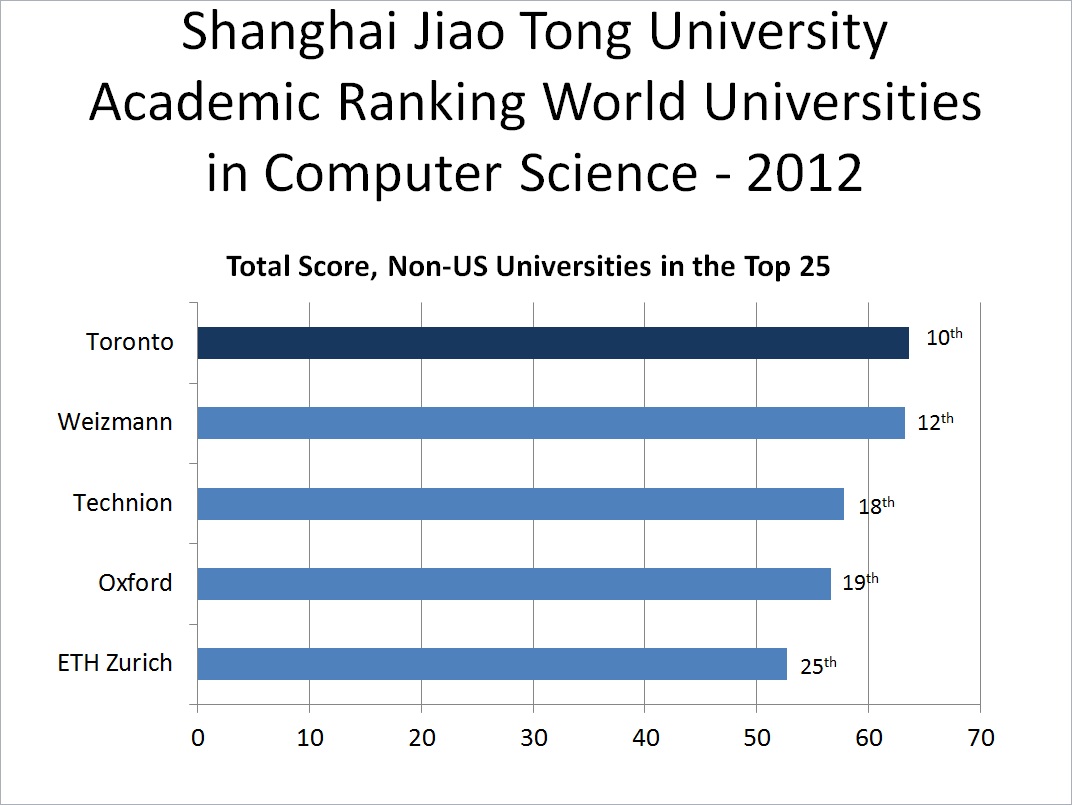
Of course, the University of Toronto is in Canada, so a comparison to other schools in Canada is also illustrative. For Computer Science, on the Shanghai ranking, there seems to be no close Canadian rival. In 2012, UBC comes closest, being a only a few points short of breaking into the top 25, but all other Canadian schools rank well back:
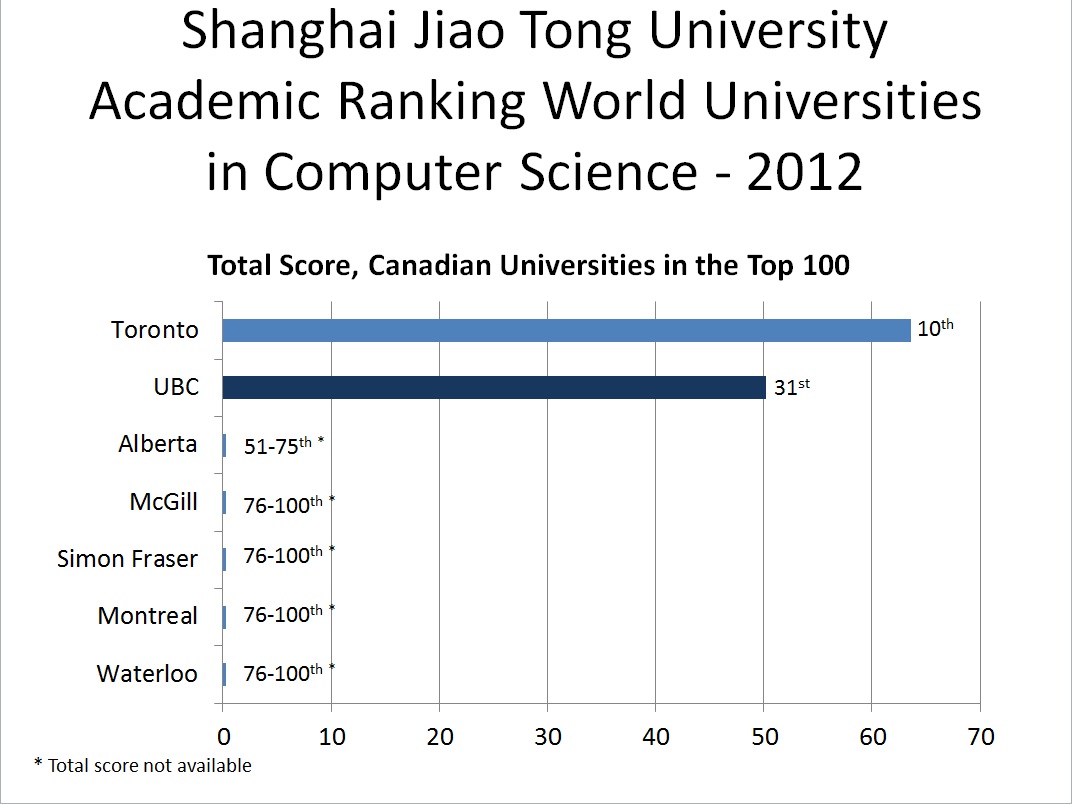
Even compared to other disciplines that have Shanghai rankings (only science, social science, and related disciplines seem to be ranked), Toronto's pre-eminence in Computer Science in Canada is striking:
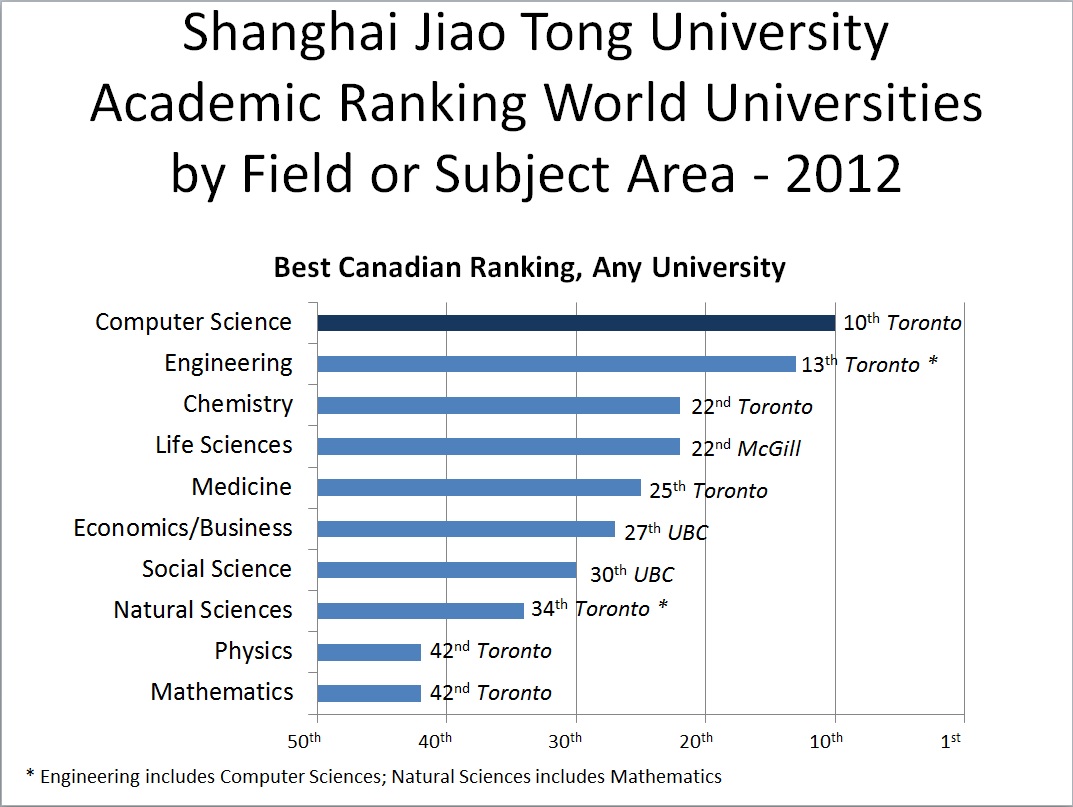
From a score-keeping perspective, I think we can conclude that the University of Toronto is doing very well in Computer Science with respect to other universities in Canada, and it is one of the few non-US schools that can keep up with the US in this field.
But all this needs to be put into perspective. After all, rankings are not a full picture, they're aggregations of metrics of varying value, they represent a formulaic approach to something (university education) that cannot always be so conveniently summarized, and they reflect methodologies chosen by the producers of the rankings, methodologies that may not always best reflect objective quality. Of course, if the University of Toronto were to climb to fifth, I'd be pleased, and if it were to drop to fifteenth, I'd be disappointed: surely the score-keeper in me can be allowed this much. But in the overall scheme of things, what matters most for Computer Science at Toronto is not our score on a ranking system, but the objective quality of our programme, the learning outcomes of our students, and the impact of our research, and these things, not our score on rankings, must always remain our top priorities.
Wed 22 Aug 2012 14:07
Intel desktop CPU price-performance: Hyperthreading not helping?
Typically, CPU prices follow performance. Faster CPUs command higher
prices; slower CPUs are available for less. Recent Intel desktop CPUs
continue to show this general pattern, but there appears to be more to the
story than usual.
At first glance, everything seems to be what you would expect. Using current pricing in US$ at time of writing from newegg.com, we get:
| Processor | PassMark | Price | PassMark/$ | Price-Performance vs G640 |
|---|---|---|---|---|
| Pentium G640 | 2893 | $79 | 36.6 | 100% |
| i3-2120 | 4222 | $125 | 33.8 | 92.2% |
| i5-3570 | 7684 | $215 | 35.7 | 97.6% |
| i7-3770 | 10359 | $310 | 33.4 | 91.3% |
But what happens if we look at a more real-life benchmark? Consider SPEC CPU 2006 Integer (CINT2006) Baseline. For each CPU, I used the CINT2006 Baseline results from the most recently reported Intel reference system, as reported on spec.org. In the case of the G640, no Intel reference system was reported, so I used the results for a Fujitsu Primergy TX140 S1p.
| Processor | CINT2006 Base | Price | CINT/$ | Price-Performance vs G640 |
|---|---|---|---|---|
| Pentium G640 | 34.4 | $79 | 0.44 | 100% |
| i3-2120 | 36.9 | $125 | 0.30 | 67.8% |
| i5-3570 | 48.5 | $215 | 0.23 | 51.8% |
| i7-3770 | 50.5 | $310 | 0.16 | 37.4% |
A look at hyperthreading may provide some answers. Intel hyperthreading is a feature of some Intel CPUs that allow each physical core to represent itself to the OS as two different "cores". If those two "cores" simultaneously run code that happens to use different parts of the physical core, they can proceed in parallel. If not, one of the "cores" will block. The i3 and i7 CPUs offer hyperthreading, the Pentium G and i5 do not. It turns out that the PassMark benchmark sees significant speedups when hyperthreading is turned on. SPEC CINT2006, and many ordinary applications, do not.
What about SPEC CINT2006 Rate Baseline, then? The SPEC CPU Rate benchmarks measure throughput, not just single-job performance, so maybe hyperthreading helps more here? Let's see:
| Processor | CINT2006 Rate Base | Price | Rate Base/$ | Price-Performance vs G640 |
|---|---|---|---|---|
| Pentium G640 | 61.7 | $79 | 0.78 | 100% |
| i3-2120 | 78.8 | $125 | 0.63 | 80.7% |
| i5-3570 | 146 | $215 | 0.68 | 87.0% |
| i7-3770 | 177 | $310 | 0.57 | 73.1% |
What does this mean, then? It suggests the increase in price from a non-hyperthreaded to a hyperthreaded Intel desktop processor may reflect more an increase in PassMark performance than an increase in real performance. Hyperthreading may have a positive effect, it seems, but typically not as much as PassMark suggests. At present, for best real-world price-performance in Intel desktop CPUs, I would consider models without hyperthreading.
Tue 26 Jun 2012 16:56
How to avoid being fooled by "phishing" email.
A "phishing" email is an email message that tries to convince you to
reveal your passwords or other personal details. Most often, it tries
to send you to a website that looks like the real thing (e.g. your bank or
your email provider) but is really a clever duplicate of the real website
that's set up by crooks to steal your information. Often the pretence looks
authentic. If you fall for it and give your password or other personal
details, criminals may steal your identity, clean out your bank account,
send junk email from your email account, use your online trading account
to buy some penny stock you never heard of, send email to all the people
in your address book telling them you're stranded in a foreign country and
need them to wire money immediately, or do any number of other bad things.
But there's a really easy way to avoid being fooled by phishing messages. If you get a message that asks you to confirm or update your account details, never, ever go to the website using a link that is in the email message itself. Remember, anyone can send you a message with any sort of fraudulent claim, containing any number of links that pretend to go to one place, but really go to another. So if you feel you must check, go to the website that you know for sure is the real thing: use your own bookmark (or type in the URL yourself), not the link in the message.
Thu 15 Dec 2011 15:14
Dealing with unsolicited salescalls (cold calls).
For many years, I've been plagued by unsolicited salescalls. It's not very hard to find my phone number, and various people (mostly in the IT realm) call me up out of the blue hoping to sell me something. The interruption is unwelcome, even if the product isn't.
For some years now, my policy is to explain to the caller that I don't accept unsolicited salescalls, sincerely apologize, and end the call. Occasionally, I am then asked how I am to be contacted. I explain that I prefer to do the contacting myself: when I have a need, I am not too shy to contact likely vendors and make inquiries about their products.
Occasionally I run into someone who is offended by my unwillingness to take their unsolicited salescall. I do feel more than a little sympathy for the salesperson when this happens: I imagine they may think I objected to something they did, or to their manner. The fact is, I handle all unsolicited salescalls this way. As for whether it is intrinsicly offensive to reject unsolicited salescalls out of hand, I don't think it is. Indeed, it is natural for a salesperson to want their salescall, even if unsolicited, to be better accepted. But it is unreasonable for any salesperson to expect that unsolicited sales inquiries to strangers will always be welcome. But I do apologize, each time, and in general, when I so quickly end telephone conversations with salespersons who call me out of the blue.
Dear reader, if you are a salesperson, and you are tempted to contact me to sell me something, please do not call. Instead, just advertise generally (and if you must, send me some mail in the post). Trust me to find you when the need arises. I frequently do.