Style API
A user is able to add custom styling to an object
(of the list of objects to be drawn on canvas) by
adding an attribute named style which maps to an object of the
following format:
style : {
    "text_id" : {},
    "text_type" : {},
    "text_value" : {},
    "box_id" : {},
    "box_type" : {},
    "box_container" : {},
}
The object has up to six attributes (the ones observed above), each corresponding to a particular component of an object with the potential to be styled.
Crucially, each of the attributes in the style object (if user passes in an Object)
refer themselves to another object:
- Text-related attributes can contain any attribute specified in the documentation of the text element for svg graphics, found on https://developer.mozilla.org/en-US/docs/Web/SVG/Element/text.
- Box-related attributes can contain any styling attributes specified in the documentation of the rough library, found on https://roughjs.com/ and https://github.com/rough-stuff/rough/wiki.
Custom styling
Styling the id
The text in the id box can be styled with text_id, and the box can be styled with box_id.
Example
[
    {
        "type": "int",
        "id": 54,
        "value": 4,
        "style": {
            "text_id": { "font-style": "italic" },
            "box_id": { "fillStyle": "dots" }
        }
    }
]
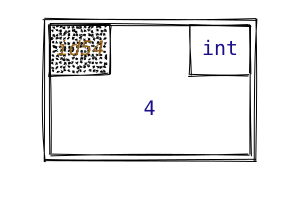
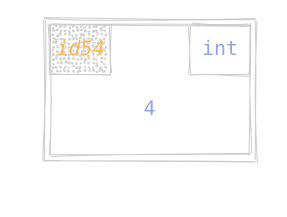
Styling the type
Similarly, the text in the type box can be styled with text_type and the box can be styled with box_type.
Example
[
    {
        "type": "int",
        "id": 54,
        "value": 4,
        "style": {
            "text_type": { "font-style": "italic" },
            "box_type": { "fill": "green" }
        }
    }
]
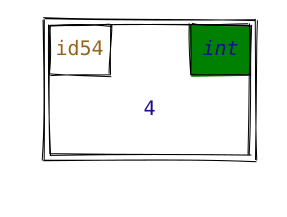
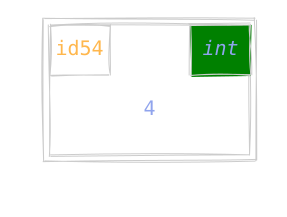
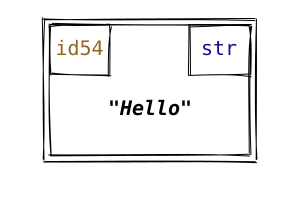
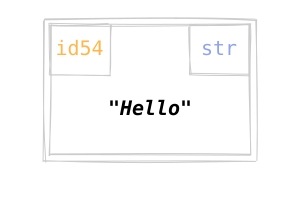
Styling the value
You can also style the value itself, using text_value.
Example
[
    {
        "type": "str",
        "id": 54,
        "value": "Hello",
        "style": {
            "text_value": {
                "font-style": "italic",
                "font-weight": "bold",
                "fill": "black"
            }
        }
    }
]
Styling the box
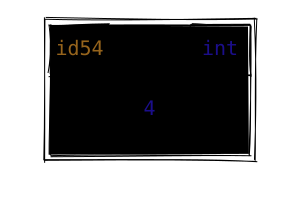
Finally, you can style the entire box using box_container.
Example
[
    {
        "type": "int",
        "id": 54,
        "value": 4,
        "style": {
            "box_container": { "fill": "black" }
        }
    }
]
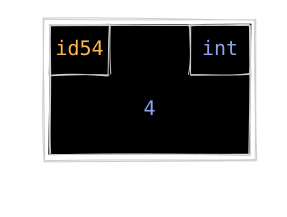
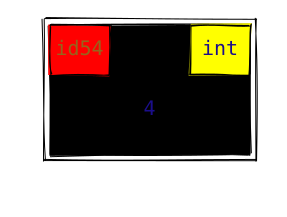
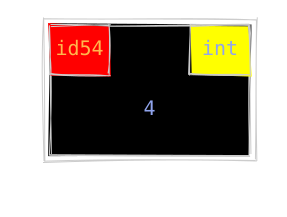
Note that this can be used in combination with other styling.
Example
[
    {
        "type": "int",
        "id": 54,
        "value": 4,
        "style": {
            "box_id": { "fill": "red" },
            "box_type": { "fill": "yellow" },
            "box_container": { "fill": "black" }
        }
    }
]
Styling for compound objects
For compound objects such as lists, tuples, sets, and dictionaries, the user is able to style specific smaller boxes.
Lists/Tuples/Sets
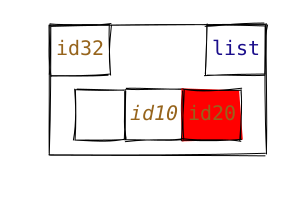
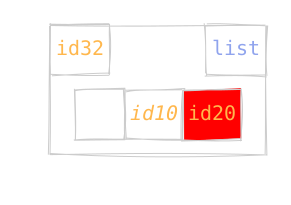
For lists, tuples, and sets, the user is able to style the smaller, inner boxes by referring to its index.
Example
[
    {
        "type": "list",
        "id": 32,
        "value": [null, 10, 20],
        "style": {
            "box_compound": {
                "2": { "fill": "red" }
            },
            "text_compound": {
                "1": { "font-style": "italic" }
            }
        }
    }
]
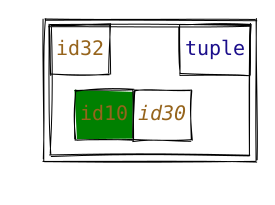
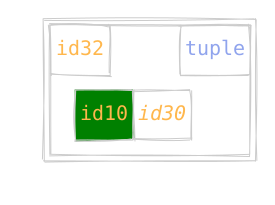
Example
[
    {
        "type": "tuple",
        "id": 32,
        "value": [10, 30],
        "style": {
            "box_compound": {
                "0": { "fill": "green" }
            },
            "text_compound": {
                "1": { "font-style": "italic" }
            }
        }
    }
]
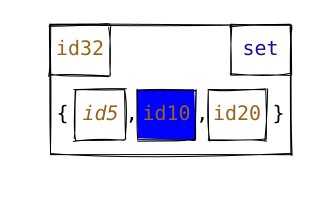
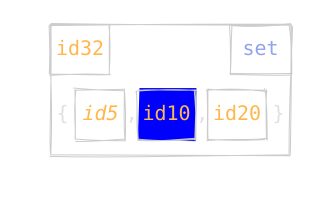
Example
[
    {
        "type": "set",
        "id": 32,
        "value": [5, 10, 20],
        "style": {
            "box_compound": {
                "1": { "fill": "blue" }
            },
            "text_compound": {
                "0": { "font-style": "italic" }
            }
        }
    }
]
Dictionaries
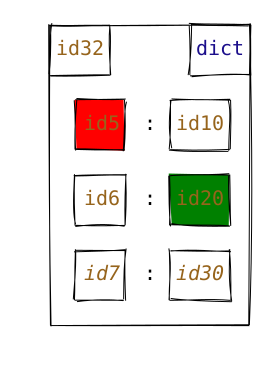
For dictionaries, the user is able to style the specific key-value pairs by first specifying its index, with optional key or value styles.
Example
[
    {
        "type": "dict",
        "id": 32,
        "value": { "5": 10, "6": 20, "7": 30 },
        "style": {
            "box_compound": {
                "0": { "key": { "fill": "red" } },
                "1": { "value": { "fill": "green" } }
            },
            "text_compound": {
                "2": {
                    "key": { "font-style": "italic" },
                    "value": { "font-style": "italic" }
                }
            }
        }
    }
]
Presets
In case the user does not want to get their hands dirty with specific DOM (and RoughJS) attributes for configuring the style of an object, they have the option specify a preset, which represents an umbrella of different styling attributes that are combined to produce a particular effect, such as "highlighting" an object, or "hiding" a particular component of it.
To declare the desired preset, the user must assign it to the style attribute
(e.g. style: "highlight").
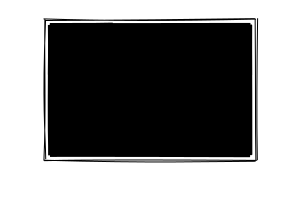
highlight
When the keyword highlight is provided as the value for the style attribute, there will be significant
changes on the appearance of the container. In terms of the boxes (the container representing the data, the id box
if applicable and the type box), the lines will be bolder, and there will be less roughness (lines would be more still
than usual). In terms of the texts (the text representing the id, type and the value), the font size will be bigger,
and they will appear bolder than default.
Example
[
    {
        "type": "str",
        "id": 19,
        "value": "Highlight",
        "style": ["highlight"]
    }
]
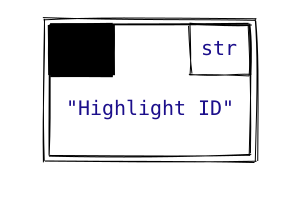
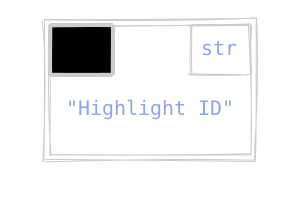
highlight_id
When the keyword highlight_id is provided as the value for the style attribute, there will be significant
changes on the appearance of the container. In terms of the id box the lines will be bolder, and there will be
less roughness (lines would be more still than usual). In terms of the id text, the font size will be bigger, and it
will appear bolder than default.
Example
[
    {
        "type": "str",
        "id": 20,
        "value": "Highlight ID",
        "style": ["highlight_id"]
    }
]
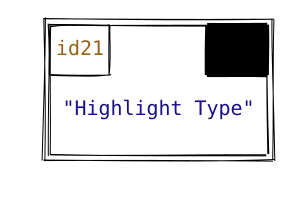
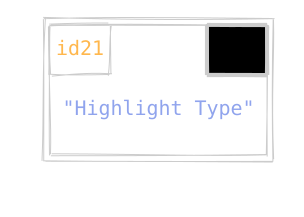
highlight_type
When the keyword highlight_type is provided as the value for the style attribute, there will be significant
changes on the appearance of the container. In terms of the type box the lines will be bolder, and there will be
less roughness (lines would be more still than usual). In terms of the type text, the font size will be bigger, and it
will appear bolder than default.
Example
[
    {
        "type": "str",
        "id": 21,
        "value": "Highlight Type",
        "style": ["highlight_type"]
    }
]
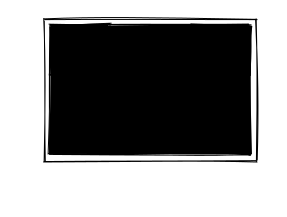
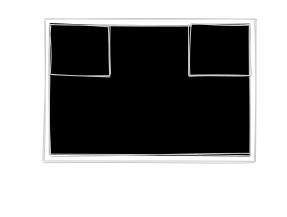
hide
It makes all three major boxes (type box, id box, and the surrounding container box) all blank (white).
Example
[
    {
        "type": "str",
        "id": 25,
        "value": "Hide",
        "style": ["hide"]
    }
]
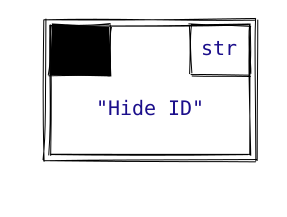
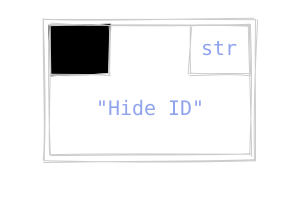
hide_id
It will make the id box blank (white).
Example
[
    {
        "type": "str",
        "id": 26,
        "value": "Hide ID",
        "style": ["hide_id"]
    }
]
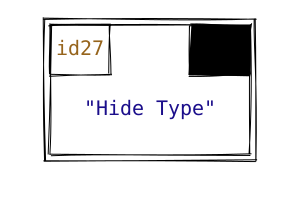
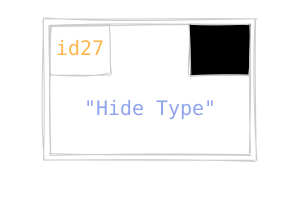
hide_type
It will make the type box blank (white).
Example
[
    {
        "type": "str",
        "id": 27,
        "value": "Hide Type",
        "style": ["hide_type"]
    }
]
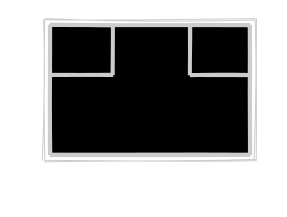
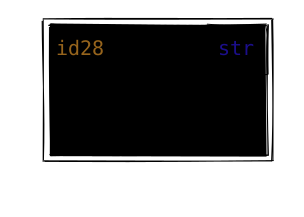
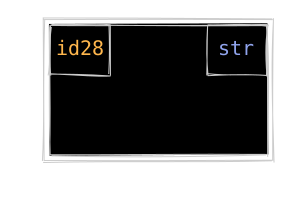
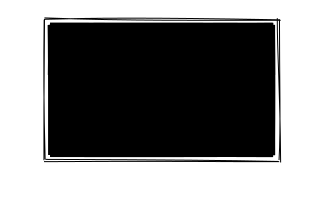
hide_container
It will make the container box blank (white), but not the type and id boxes.
(NOTE: this is not currently supported for sequences).
Example
[
    {
        "type": "str",
        "id": 28,
        "value": "Hide Container",
        "style": ["hide_container"]
    }
]
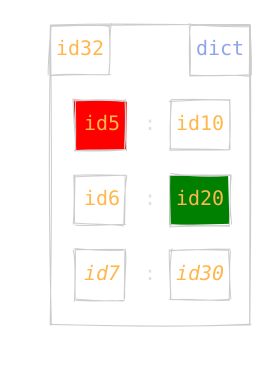
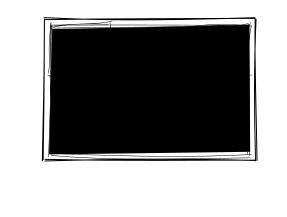
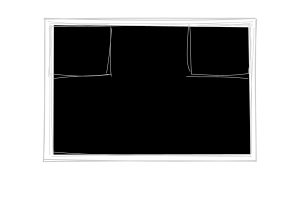
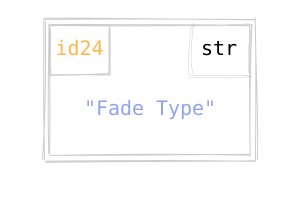
fade
It will "fade" the box.
Example
[
    {
        "type": "str",
        "id": 22,
        "value": "Fade",
        "style": ["fade"]
    }
]
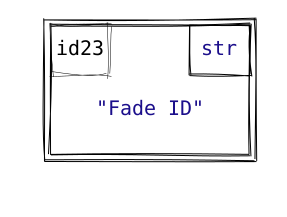
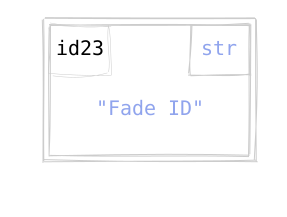
fade_id
It will "fade" the id sub-box.
Example
[
    {
        "type": "str",
        "id": 23,
        "value": "Fade ID",
        "style": ["fade_id"]
    }
]
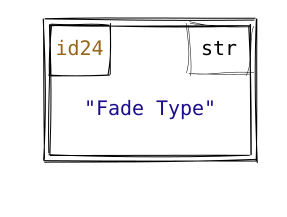
fade_type
It will "fade" the type sub-box.
Example
[
    {
        "type": "str",
        "id": 24,
        "value": "Fade Type",
        "style": ["fade_type"]
    }
]
Mixture of style and custom styling
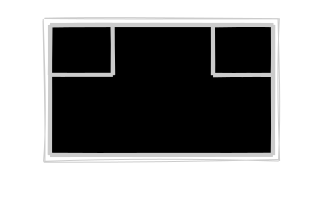
Additionally, the user can pass in an array for the style attribute. This array can be a mixture of presets (name of the preset in the string data format) and a user-defined Object. To better illustrate this, here is an example:
Example
[
    {
        "type": "str",
        "id": 43,
        "value": "David is cool",
        "style": [
            "highlight",
            "hide_type",
            { "text_id": { "font-style": "italic" } }
        ]
    }
]
Insights for the Implementation
The user specifies a desired style for each of the objects in the list.
Merging
First, there is a default object that contains all key-value pairs of style attributes
that (be default) are common across objects of all types. This object is called common_style.
Then we use a list objects to represent some styling properties specific to certain type categories
(for instance, text_value for collections need to have the id color by default, which
is not true for primitive types). The deepmerge library is used to merge the common styles
mentioned above with these category-specific styles.
Finally, any user-supplied styling attributes are merged to the current style object. This is the second and final merge.
Cascade
The above "merging" procedure takes place inside the drawAll method (using the
populateDefaultStyle helper function).
Then, inside the drawClass and drawObject methods (which are called from within
drawAll), for every invocation of drawText and drawRect (responsible for drawing
text and boxes, respectively), the corresponding attribute of the object's style
object is passed (for instance, in the case where drawText is called to draw the id value
inside the id box, style.text_id is passed as an argument to drawText).
Finally, inside drawText and drawRect, we loop through all the attributes of the
passed style object, and apply each of those in the appropriate manner (
for drawRect, you simply pass the style when initializing a rectangle by doing
this.rough_svg.rectangle(x, y, width, height, style), and with the text element you
use the DOM method setAttribute by doing newElement.setAttribute(style_attribute, style[style_attribute])
).
Thus, the style is cascaded down from user to drawText/drawRect as follows:
user-defined style --> drawAll --> drawClass/drawObject --> drawText/drawRect
To illustrate, here is an example:
Example
[
    {
        "type": "str",
        "id": 10,
        "value": "Hello",
        "style": [
            "highlight",
            "fade",
            {
                "text_id": { "font-style": "italic" }
            }
        ]
    }
]
Notice that the highlight preset was overrode by the hide preset, but the user-supplied stylings are still present since they are applied last.
Defining a custom theme
.memory-viz-diagram[data-theme="oceanic-light"] {
    --highlight-value-text-color: #014f86;
    --highlight-id-text-color: #008c9e;

    --fade-text-color: #5c7382;
    --hide-text-color: #ffffff;

    --highlight-box-fill: #caf0f8;
    --highlight-box-line-color: #0077b6;

    --fade-box-fill: #dbeeff;
    --fade-box-line-color: #90e0ef;

    --hide-box-fill: #ffffff;
}
.memory-viz-diagram path {
    stroke: #113b48;
}
.memory-viz-diagram {
    background-color: #ffffff;
}
This example demonstrates how to define a custom theme using CSS variables. The oceanic-light theme customizes the
appearance of preset styles such as "highlight", "fade", and "hide". Additionally, the path and root svg elements,
representing the rough.js shapes and drawing canvas respectively, are styled to have a specific stroke and background color.
To use this theme, include your custom CSS using the --global-style flag and enable the theme by passing
--theme=oceanic-light in the CLI.
All CSS generated by MemoryViz, including custom themes, is scoped under the memory-viz-diagram
class, which is applied to the diagram's root <svg> element. This ensures a diagram's styles only
ever affect elements nested within that diagram, and won't leak onto unrelated content when the SVG
is embedded directly into a host page. When writing custom CSS via --global-style or a custom theme,
scope your selectors under .memory-viz-diagram (or the svg element itself, as shown above) rather
than targeting elements like path or svg globally.