How
to Book CSC BA 4242 Using Microsoft (MS)
Outlook
If
CSC BA 4242 (located in the Bahen Centre for
Information Technology) is a room that you have booked in the past or might
book in future, please follow the steps below:
Step 1) Add "CSC
BA 4242" as a shared calendar in MS Outlook
By
opening and adding CSC BA 4242 as a shared calendar to your MS Outlook account,
this will allow you to view the room's availability alongside your own calendar
(or any other shared calendars) at any point. This is a one-time step at
the outset that you will not need to repeat.
Note:
This process is much like opening, adding and viewing an
individual's shared calendar in MS Outlook (e.g., when consulting someone's schedule
to book a meeting with them).
Below are the
steps to open and add the shared
calendar for CSC BA 4242 using
the MS Outlook desktop application:
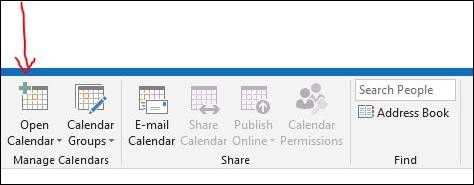
I) Click
on "Open Calendar"
>> select "Open Shared
Calendar"
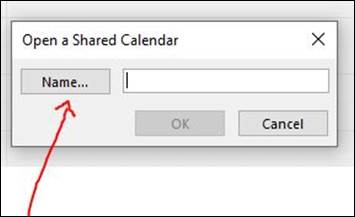
II) Click on "Name..." This
will generate a new “Open Shared Calendar” search window.
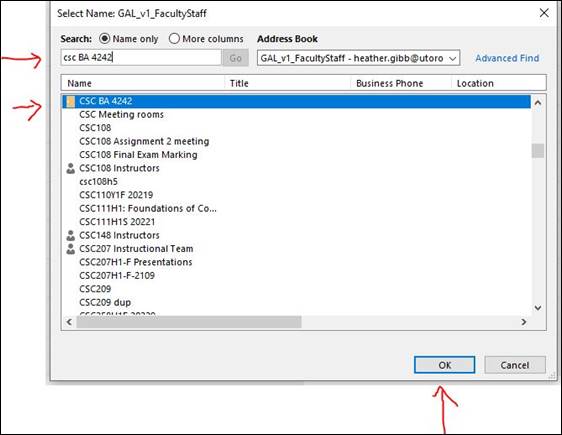
III) Enter
"CSC BA 4242" in the empty
search field. Select "CSC BA 4242" from the list of calendars that
will appear in the directory. Click "Ok."
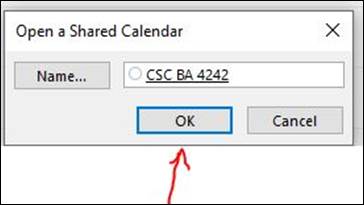
IV) CSC BA 4242 will now appear in the “Open Shared
Calendar” window. Click “Ok.”
V) The full calendar
for CSC BA 4242 (showing the availability of this room) should now be visible
to you. When making a booking, please first consult this calendar to confirm when
the room is available. To book the room, proceed to step 2) Book the room (see below).
Step 2) Book
the Room
Once
you have added CSC BA 4242 as a shared calendar (Step 1 above) and have
consulted this calendar to confirm the room's availability at a specific point
in time, you can book the room by following the steps below.
Note:
this process is very similar to booking a meeting in MS Outlook.
If you are
using the MS Outlook desktop application:
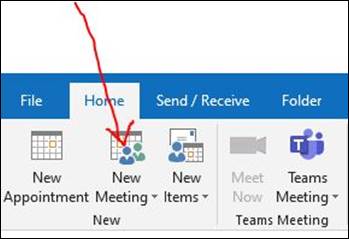
I) Click
on "New Meeting" to generate
a new meeting invitation.
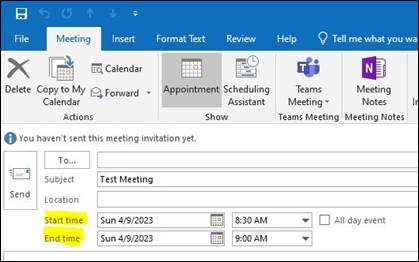
II) Enter
the date and time of your booking.
III) To
the far right of the “Location” field, click on the "Rooms..." tab.
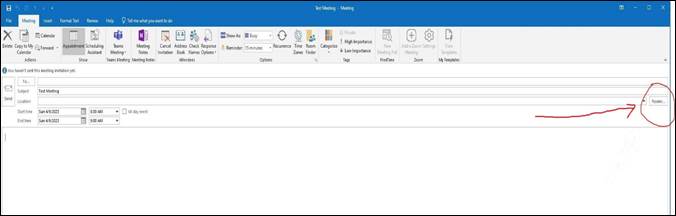
(A closer view of the “Rooms...” tab.)

IV) A new window containing the directory of
rooms will open. Enter "CSC BA 4242"
in the empty "search" field and select this room from the list once
it appears. Click "Ok."
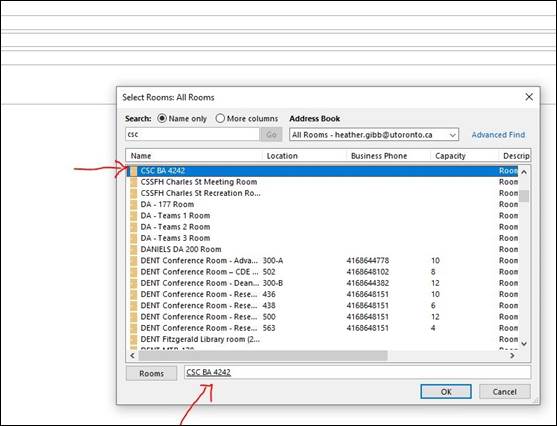
V) CSC BA 4242 should now be added as the
"location" to your
meeting invitation and the room booking email should have been automatically added
to the "recipient "field.
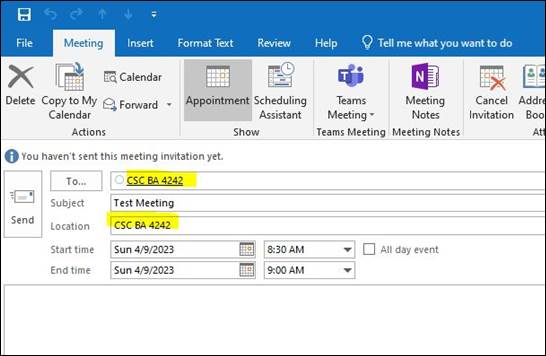
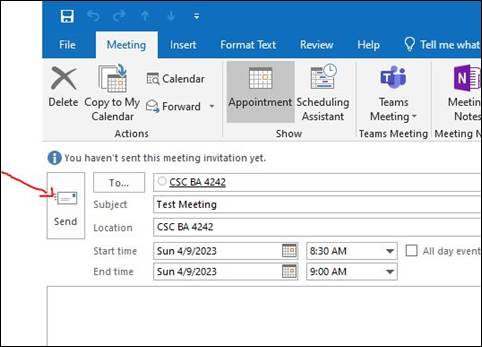
VI) Once you confirm that all details are
added to the invitation, click "Send."
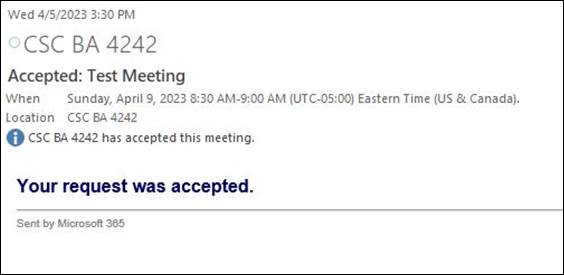
VII) Please wait to receive a confirmation email indicating
that the booking request has been accepted (see example below). Note: the room booking is not considered confirmed or finalized until
you have received a confirmation email:
Example of confirmation email
If you
encounter any technical issues or need
assistance with the steps above, please contact Lloyd Smith (lloyd@cs.toronto.edu) or Ingrid Varga (vargai@cs.toronto.edu).